Operation
20 Operators manual
Handheld Multi-Purpose Interface (HHMPI)
4.2.2 Creating an Aircraft List on a PC
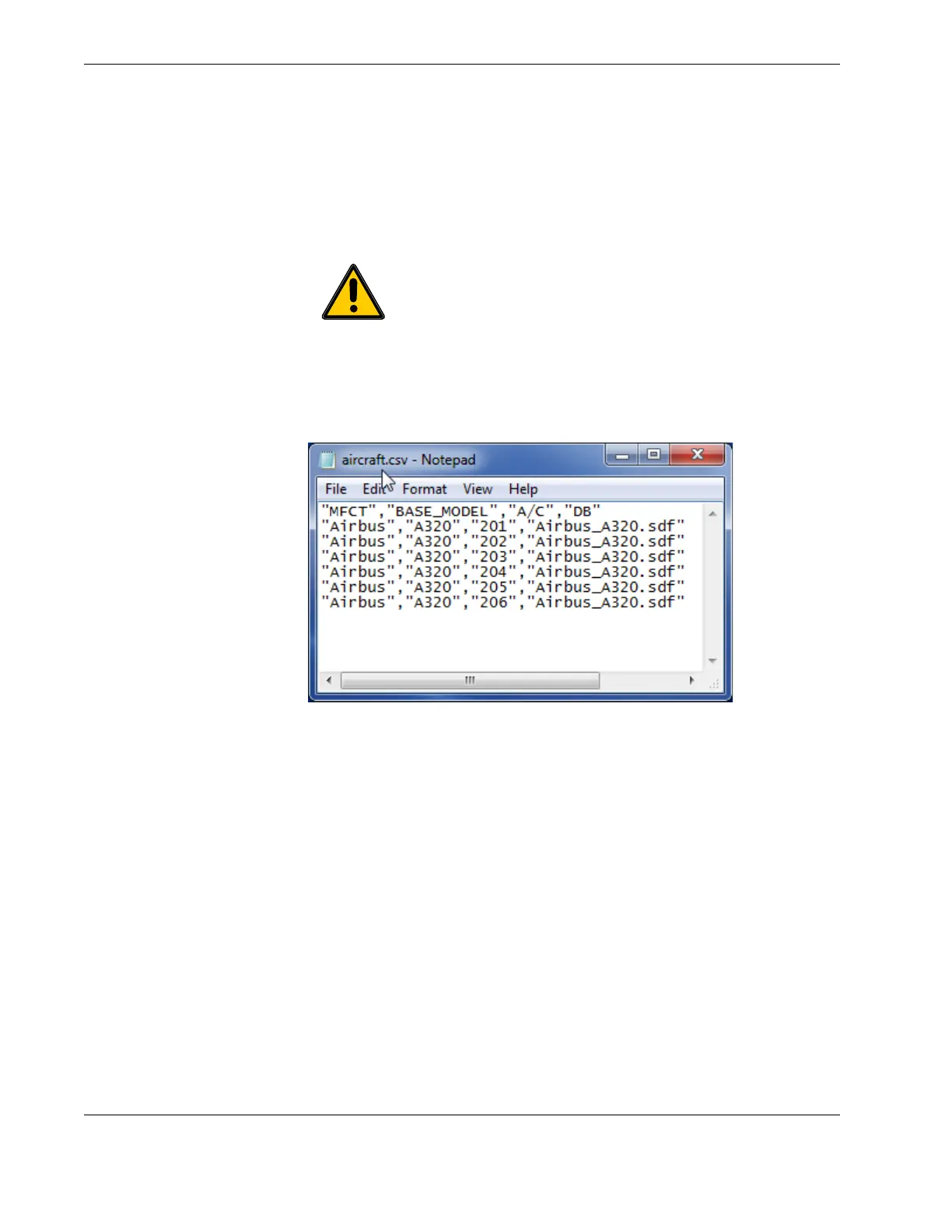
The Aircraft List can be created on a PC using a text editor, such as Notepad, or in a
Spreadsheet application, such as Excel, and exported as comma separated variable (.csv)
file. Figure 10.0, ”Creating an Aircraft List in Notepad”, on page 20.
Figure 10.0 Creating an Aircraft List in Notepad
Save or export the file to a USB flash drive as aircraft.csv. If an Aircraft List is not present,
data file names will default to _[aircraft tail number]_[date[_time]]_download type.ext.
4.2.3 Transferring the Aircraft List to the HHMPI
To transfer the Aircraft List to the HHMPI, insert the USB flash drive containing the file
named aircraft.csv into the USB port on top of the HHMPI.
1. From the Main Menu, press down until you reach the Device Configuration com-
mand, and then press right.
2. Press down until you reach the Settings Profile command, and then press right.
3. Press down until you reach the Load Aircraft command, and then press right.
4. Select where the file named aircraft.csv is located, and then press right.
Important The file must be named aircraft.csv and the data fields
must be separated by a comma with each record separated by a car-
riage return (ASCII CR-LF).
Although not shown to the operator, the manufacturer field (MFCT)
must also be present. However, the aircraft definition filed (DB) is
only required for the Engineering Units (EU) function, see Section 4.5,
”Viewing live flight data in engineering units” on page 29.
▼▲
Main Menu > Device Configuration > Settings Profile > Load Aircraft


 To Next Page