Troubleshooting
44 Operators manual
Handheld Multi-Purpose Interface (HHMPI)
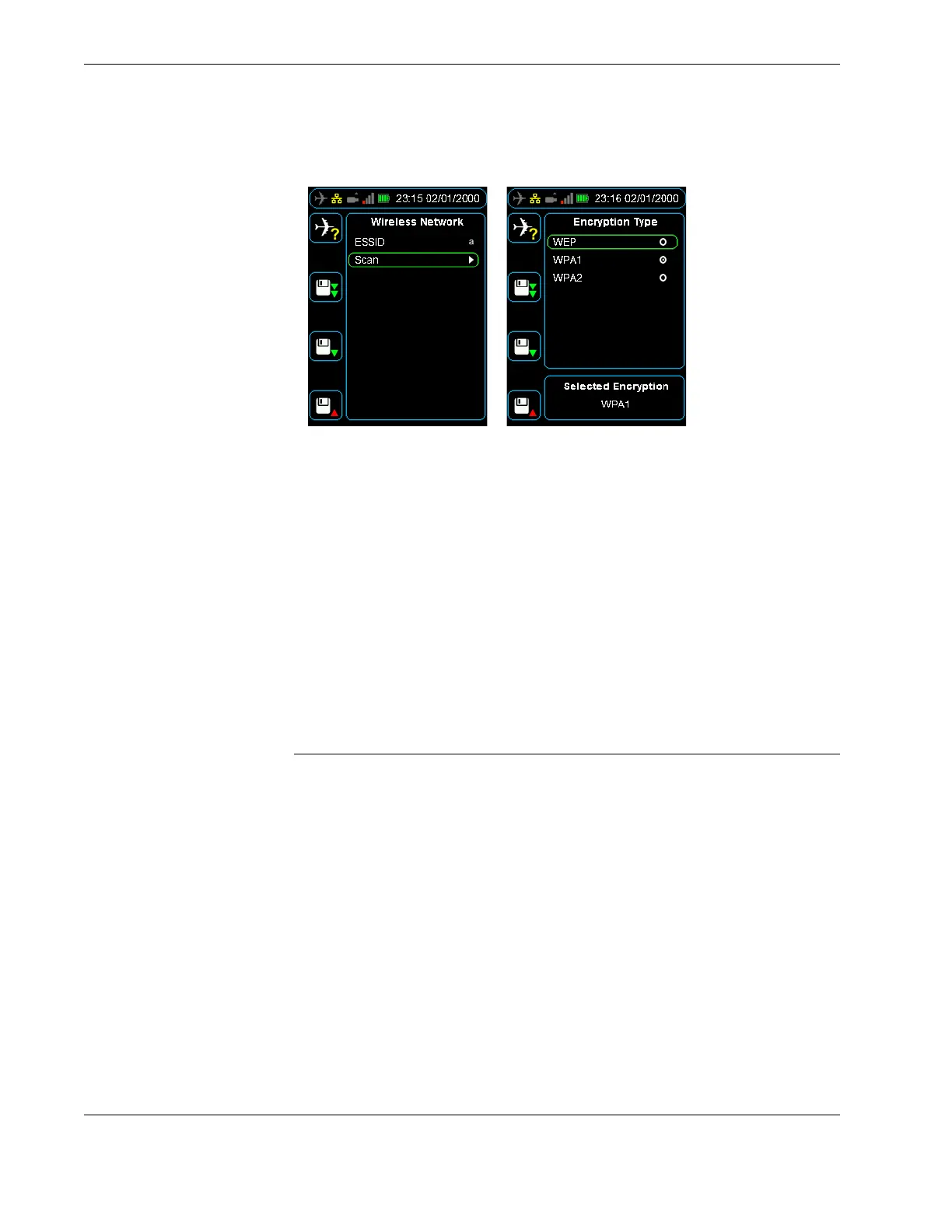
Figure 36.0 Configuring security settings like the encryption type and key
6.1.4 Uploading files via FTP with a wireless network connection
When the HHMPI is connected to a wireless network, files saved on the HHMPI, or on
one of its external storage devices, can be uploaded wirelessly to a server via FTP.
To upload files via FTP with a wireless network connection, ensure:
That the HHMPI is connected to a wireless network. From the Main menu, press
down until you reach the Network Operations command, then press down until you
reach the View Wireless Address command, and then press right. If the HHMPI is
connected to a wireless network it will display an IP address assigned by the wireless
router.
That the FTP settings have been configured. See Section 5.0, ”Configuring an FTP
connection” on page 34.
7.0 Troubleshooting
To troubleshoot the HHMP, first try the following steps:
Turn the HHMPI on and off by following the steps in Section 3.2.4, ”Turning on the
HHMPI and self-test” on page 16.
If this did not work, try connecting the HHMPI to a power adapter and plug the
power adapter into an electrical outlet, or connect the HHMPI to your computer.
Make sure the computer is turned on and isn’t set to go to sleep.
If this does not work, try resetting the HHMPI by following the steps in Section 3.2.5,
”Reset operation” on page 16.
Retry the HHMPI with a different recorder if possible.
Restart the recorder if possible and try again.
If these steps do not solve your problem, below is a list of potential problems and solu-
tions. If your problem is not listed, use the Report Error menu option (if possible) on the
HHMPI, and send the generated file to support@flightdata.com.au with a description of
▼▲
Main Menu > Device Configuration > Report Error


 To Next Page