Operation
Operators manual 23
FDS 400-301
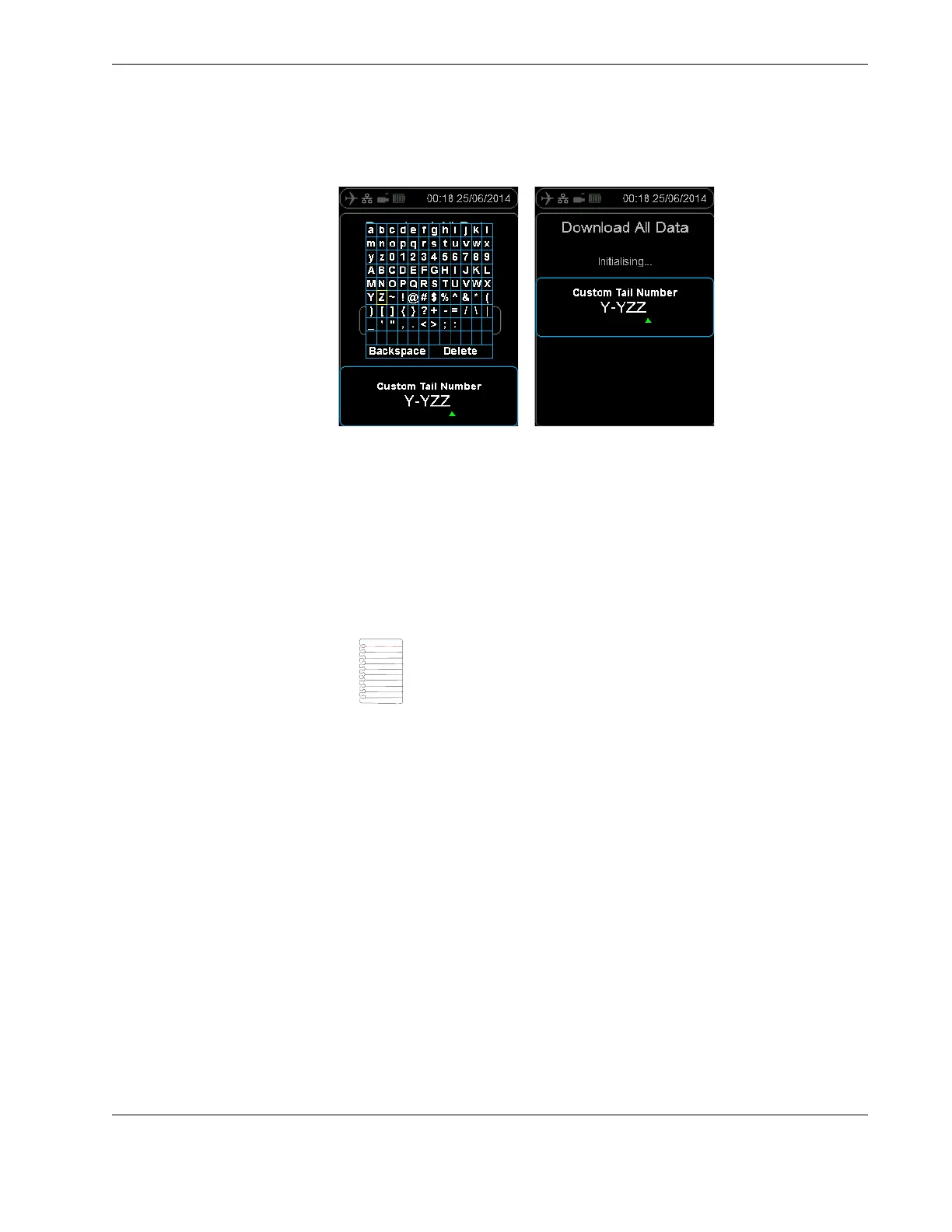
Figure 12.0 Configuring the prompt for tail number option
4.3 Downloading flight
data
The HHMPI can be used to download recorded data from the FDR and voice from the
CVR. It is connected to the recorder via an interface cable which identifies the attached
recorder type. When downloading flight data, the following procedure is generally used:
Create the Aircraft List, if required. See Section 4.2, ”Aircraft lists” on page 19. The Air-
craft List may be created and stored in a HHMPI to populate the aircraft tail variable
in the data file name. The manufacturer and model variables are not used in the data
file name.
Select the aircraft, model and tail number from the Aircraft List.
Start downloading flight data as follows.
4.3.1 Downloading recorded data from the FDR to a USB flash drive
To download flight data from the FDR to a USB flash drive:
1. Connect the HHMPI to the FDR with an interface cable, see Figure 7.0, ”Connecting
the HHMPI to the FDR or CVR”, on page 14.
2. Turn on the HHMPI and FDR. Once turned on, the start-up process begins and the
power-on self-test is carried out. If connected to the HHMPI, the interface cable is
detected automatically, and correct connection to the FDR is indicated by a blue air-
craft icon found in the status bar of the display.
3. Plug the USB flash drive into the USB port on the top of the HHMPI. An alert, USB
Drive Inserted, should appear monetarily.
An orange USB flash drive icon will also appear in the status bar indicating the HHMPI
is ready to write to the USB flash drive.
4. From the Main Menu, press down until you reach the Download Operations com-
mand, and then press right. Then press down until you reach the data you want to
Note If this step is omitted the file name will only include the time
stamp. If you want to force users to assign a tail number before an
operational download enable the Prompt for Tail No. command.
See Section 4.2.9, ”Prompt for Tail No.” on page 22.
▼▲
Main Menu > Download Operations


 To Next Page