Wirelessly uploading files from the HHMPI to a server
Operators manual 43
FDS 400-301
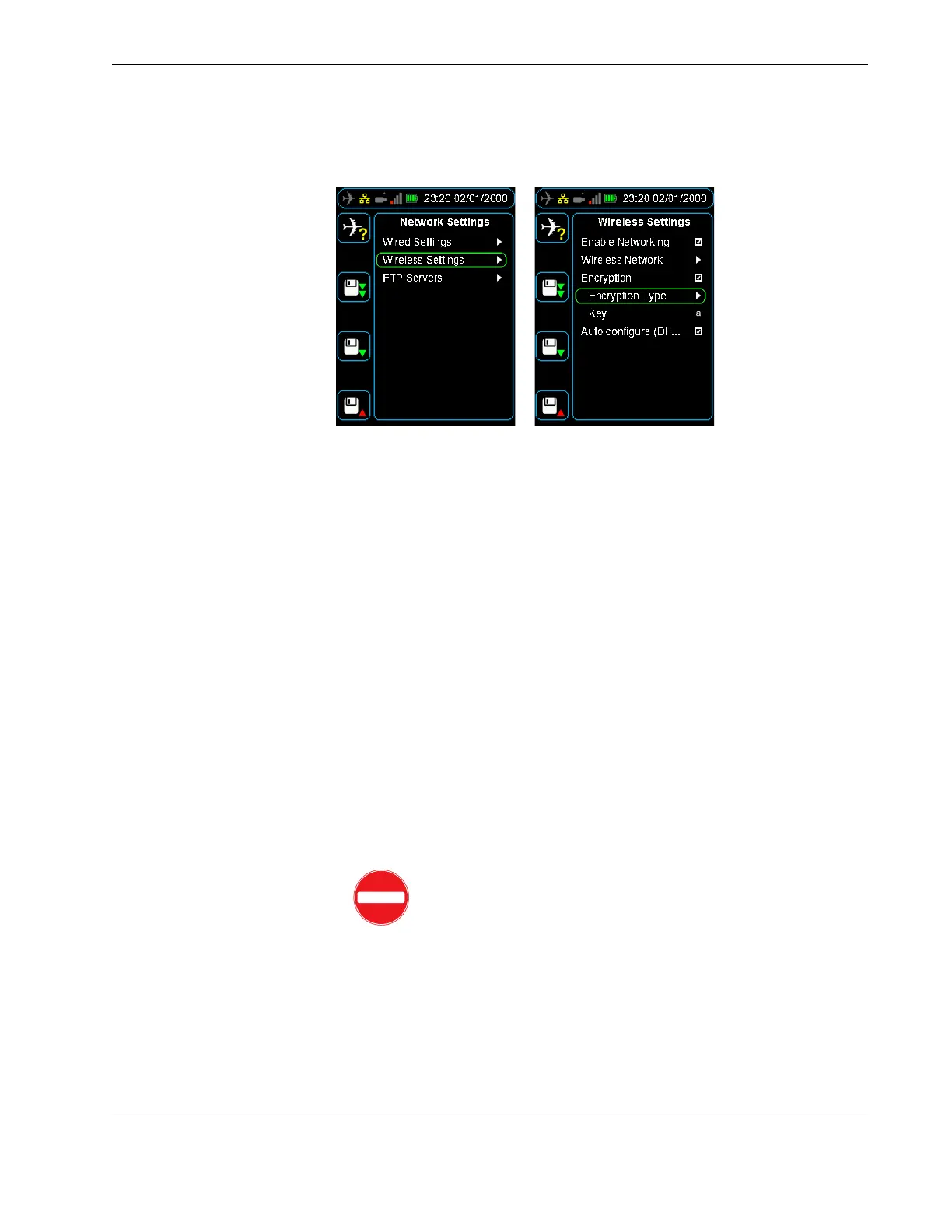
Figure 35.0 Connecting to a wireless network
6.1.3 Connecting to a wireless network
To connect to a wireless network, it is likely that you will need to configure some security
settings like the encryption type and key. To turn on encryption, from the Wireless Set-
tings menu:
Press down until you reach the Encryption command, and then press right to select
the Encryption check box.
To select an encryption type and enter a key, from the Wireless Settings menu:
1. Press down until you reach Encryption Type command, and then press right to
select the encryption type from the following commands: WEP, WPA1, and WPA2.
2. Press left to return to the Wireless Settings menu, then press down to select the
Key command, and then press right to enter the key.
3. Press up to enter the key from the alphabet grid with the arrow buttons, pressing OK
between each letter. When you are finished, press cancel and then OK to return to
the Wireless Settings menu.
If you have successfully connected to a wireless network, the white antenna icon in
the status bar will change to a green four bar signal strength icon. If this signal
strength icon does not appear, you are not connected to a wireless network and may
need to contact your IT department.
To save the encryption type and key, from the Device Configuration menu:
Press down until you reach the Save Settings command, and then press right.
Caution Using an unsecured wireless network may result in the loss
of sensitive information. See your IT department or contact Flight
Data Systems for more information on encryption.



 To Next Page