Victor Xu Page 58 12 Jan. 2011
Copyright 2011 © Shenzhen Runtianzhi Image Technology, Co., Ltd.
http://www.floradigital.com
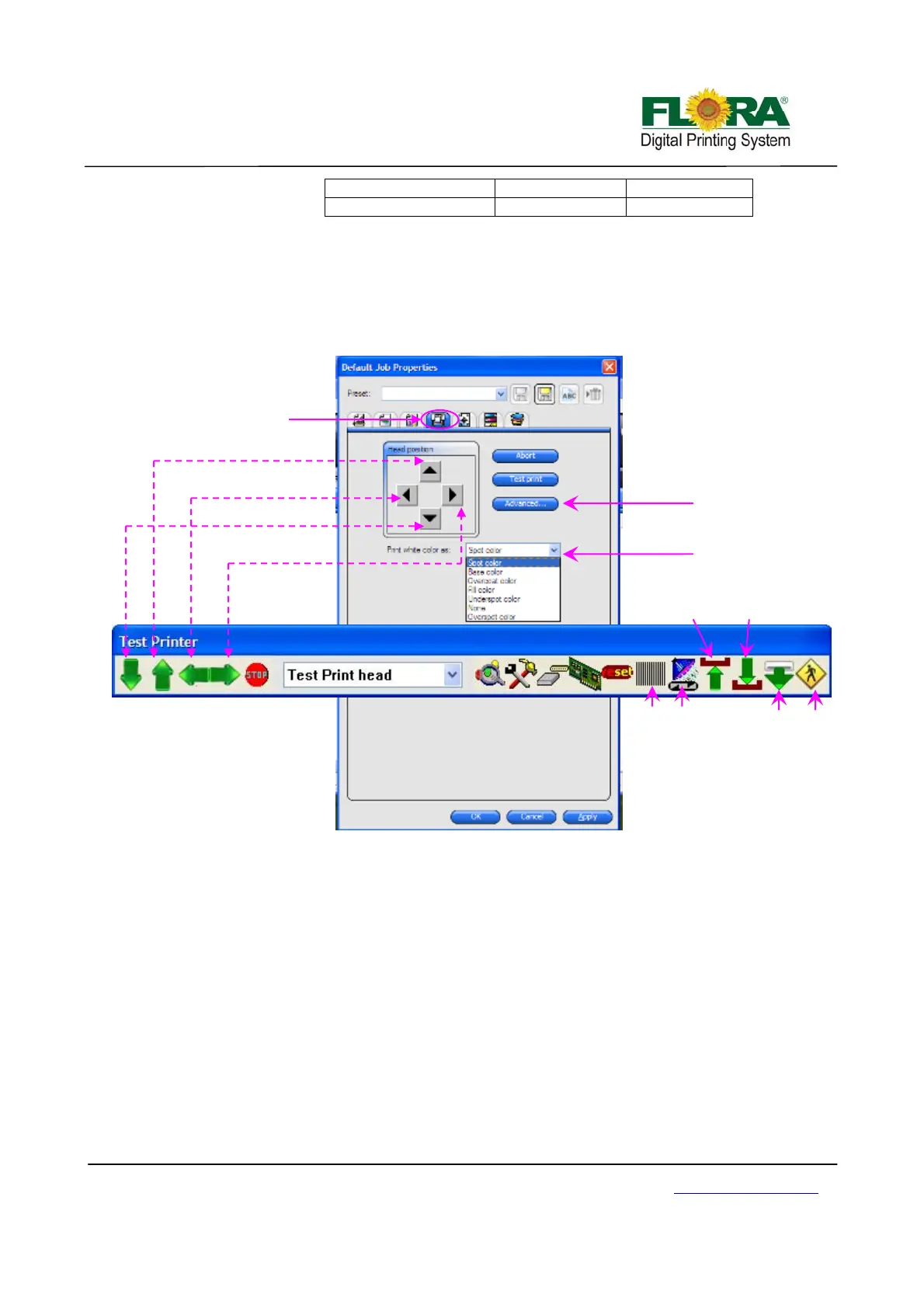
6.4.5 Test Print Tag
This test is being performed in order to verify the conditions of the Print head nozzles before
printing. It prints a swatch which could represent the nozzles to be firing on a definite order.
From the FloraPrint driver window, select “Test Print head” the drop-down list click on the
“Align colors” button.
6.4.6 Advance Button
Figures below will pop out when you click the advance button under job properties printer
option. The following pop out windows representing a printing parameter setting. They will appear
as soon as you click their designated button.
6.4.6.1 Page setting Tab
Ribbon:
-left: when this check box activated, the machine will print ribbon on the left side
of the image.
-right: when this check box activated, the machine will print ribbon on the right side
of the image.
-Width: set the width of the ribbon
-Space with image: define the space between ribbon and the image
Default setting:
-Media’s width: define the maximum size of the image can be printed
1,Color correction Box 2,ICC check box 3,Media check box
4,Resolution option box 5,Color mode box 6,Dither type box
Test print tag
White color mode
Refer to 6.4.1
Carriage move to right
Carriage move to left
Media move backward
Media move forward
Back to
origin
Exit
Raster
test
Auto
clean
Carriage
down
Carriage
up


 To Next Page