l
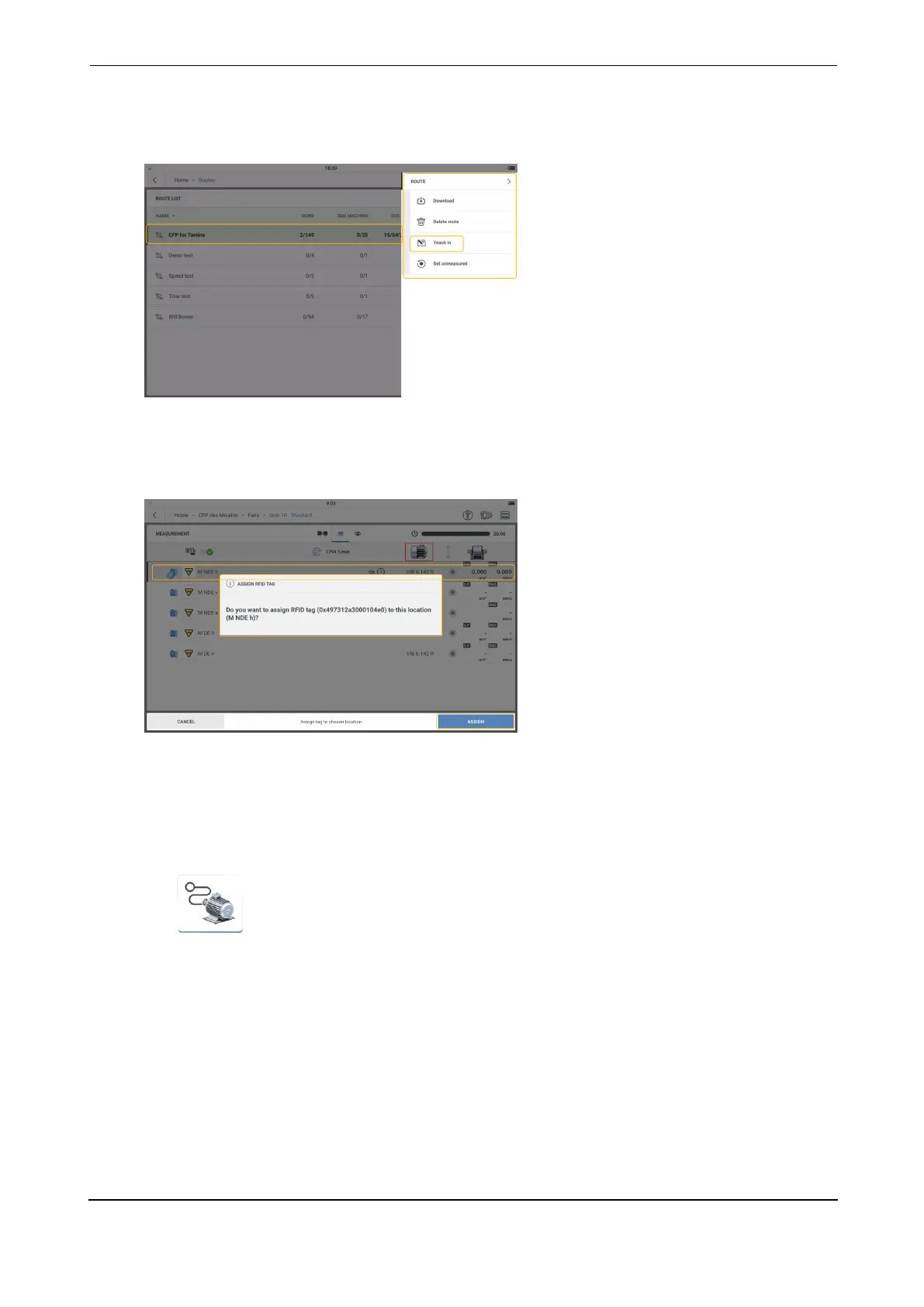
From the list that is shown, tap and hold the necessary route. The Route List context
menu is shown. Tap Teach in.
l
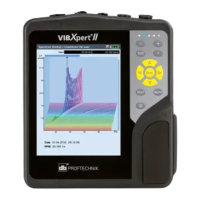
Open route then navigate to the measure location to be assigned the tag. Select the loc-
ation then place the tag as close as possible to the device reader module. A hint to assign
the RFID tag is shown.
l
Tap ASSIGN to complete.
l
Physically connect the assigned RFID tag to the asset measure location.
How to use the connected RFID tag when the route is measured
l
Tap the start screen Routes icon then navigate to the necessary route.
l
Open route then place the device reader module as close as possible to the RFID tag (to
within 5 mm if possible).
l
The assigned measure location opens in the Measurement screen.
l
Continue to measure the route asset.
How to change measure location recorded on an RFID tag
If necessary, the recorded measure location on an RFID tag can be changed.
VIBXPERT 3 31
On-board help



 To Next Page