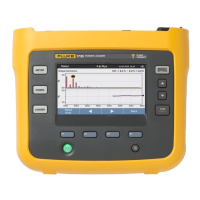
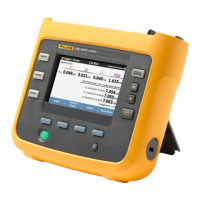
The four icons are used to split the main screen.
Tap to split main screen into two (as shown in image
above).
Tap to split main screen into three (list view).
Tap to split main screen into four (quad view).
Tap to show the main screen as a single view (full screen
mode).
The split screen function is useful when results for several
measure locations are compared (see below).
The number of pages that can be shown on this frame are indic-
ated by the number of dots on the right top corner of the
frame. The pages are overall values, max 10, cursors, and fre-
quency markers. Swipe screen to cycle through the available
pages.
Overall — shows selected overall values
Max 10 — shows the 10 highest amplitudes in the spectrum
and their related frequencies
Cursors — used to show selected value in full digits at the right
top corner of the graph
Frequency markers — used to identify the characteristic asset
and component frequencies in a spectrum
Cursor family icons
Tap to go to next unmeasured location. If all loc-
ations on the route or machine train have been measured a
hint to state completion is shown.



 To Next Page