64 Chapter 2 Working with DaqLab
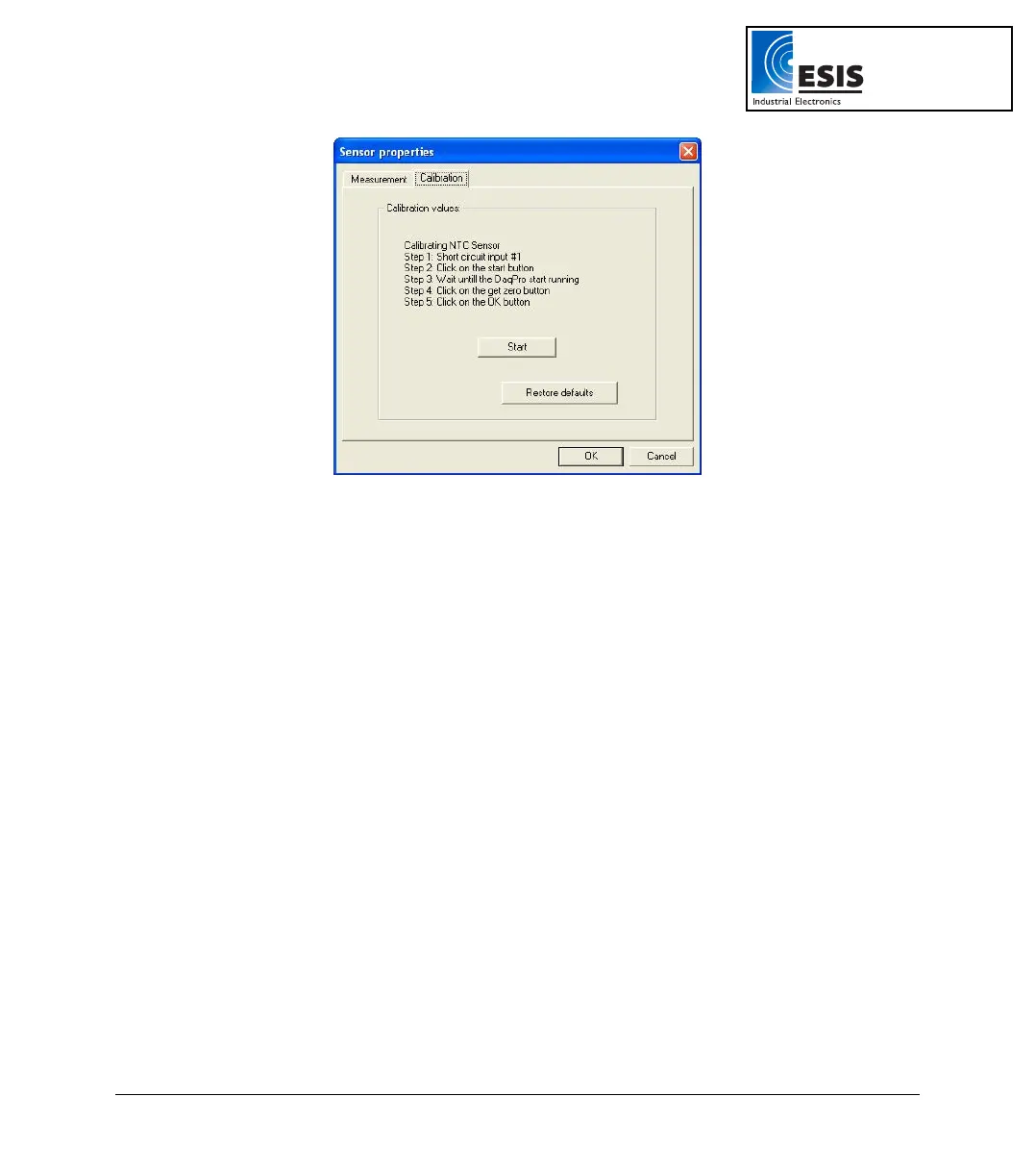
Figure 21: Zero calibration dialog box
e. Click Restore defaults, then click OK.
f. Repeat steps a to d above.
g. Short circuit input 1.
h. Click Start.
i. Wait until DaqPRO begins recording.
j. Click Get zero.
k. Click OK.
The calibrated sensor parameters will be saved both in DaqPRO and DaqLab memories, so there is no
need to calibrate DaqPRO every time you run the DaqLab program.
www.esis.com.au
Ph 02 9481 7420
Fax 02 9481 7267
esis.enq@esis.com.au



 To Next Page