QUANTUM
™
HD COMPRESSOR CONTROL PANEL
MAINTENANCE
090.040-M (NOV 2016)
Page 50
Restore Setpoints – Use this option to Restore the setpoints
only (custom text that has already been changed will not be
affected) for a particular unit:
• Ensure that all setpoints have been documented as a safety
precaution. Install the previously saved setpoints USB de-
vice into the provided connection on the Quantum™ HD.
• Enter the name or number from the available list at the
left side of the screen that corresponds to the saved set-
points that you’d like to restore, then press the [Restore
Setpoints] button.
Upgrade Software - Updating the Operating Software on a
Quantum HD is easy and free. Use the steps described below
to download the update and upload it to your Quantum HD
controllers. Some enhancements may require additional
hardware.
To save the Operating Software Upgrade le, simply right click
on the le and save to a USB Thumb Drive. Save to the Top
Level, Root Directory only. Saving to a sub-folder will prevent
the upgrade le from being read by the Quantum HD proces-
sor. The le can also be saved to a computer hard drive for
future access.
Once you have downloaded the update to a USB thumb drive,
it can be used to update an innite number of Quantum HD
Controllers.
Before doing the update you rst need to save the setpoints
of the controller being updated. The update will reset all
settings to the default values. After the update is done the
setpoints are restored from the saved le for that controller.
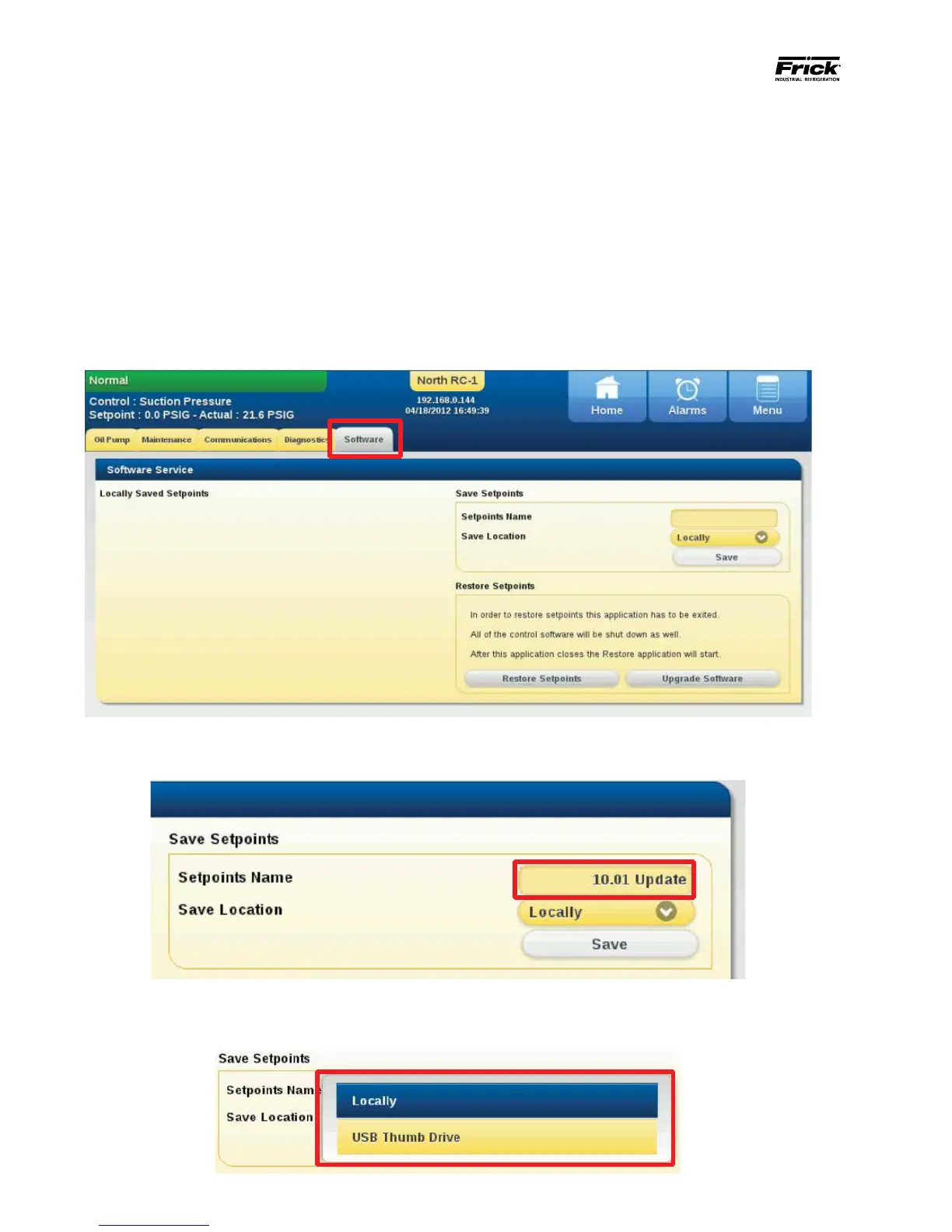
Save Setpoints –To save setpoints the user must be logged
into the Service level. Press the Menu button and select
Service then select the [Software] at the top of the screen
as shown below:
In order to save a setpoints le it must rst be named as
shown below. To do this touch the [Setpoints Name] button
to activate the keypad. Enter the desired name and press
enter.
090.040-PH0014.tif
090.040-PH0015.tif
090.040-PH0016.tif


 To Next Page