52 232003110G (03)
4.1 Machine Setup
4.1.1 Powering Up the Machine
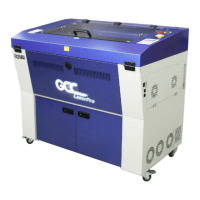
Make sure both the LaserPro S400 and the computer are turned off before connecting
either to a power source.
1) Connect the male end of the power cord to a quality surge protector and then connect the
surge protector to a properly grounded outlet.
2) Do the same for the computer system.
3) Connect the air compressor and external air extraction system to the laser machine before
powering up. The connection and setup of air compressor and air extraction system refer to
Chapter 7 for detail.
4) Connect the female end of the power cord into the machine’s power cable inlet located on the
right side of machine.
• The LaserPro S400 has been designed to automatically switch from 100-240 VAC.
• Make sure to supply 220 VAC of electricity to the LaserPro S400 with laser 80Watt and
above.
4.1.2 Connecting the Computer
The LaserPro S400 can communicate with a computer through a USB Port or LAN Port
connection interface. Regardless of the connection method chosen, you will need to connect
the respective connection cable from the LaserPro S400 to your computer.
USB Connectivity: Connect the included USB Cable to the USB Port on the right-hand side
of the laser system.
Ethernet Connectivity: Connect the Ethernet Cable in accessory to the Ethernet port on the
right-hand side of the laser system. Follow below instruction for Ethernet connectivity setup.
1. Never leave laser system unattended during laser cutting, engraving, and marking
process, even with Ethernet or Wi-Fi connection setup, this requirement cannot be
avoided. Exposure to the laser beam may cause ignition flame to combustible material.
2. DO NOT connect USB cable when using Ethernet function for data transmission.
3. If you have purchased additional Optional Accessories for the LaserPro S400, please
refer to chapter VII for instructions on how to properly setup your optional accessories.
These should be setup prior to working with your LaserPro S400.


 To Next Page