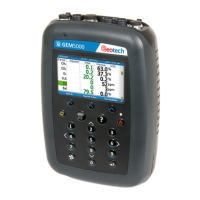
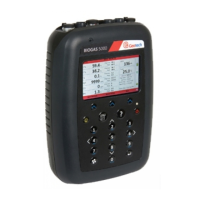
OMGA5KN4.4 GA5000 gas analyser
Page 26 of 113 Copyright Geotech
6.13.4 Installation of XP Drivers
This requires administrator rights.
Locate the folder that contains the downloaded files (noted from before)
Unzip the folder XPRNDIS_drivers.zip
Turn the analyser on and wait for it to warm up
Press the menu key
Select device settings
Select 3 for ‘device information’
Change the comms mode to “GA5K” by pressing the comms mode soft key
Connect the analyser to the PC via the USB Lead
Windows will start the “Found New Hardware Wizard”
Select “No, not at this time” click next
Select “Install from a list or specific location (advanced)” and then click next
Unselect “search removable media (floppy, CD-ROM…)”
Select “Include this location in the search:”
Browse to the location of the XPRNDIS_divers which were previously unzipped and
click next
Select continue or accept if any notifications appear.
The drivers will now be installed
6.13.5 Installation of Vista and Win 7 drivers
This requires administrator rights.
Turn the analyser on and wait for it to warm up
Press the menu key
Select device settings
Select 3 for ‘device information’
Change the comms mode to “GA5K” by pressing comms mode soft key
Connect the analyser to the PC via the USB Lead
Follow the onscreen instructions and accept all of the prompts
The drivers will now be installed
6.13.6 Updating the analyser
Once all of the above operations are completed the software is fully installed and the
instrument is ready to be updated. This can be done by a user who does not have
administration rights on their PC.
Ensure the analyser is fully charged - you do NOT want the analyser turning off during
the update process
Turn the analyser on and wait for it to start-up
Navigate to the main read screen and press the menu key.
Select device settings.
Press 3 for ‘device information’
Change the comms mode to GA5K by pressing “Comms mode” soft key (Please note:
if you have just installed the drivers the analyser may be in GA5K mode already)
Connect the analyser to the PC via the Geotech GFUSB lead.
Start the Geotech 5K updater software
Press the “Check internet” button
The software will now attempt the download the data files to the PC
This may take several minutes depending on your internet speed
Due to individual company’s firewalls and I.T.’ policies the update cannot always be
done via this option. You will receive an error message at this point if unsuccessful.


 To Next Page