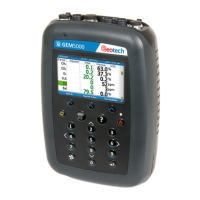
OMGA5KN4.4 GA5000 gas analyser
Page 58 of 113 Copyright Geotech
8.10 How to identify a borehole using the GPS feature (optional)
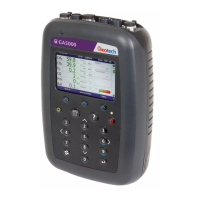
An optional GPS feature is available for the GA5000 gas analyser. It enables the site
engineer to automatically locate borehole IDs using GPS satellite signal from predefined
borehole IDs uploaded from Gas Analyser Manager. The GPS reading data is stored for
each measurement reading.
Note: Borehole IDs may be uploaded from GAM with or without location
information. If location details are not uploaded the location longitude and
latitude coordinates can be stored when the borehole is located and
downloaded to GAM with the reading measurements.
Screen navigation:
1) Switch on the analyser and wait for the self-test warm-up to complete and the
analyser will display the ‘Main Gas Read Screen’.
2) In order to use the navigation function if configured, you must switch ‘Navigation -
On’ on the analyser. Select the ‘Menu’ key followed by ‘Key 5’ to toggle navigation to
on. Select the ‘Menu’ key to exit and return to the ‘Main Gas Read Screen’.
3) Select the soft-key ‘Next ID’, then select a borehole ID from the list displayed and
press the ‘Enter ‘key to continue.
4) After reading the user warning message, select the soft-key ‘Dismiss’. Use the
tracking display to locate the borehole
Note: There is often a wait time frame of between 30 seconds to two minutes
whilst getting a satellite signal. Be aware that heavy rain, trees
overhead etc. will give a bad fix.
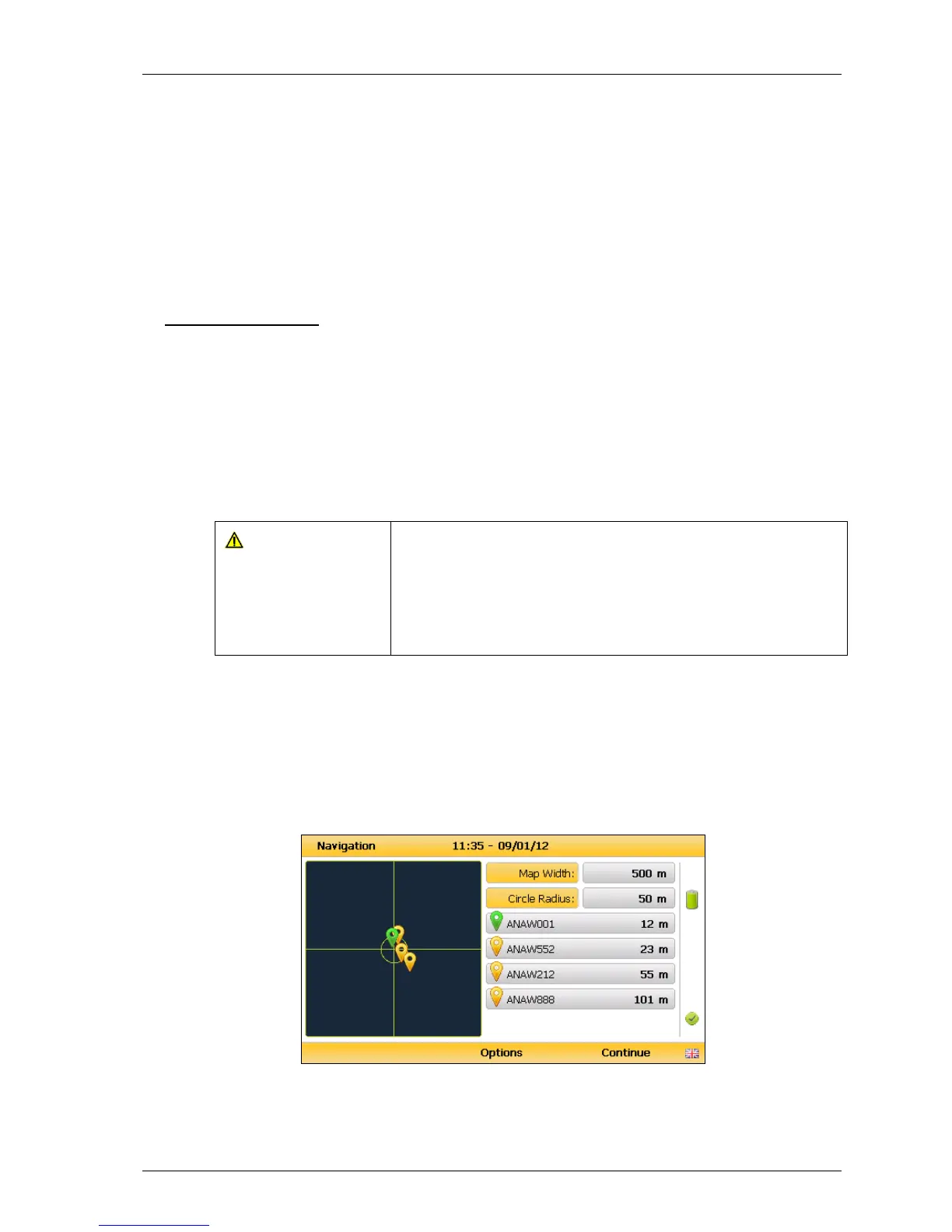
5) Once the operator selects a borehole ID the ‘GPS Navigation’ screen is displayed.
Navigation
6) If required select soft-key ‘Options’ to go to the ‘Navigation Options’ menu and the


 To Next Page