GA5000 gas analyser OMGA5KN4.4
Copyright Geotech Page 29 of 113
2) Select ‘Key 1 – Set Date’ and key in the required date. Type the date using the
numeric keypad. Press the soft-key ‘Date Format’ to toggle and select the required
date format i.e. dd/mm/yy. Press the ‘Enter’ key to confirm and update the date
setting.
3) Select ‘Key 2 – Set Time’ and key in the required time (hh:mm). Type the time
using the numeric keypad and press the ‘Enter’ key to confirm the update.
4) The operator may also change the default time zone. Selecting the ‘Key 4 Scroll-
left’ or ‘Key 6 – Scroll right’ to move through the different time zones. Press the
‘Enter’ key to confirm your default setting.
5) Select ‘Key 3’ to toggle between ‘Manual Update’ and ‘Automatic Update’ in order to
choose how the date and time is set if updating from satellite signal.
Used to manually obtain and update the date and time from the
satellite signal when requested. Select soft-key ‘Set now’ to set
date and time from satellite when available.
Used to automatically update the date and time received from
the satellite signal when available. This option is only available
when the GPS option is fitted to the analyser at the time of
manufacture.
6) Select the soft-key ‘Exit’ to exit and return to the ‘Device Settings’ menu.
7.2.2 Bluetooth
This option enables the operator to set and utilise Bluetooth technology.
This may be useful when downloading gas readings from the analyser to
the PC instead of connecting the analyser to a PC via a USB lead.
Bluetooth may also be used to transfer Site IDs to other 5000 series gas
analysers if required.
1) Select the ‘Menu’ key on the front of the analyser to display the ‘Device Settings’
menu.
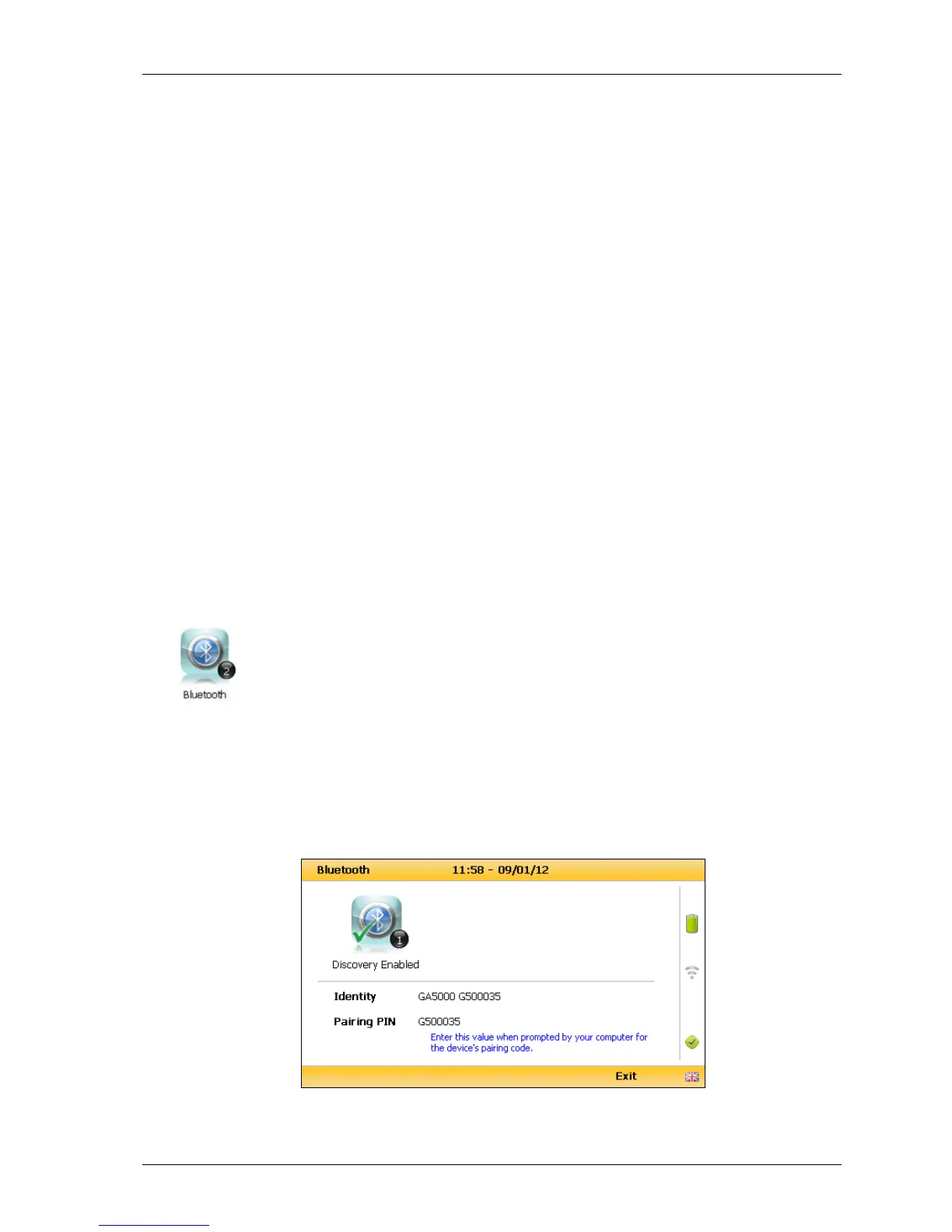
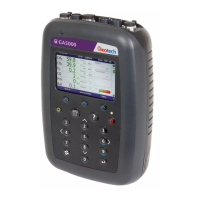
2) Select ‘Key 2 – Bluetooth’ and the following screen is displayed:
Bluetooth options


 To Next Page