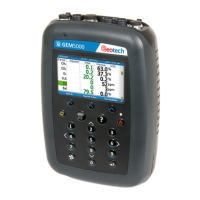
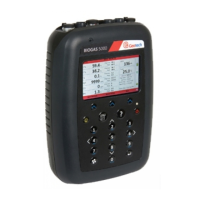
GA5000 gas analyser OMGA5KN4.4
Copyright Geotech Page 27 of 113
Refer to section 6.13.7 for an alternative method
It may also take a minute at this point for the analyser to be detected as connected,
please wait for the software to show the analyser as connected
Once connected the software will be ready to update, press “update” which will copy
the files to the analyser memory
The analyser will then start to update, and may restart several times. Please wait for
the analyser to show back on the update software as “connected”. Do not turn off or
disconnect the USB lead until this point
The analyser is now fully updated. Please note that you may need to adjust the
backlight on the analyser: (menu key > user settings > 4 Adjust Backlight > press 6
to make it lighter until you can see the screen. Remember to hit “save”).
Now set your analyser back to “legacy mode”. (menu key > device settings > 3 Device
information > press “Comms mode” soft key.) Your analyser will not work with GAMS
unless it is in “legacy mode”
6.13.7 Update from file
If the update from “Check Internet” option does not work you can try the following steps.
Each company may have certain IT policies in place that stop the download of certain files
which may stop the successful download of the update file. You may need help from you I.T.
department to download this.
Click here to download the update file
(http://www.geotechuk.com/G5000Files/G5000_UPDATE_FILE.5kc)
When prompted select the save as function, and save the file to a location you can
access later. Do not select open
This may take several minutes depending on your internet speed
Follow the instructions as per section 6.13.6 - Updating the analyser
However, chose “Select file” instead of “Check internet”
Navigate to where you saved the file (G5000_UPDATE_FILE.5kc)
Click open to select the file
The rest of the process is the same as 6.13.6 - Updating the analyser


 To Next Page