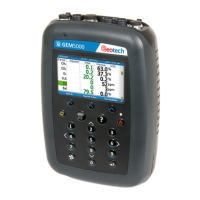
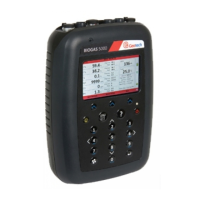
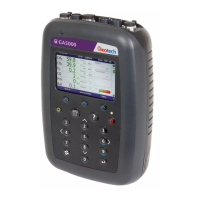
OMGA5KN4.4 GA5000 gas analyser
Page 60 of 113 Copyright Geotech
Changing the selected ID
It is possible to change the currently selected ID (identified by green icon ) by pressing the
2 and 8 and keys to move the cursor up and down the list of visible IDs. To change the
selection press Enter. Notice that the selected ID moves to the top of the list and its icon turns
green.
Changing the scale
You can change the display’s scale by using the 4 and 6 keys to zoom in and out.
GPS signal strength:
This icon shows the signal strength the analyser’s GPS module is
able to provide. Full, okay and fair strength respectively.
GPS failure - the GPS was unable to get a line of sight lock on
enough satellites. Or, it may be that it hasn’t had time to get a lock.
7) Select soft-key ‘Continue’ and the operator is returned to the ‘Main Gas Read Screen’.
8.11 Taking gas and flow measurement
The top methods of taking a reading
There are two methods to taking a reading, simple gas and a detailed reading, please below for
explanations of both:
o Simple gas: Just takes a gas reading and nothing else, this mode can be accessed via the
special actions
o Detailed reading: This mode takes you through various steps to achieve (relative and
barometric) pressure, gas readings, flow (if required) and fill in any questions you may have
assigned to your ID (GAM required)
Detailed reading explained
With a detailed reading everything is operated of the right soft key, the process will be slightly different
depending on whether you have user prompts enabled but either way it is the same process.
Selecting ID (if required) > Air purge/Baro reading > Relative pressure reading > Gas reading > Flow (if
required) > Answering ID questions (if required) > Store


 To Next Page