www.HandiQuilter.com/ProStitcher 07/23/12 Installation Instructions 3.23
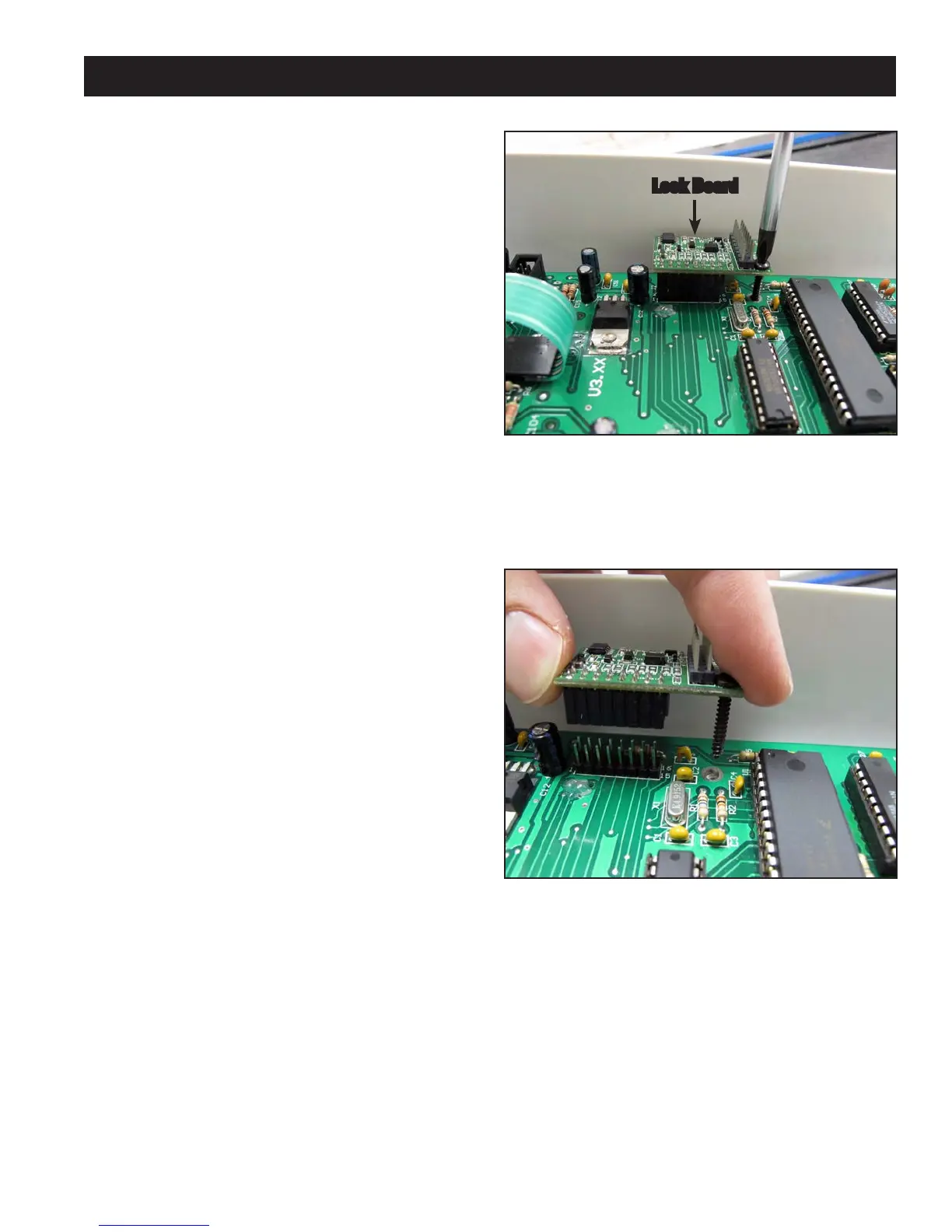
Figure 3.42
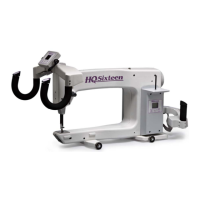
C-Pod Replacement (HQ Sixteen only)
Some kits will come with a new C-Pod (C).
If the HQ Sixteen was purchased with the
HQ Pro-Stitcher, there is no need to install a new
C-Pod. Also, any HQ Sixteen Stitch-regulated
systems running version 8.04 or later (the C-Pod
screen will identify the version as it boots up) will
not require a C-Pod upgrade.
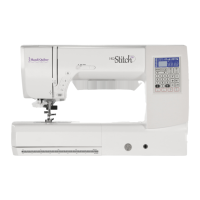
Figure 3.43
1. Important: To prevent damage due to
electrostatic discharge, use a grounded wrist strap
or if a wrist strap is not available, discharge any
electrostatic energy on your body by touching
any exposed metal (non-painted) portion of the
HQ Sixteen prior to and several times during this
procedure.
2. Remove the C-Pod from the HQ Sixteen head
by removing the four mounting screws with a
Phillips screwdriver.
3. Carefully disconnect all cables from the C-Pod,
taking care not to touch the bare circuit board.
4. If the new C-Pod includes a Lock Board as shown
in Figures 3.42 and 3.43, skip ahead to step 8.
5. Remove the black Phillips screw that holds the
Lock Board in place on the old C-Pod circuit
board (Figure 3.42).
6. On the old C-Pod (the one just removed from the
HQ Sixteen), gently pull upward on the Lock
Board to remove it from the old C-Pod and press
it rmly in place on the new C-Pod (Figure 3.43).
Make sure both rows of pins enter the header on
the underside of the Lock Board. e red LED
should be located at the top right when looking
into the C-Pod.
7. Lightly hand-tighten the black Phillips screw
through the Lock Board.
8. Attach the internal cables to the new C-Pod.
9. Fasten the C-Pod to the head using the four
screws that were removed in step 2.
Lock Board




 To Next Page