HQ Pro-Stitcher User Manual07/23/125.14 Design Menu
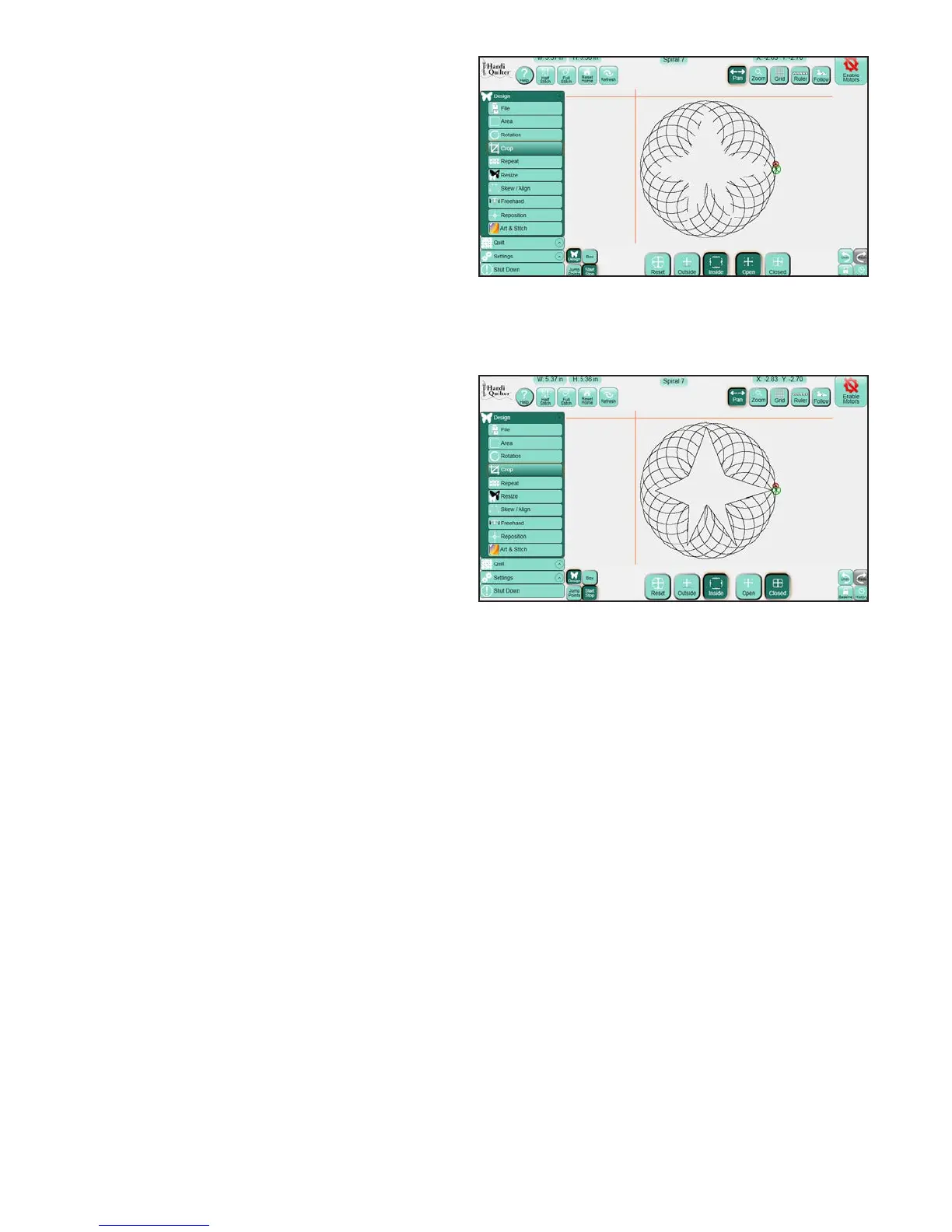
Figure 5.48
Figure 5.47
Aer cropping an area from the design, the
HQ Pro-Stitcher needs to know what to do with the
loose ends. e Pro-Stitcher oers two ways of
handling these loose ends: Open and Closed.
Open
Each loose end created aer a Crop becomes a
jump point (Figure 5.47). If the Tie O options are
selected (in the Settings menu), the Pro-Stitcher will
perform a tie o at each of the jump points.
Closed
Each loose end created aer a Crop will be tied to
the next end point by stitching along the border of
the Area to get to the next point (Figure 5.48).
Reset
At any time, turn o the Crop options by pressing
the Reset button in the Crop panel.
Hint
Because the Closed option may not stitch the entire
Area outline, consider using the Trace Outline
function with Stitch enabled to stitch around the
perimeter of the Area.




 To Next Page