www.HandiQuilter.com/ProStitcher 07/23/12 Design Menu 5.9
Zoom
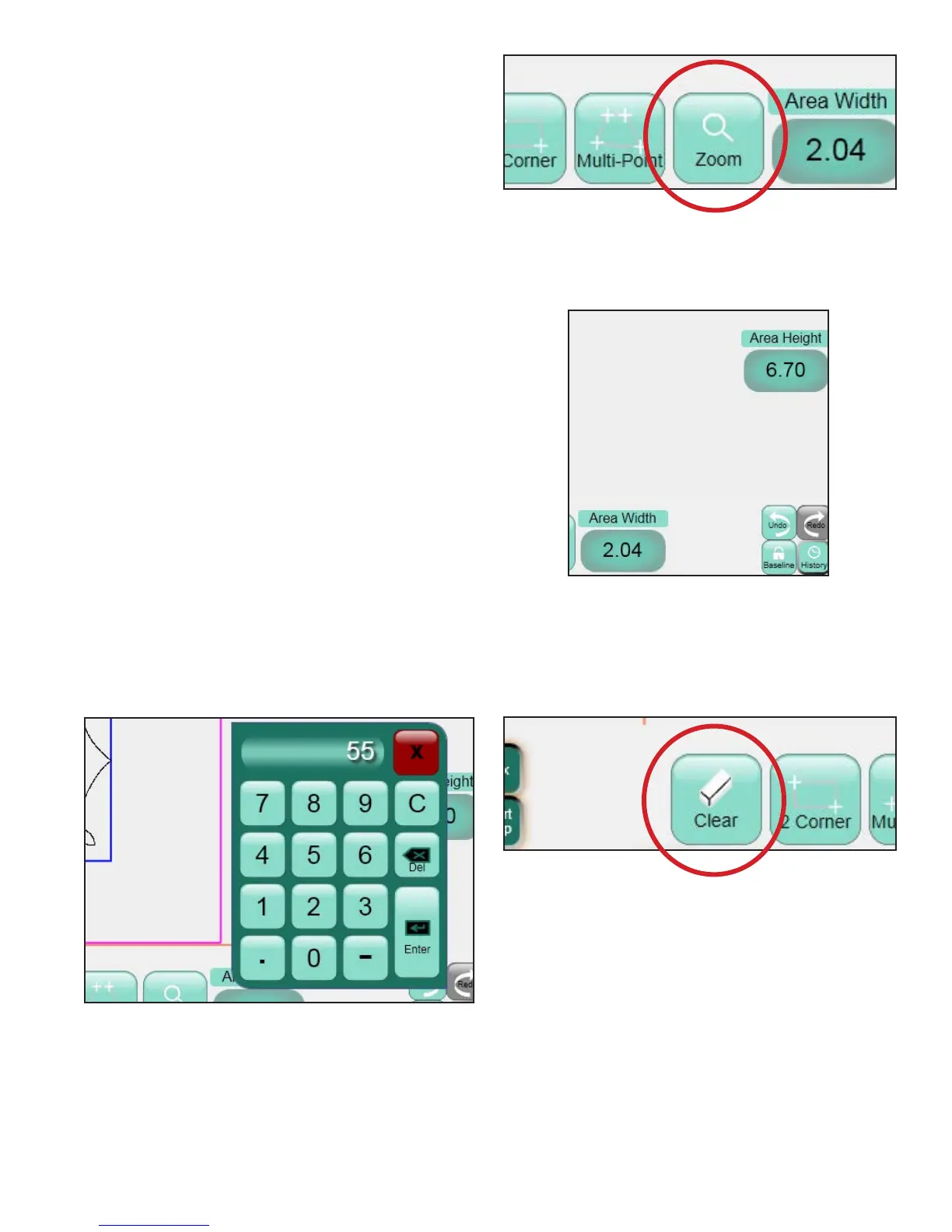
e Zoom button (Figure 5.25) at the bottom of the
Area panel will zoom to t the dened Area within
the Work Area.
Area Override
e width and height of the Area is shown in the
number boxes at the bottom and right-hand sides of
the screen (Figure 5.26). To extend the area beyond
what the quilting machine can reach (e.g., dene the
entire quilt size as an Area), modify these values.
Press the appropriate number box and enter a new
value in the pop-up number pad (Figure 5.27) e
bottom box changes the width of the Area and the
right-hand number box changes the height of the
Area. Once a new value is entered in either of these
boxes, the area will be converted to a rectangle of
the newly entered dimension(s).
Clear Area
Areas are xed locations and cannot be moved once
they are created. Instead, they must be cleared and
recreated. To clear an Area, press the Clear button
at the bottom of the screen (Figure 5.28).
Figure 5.26
Figure 5.27
Figure 5.28
Figure 5.25




 To Next Page