www.HandiQuilter.com/ProStitcher 07/23/12 Design Menu 5.1
e Design menu functions enable the quilter to
open, modify, position, and save quilting designs.
A majority of HQ Pro-Stitcher work will be with
the functions found within this menu. While any
Design sub-menu is selected, two clusters of buttons
are available on the bottom le-hand and bottom
right-hand corners of the screen. ese functions
are useful during many of the Design steps and are
therefore available during all Design functions.
Bottom Left-Hand Button Cluster
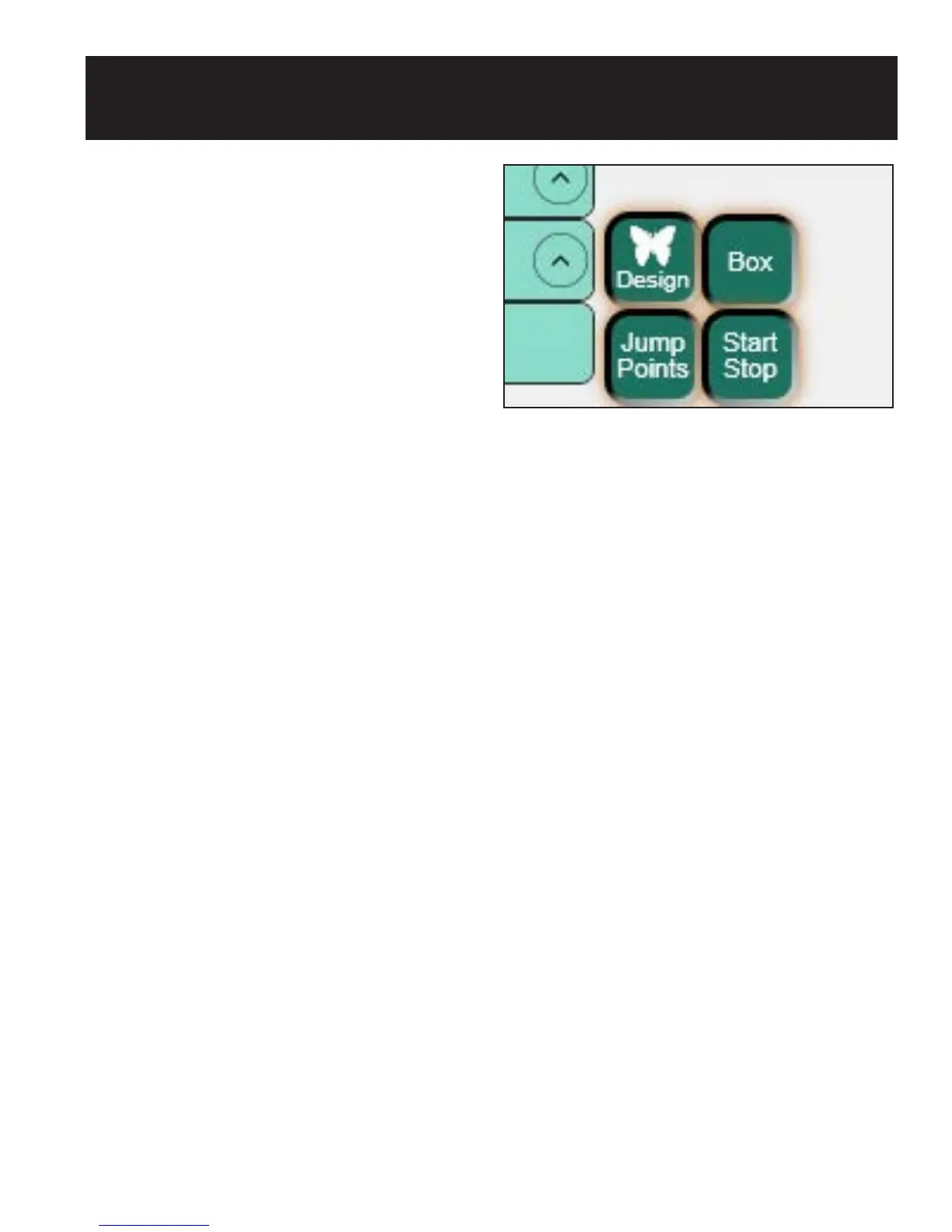
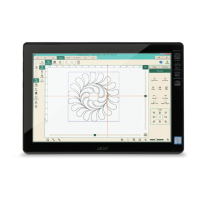
e four buttons in the bottom le-hand corner of
the Design screen turn on or o the visibility of a
portion of the design (Figure 5.1).
Design
e Design button displays the design when
selected and hides the design when turned o.
Box
e Box button displays the blue bounding box
to show the X and Y extents of the current design
when selected. e Box button turns o the
bounding box when deselected.
Jump Points
Red dots appear within a design to mark the start of
a jump, or no-stitch line. e quilting machine will
stop stitching at that point. e jump is indicated
by a purple dashed line. Green dots mark the end
of the jump and the beginning of the next stitching
segment. Press the Jump Points button to show or
hide these dots and dashed lines on the view.
Figure 5.1
Start/Stop
e green target symbol indicates where the design
starts stitching. e red target symbol is the end of
the design. Hide these symbols for better visibility
of the design by selecting the Start/Stop button and
show them by selecting the button again.
5. Design Menu




 To Next Page