Pro-Stitcher User Manual6.2 Art & Stitch
Gray Bar
Licensing
When using Art & Stitch for the rst time, the
quilter must enter some information to activate the
license. Refer to the instructions included in the
Art & Stitch soware box for oine activation.
All network connections have intentionally been
disabled on the HQ Pro-Stitcher computer to
prevent the computer from downloading updates or
viruses that would adversely aect the performance
of the HQ Pro-Stitcher.
Using a Mouse or Keyboard
Many functions in Art & Stitch are much simpler
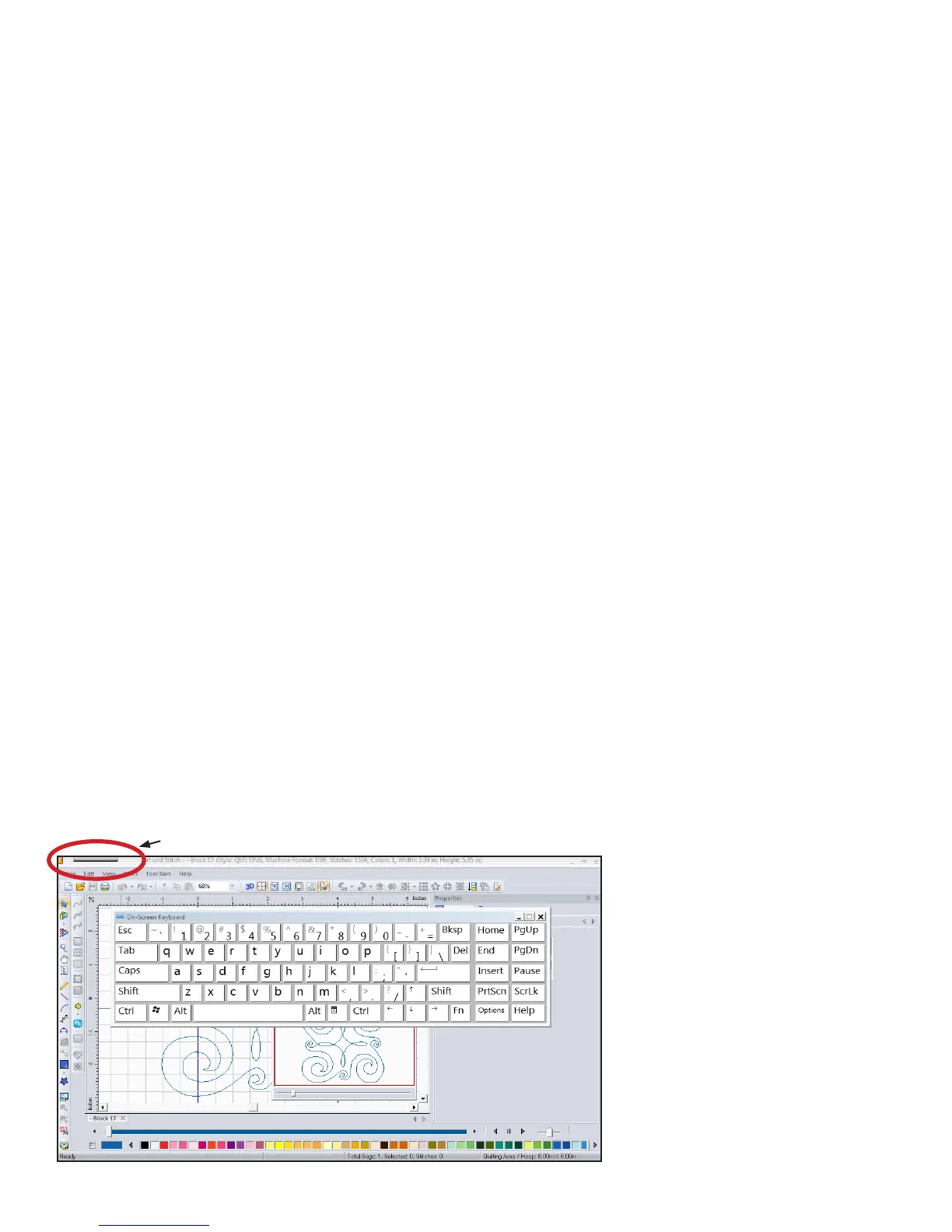
when using a mouse and keyboard. A pop-up
keyboard is available at any time by pressing the
Keyboard icon, the gray bar at the top le-hand
corner of the screen (Figure 6.4). When using
the pop-up keyboard, it may be necessary to
press an area on the screen where the text is to be
entered before typing on the keyboard. To hide
the keyboard, press the X in the upper right-hand
corner. While the pop-up keyboard is a quick
keyboard solution, it may be more convenient to
use a conventional mouse and keyboard. e HQ
Pro-Stitcher computer works with most wired
and wireless USB keyboards and mice. Just plug
the keyboard, mouse, or wireless dongle into an
available USB port, wait a minute for Windows
to install appropriate drivers, and then use the
keyboard or mouse. A USB hub may be used
to expand the number of available USB ports.
Keyboards, mice, and USB hubs can be purchased
from most electronics retailers.
Updating
Art & Stitch may need to be updated to the latest
version for HQ Pro-Stitcher to properly pass designs
back and forth. To download the latest version, use
a computer that is connected to the Internet and go
to the Handi Quilter website: (www.HandiQuilter.
com). Go to the Products tab at the top of the
web page and select the Upgrades/Updates link.
Follow the instructions to download the latest
version of Art & Stitch for the HQ Pro-Stitcher. Aer
downloading this installation le, copy it to a USB
ash drive and plug it into the HQ Pro-Stitcher
computer.
Aer waiting approximately 10 seconds for the
HQ Pro-Stitcher computer to set up the USB ash
drive, select the Design menu, press the File sub-
menu button, and then press the Update button.
Browse to the appropriate folder on the USB ash
drive and double-tap the Art & Stitch installation
le. e HQ Pro-Stitcher soware will close and the
installation will begin.
If you are asked whether to “Repair” or “Uninstall”
the Art & Stitch soware, it is best to uninstall rst
and then rerun the same installation program to
install the new version. To access the le browser
aer the HQ Pro-Stitcher soware is closed, either
attach a keyboard or press the keyboard icon at
the top le-hand corner of the screen to open the
pop-up keyboard. Press and hold the Windows key
followed by the letter E to open a le browser to
locate and then rerun the Art & Stitch installation
le.
Aer the new version of Art & Stitch is installed, it is
best to reboot the HQ Pro-Stitcher computer using
the Windows Start menu from the
bottom of the computer screen. Select
either Shut Down or Restart to shut
the computer down and restart.
Figure 6.4




 To Next Page