www.HandiQuilter.com/ProStitcher 07/23/12 Design Menu 5.5
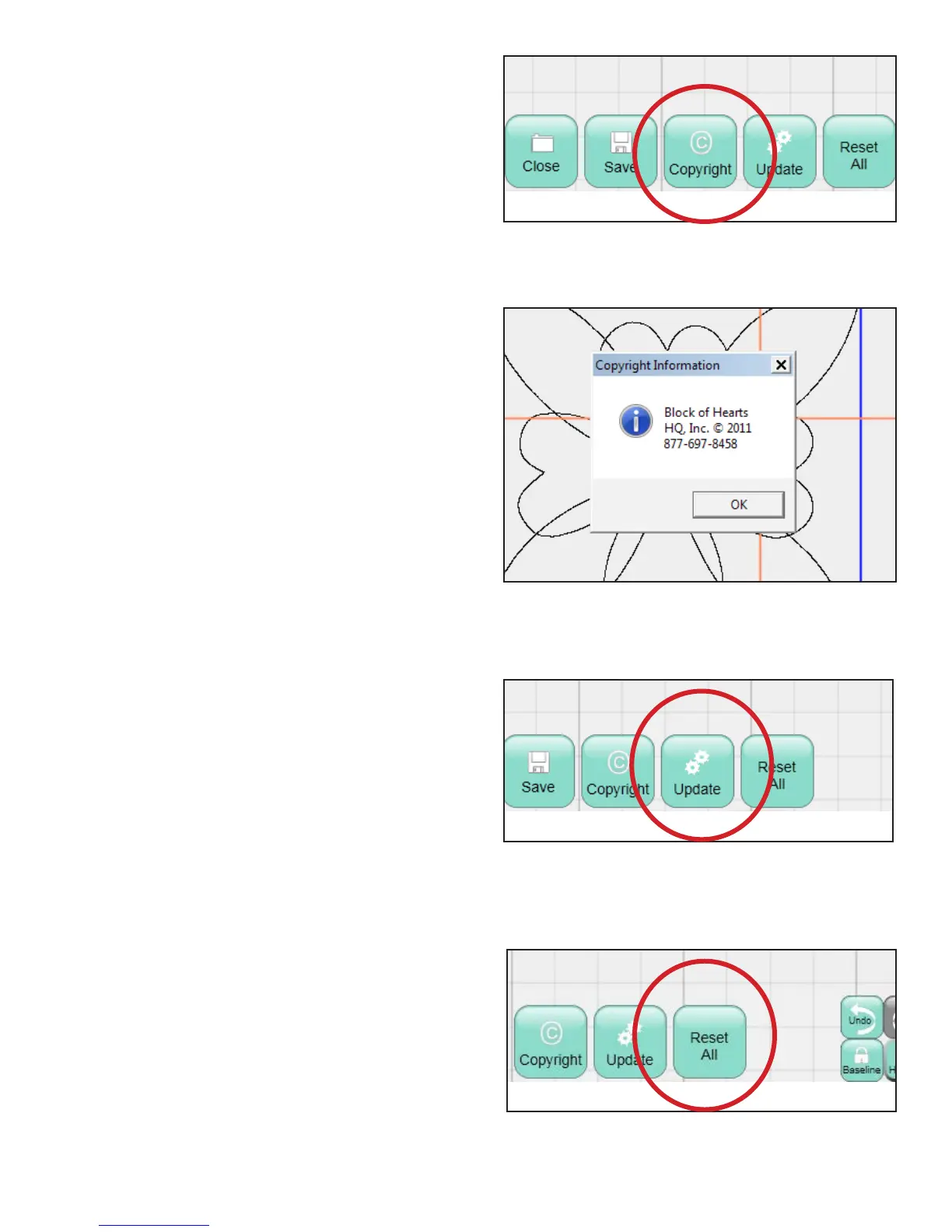
Copyright
Many designers include copyright information as
well as instructions on how to use their designs
within the design le itself (Figure 5.12). To view
this information, load the design le and press the
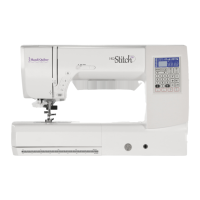
Copyright button. A pop-up window will display
information contained within the design le related
to copyrights and user instructions (Figure 5.13).
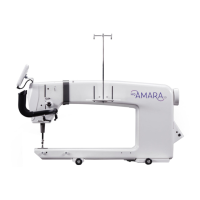
Update
As updates for the HQ Pro-Stitcher soware become
available, download the update le from the Handi
Quilter website, www.handiquilter.com. Select the
Upgrades/Updates link under the Products tab
at the top of the page. Follow the instructions for
downloading the latest update, save the update le
to a USB ash drive, and plug the USB ash drive
into a USB port on the Pro-Stitcher computer. Wait
for approximately 10 seconds while the Pro-Stitcher
computer accesses the USB ash drive (Figure 5.14).
Follow the instructions included on the website for
installing the update.
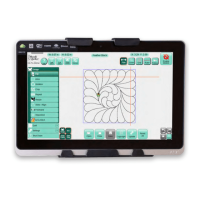
Reset All
Many settings in the Pro-Stitcher soware remain
set even aer other operations are performed.
For example, a quilter may rotate a design, repeat
it multiple times, resize it, and more. To turn o
those settings and quickly return to the original
design settings, press Reset All (Figure 5.15). If a
new design is loaded or the Baseline operation is
performed, a Reset All is automatically performed.
Figure 5.12
Figure 5.14
Figure 5.15
Figure 5.13




 To Next Page