www.HandiQuilter.com/ProStitcher 07/23/12 Settings Menu 8.7
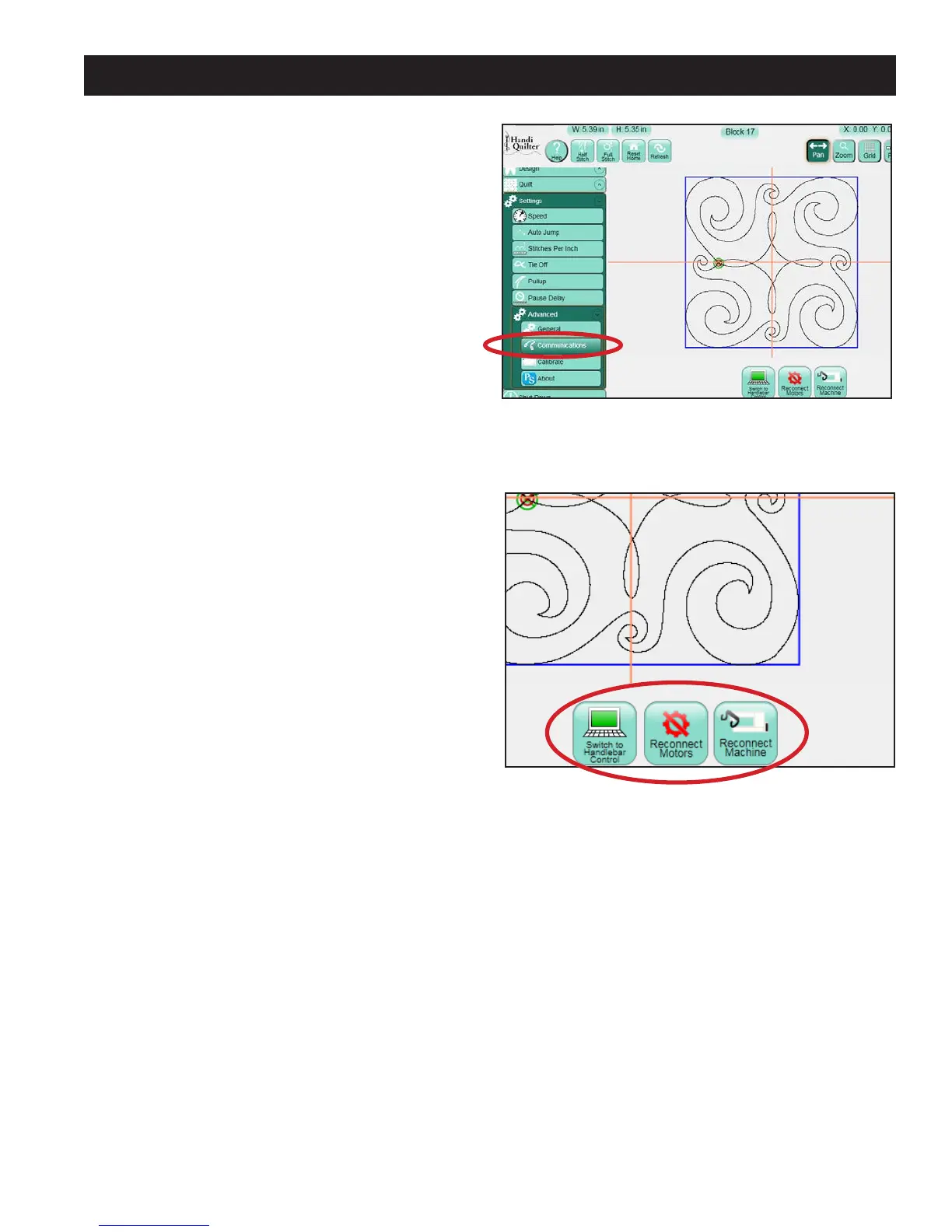
Communication
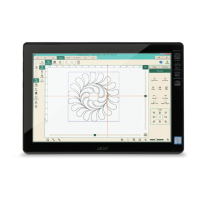
e Communication sub-menu enables the quilter
to manually establish communications with either
the quilting machine or the HQ Pro-Stitcher motors
(Figure 8.11).
Switch to Handlebar Control
To stop communications between the Pro-Stitcher
and the quilting machine, press the Switch to
Handlebar Control button (Figure 8.23).
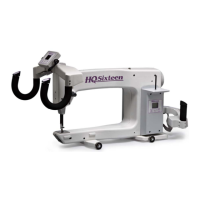
HQ Sixteen quilting machines will not allow handle
control while the Pro-Stitcher is communicating
with the quilting machine, so this button will
need to be pressed to allow the quilter to operate
the quilting machine manually from the handles.
is button is also conveniently located at the top
le-hand corner of the screen for the HQ Sixteen
version.
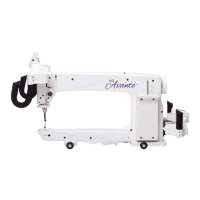
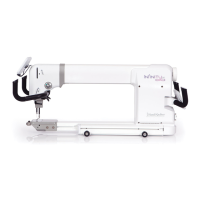
For HQ
18
Avanté and HQ
24
Fusion quilting
machines, handlebar control is always available, so
this button simply prevents any communication
from the Pro-Stitcher computer from being
processed by the quilting machine. To return to
normal Pro-Stitcher control, press the button (which
has now become a Connect Pro-Stitcher button)
again to reestablish communication between the
Pro-Stitcher and the quilting machine.
Reconnect Motors
If the Pro-Stitcher motors ever become unplugged
or disconnected from the computer, it may be
necessary to use the Reconnect Motors button to
reestablish communications between the
Pro-Stitcher computer and the motors. If the
Pro-Stitcher computer cannot communicate with
the motors for any reason, it will be indicated
by a lightning bolt icon at the top right-hand
corner of the screen. Pressing the lightning bolt
button in the top right-hand corner of the screen
will perform the same function as the Reconnect
Motors button.
Figure 8.11
Figure 8.12




 To Next Page