HQ Pro-Stitcher User Manual07/23/128.8 Settings Menu
Reconnect Machine
Press the Reconnect Machine button to reestablish
communications between the Pro-Stitcher and the
quilting machine. If the Pro-Stitcher computer ever
boots up with the quilting machine turned o, the
two systems will not be communicating with each
other when the quilting machine is later turned
on. e Reconnect Machine button will attempt
to reconnect the Pro-Stitcher with the quilting
machine. A simple way to test whether the two
systems are communicating is to press the Full
Stitch button at the top of the Pro-Stitcher screen. If
they are connected, the quilting machine will cycle
the needle. If they are not communicating, nothing
will happen. If the Pro-Stitcher computer can detect
that it is not communicating with the quilting
machine, a lightning bolt icon will appear in the top
le-hand corner of the Pro-Stitcher screen. Pressing
that button will perform the same function as the
Reconnect Machine button.
If the touch screen is not calibrated properly, the
cursor will not move to the point that the quilter
is touching on the Pro-Stitcher computer screen.
Resolve this by recalibrating the touch screen.
Press the Calibrate button and follow the onscreen
calibration instructions. If calibration is so far o
that the Calibrate button cannot be pressed, plug
the Acer keyboard/mouse into a USB port on the
computer using the provided USB extension cable
and use the mouse controller built into the keyboard
to click on the Calibrate button. Most other USB
mice will also work for this as well.
is option shows version information for the
Pro-Stitcher soware.
Shut Down
About
Shut Down
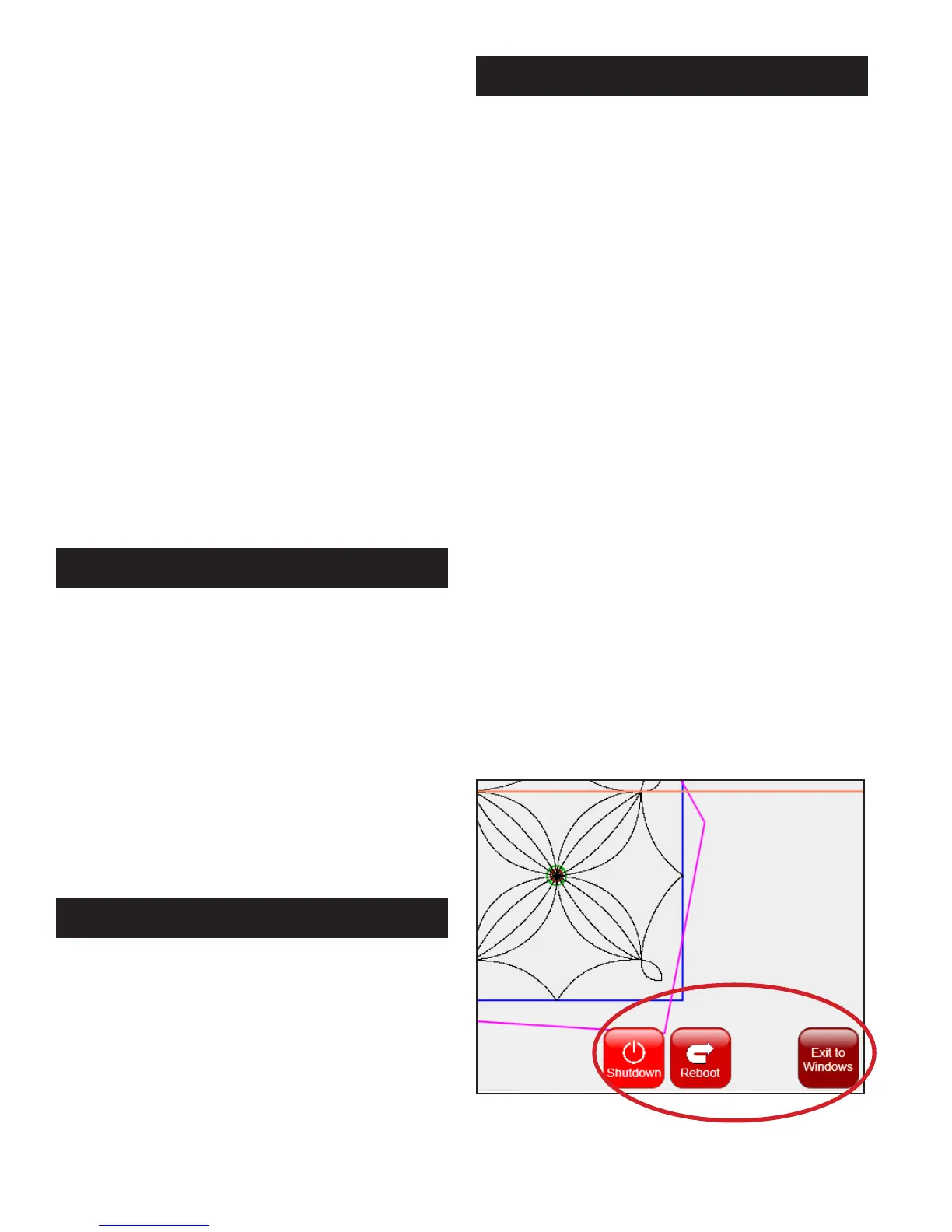
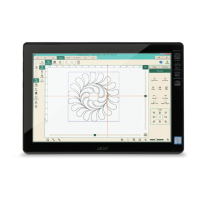
ree shutdown options are available on the Shut
Down menu (Figure 8.13).
Shutdown
is button forces the HQ Pro-Stitcher computer
to close all running soware and power down the
computer. A quilter should do a full shutdown
when nished running the Pro-Stitcher.
Reboot
Reboot causes the Pro-Stitcher computer to
completely shut down and then start up again. If
a quilter suspects there may be computer-related
issues interfering with the Pro-Stitcher, rebooting
the computer oen will help.
Exit to Windows
At times it may be necessary to close down the
Pro-Stitcher soware and use the standard Windows 7
operating system. Press Exit to Windows to leave
the computer in a standard Windows 7 desktop
environment. To restart the Pro-Stitcher soware,
locate the Pro-Stitcher shortcut icon on the desktop
and double-tap it.
Figure 8.13
Calibrate




 To Next Page