Pro-Stitcher User Manual7.4 Quilt Menu
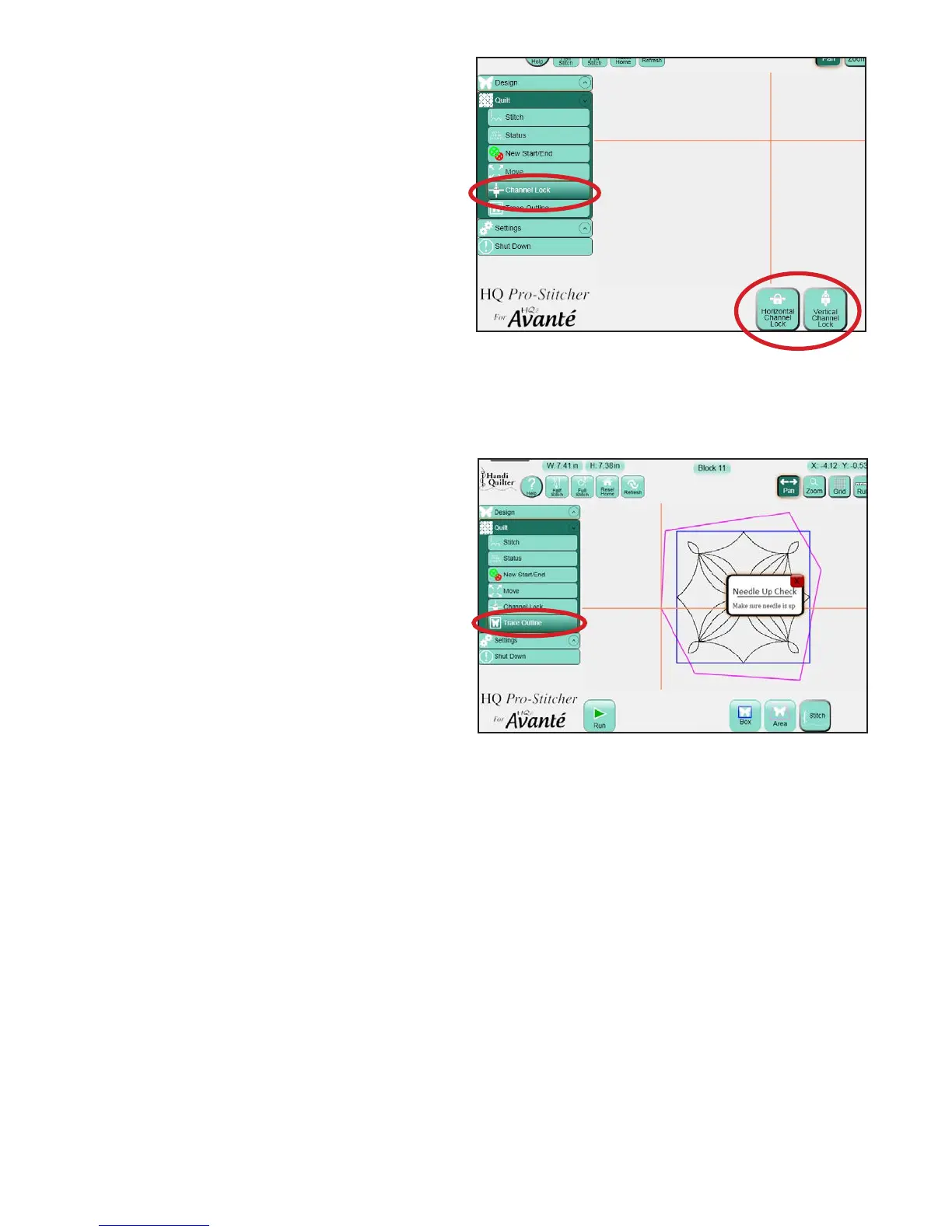
Figure 7.7
Channel Lock
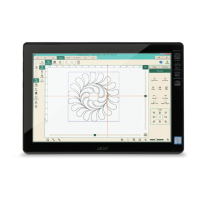
e HQ Pro-Stitcher can be used as a channel lock
for the quilting machine by selecting either the
Horizontal Channel Lock or the Vertical Channel
Lock button (Figure 7.7). As long as the carriage
motor levers are in the engaged position, the Pro-
Stitcher will lock the appropriate direction. e
quilter can then manually use the quilting machine
handles to stitch either horizontal or vertical lines.
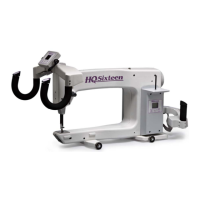
HQ Sixteen owners will need to rst switch to
Manual Control as outlined in the Settings section
of this manual to be able to use their quilting
machine handles.
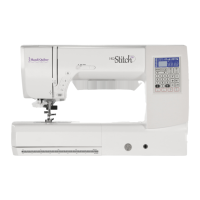
Trace Outline
Before stitching any design, it is always a good idea
to double check the positioning of the design. One
way to do this is to manually move the quilting
machine, making sure the crosshairs on the screen
and needle position on the machine indicate that the
design is indeed positioned properly on the quilt. In
addition to doing a manual check, a quilter may also
use the Trace Outline functions as well (Figure 7.8).
Box
Press the Box button to have the HQ Pro-Stitcher
move around the perimeter of the design following
the blue bounding box . Watching the needle as the
machine is tracing the perimeter helps the quilter
know whether the design is in the proper position.
Area
As an alternative to tracing the bounding box,
press the Area button to have the quilting machine
trace the user-dened Area.
Stitch
During either of these two trace functions, the
quilter can have the quilting machine stitch during
the trace. is can be very useful, for example, if
the Area has been used to create a cropped region
around an appliqué. e quilter can have the Pro-
Stitcher stitch an outline around the Area to either
secure the appliqué or to give more denition. is
option does not perform a pull-up or tie-o. ese
must be done manually, if desired.
Figure 7.8




 To Next Page