Quilt Menu 7.1
e features available within the Quilt menu are all
related to the actual quilting of designs. While any of
the sub-menus within the Quilt menu are selected, a
Run button is available to start the stitching process.
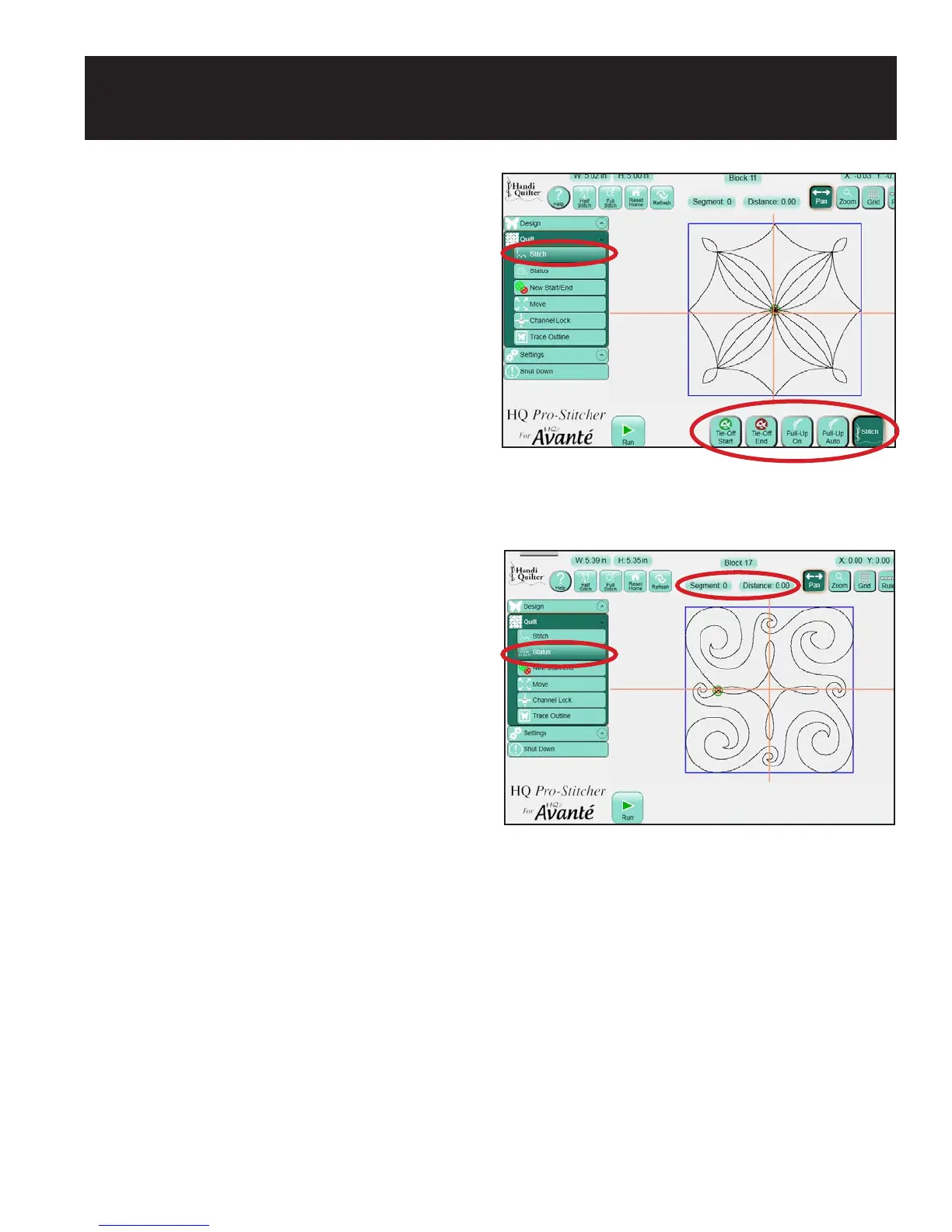
Stitch
e Stitch sub-menu gives quick access to the most
commonly used settings in case they need to be
adjusted before stitching a design (Figure 7.1). Tie
O and Pullup settings are available here and are
explained in detail in the Settings section of this
manual. ere is also a Stitch button along the
bottom of the screen. e Stitch button should be
selected in most circumstances. However, if a quilter
wants the HQ Pro-Stitcher to run through the
design without actually stitching, press the Stitch
button to disable it. If the Stitch option is turned o,
the Tie O and Pullup options will also be turned
o. If either the Tie O or Pullup options are
selected, the Stitch button will also be automatically
selected.
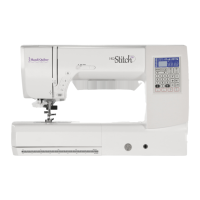
Status
If a quilter wants to know how far into a design
the machine has stitched, select Status and then
press the Run button at the bottom of the screen.
is displays the current design line segment being
stitched as well as the distance traveled (in inches)
(Figure 7.2). e distance information may be
useful in determining how much thread the design
has used. e line segment information also may be
useful during a Pause situation if the quilter needs
to scroll back to a specic line within the design to
resume quilting from that point.
Figure 7.1
Figure 7.2
7. Quilt Menu




 To Next Page