HQ Pro-Stitcher User Manual07/23/125.18 Design Menu
Skew/Align
With an Area consisting of four points, the Skew
function forces a design to stretch to ll the Area.
With Skew turned on, any further actions will
also stretch to the limits of the dened Area. e
alignment buttons align the design to the top,
bottom, le, or right of a dened area, or even
stretch horizontally or vertically.
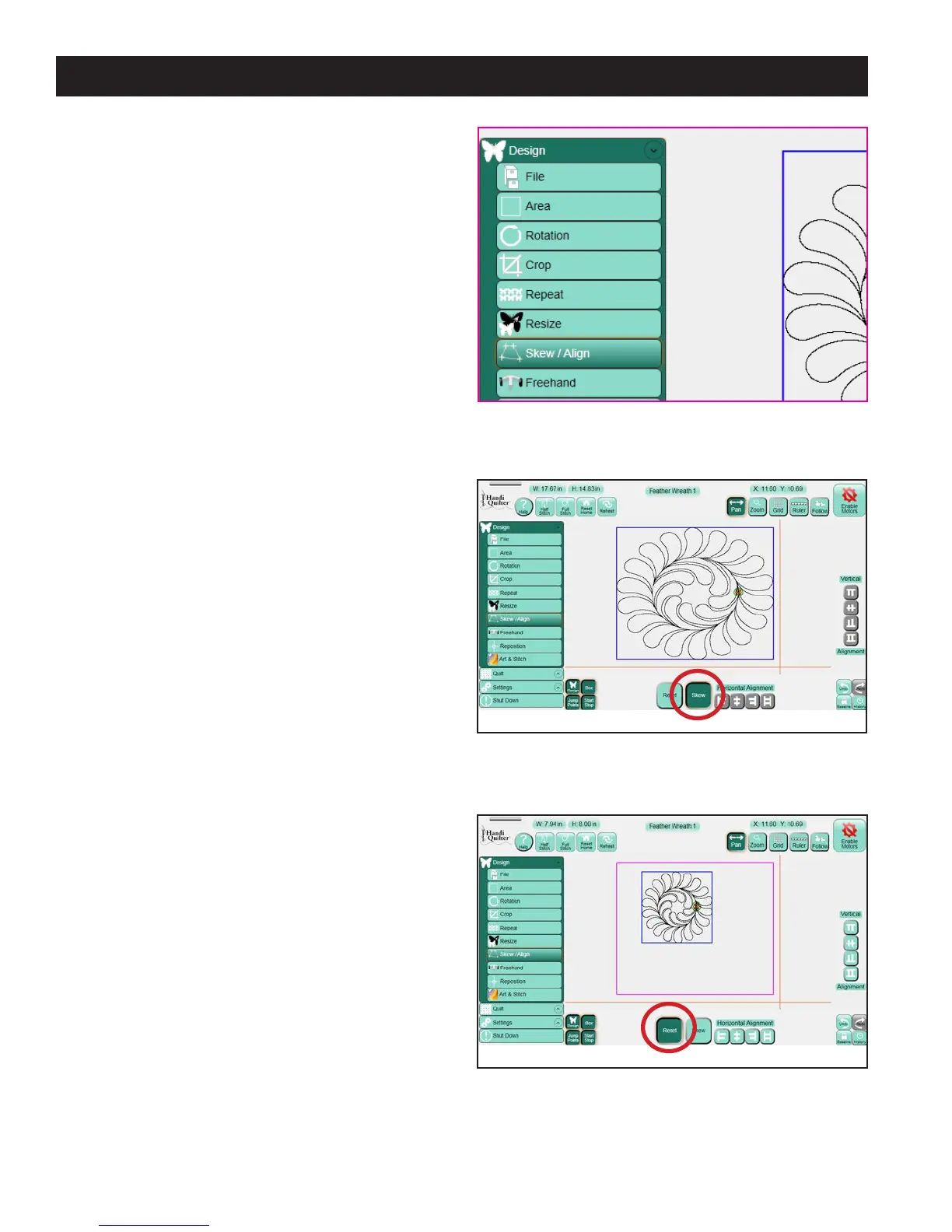
Select the Design menu and then press the Skew
sub-menu button (Figure 5.60). e options
available in the Skew panel are Skew, Reset, and
multiple Alignment tools.
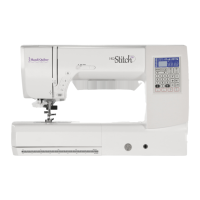
Skew
If this button is enabled, the design will be stretched
to ll the dened 4-point area (Figure 5.61). (Skew
only functions with a 4-point area.) If the button
is light, the Skew function is not turned on. If the
button is gray, the Skew function is unavailable
because an Area has not yet been dened.
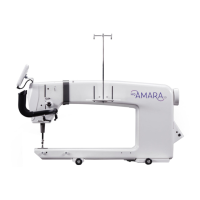
Reset
Press Reset to turn o skewing (Figure 5.62).
Alternatively, a quilting design can be aligned
relative to the dened area. If an area has not yet
been dened, the alignment buttons will be gray
and inactive.
Figure 5.61
Figure 5.62
Figure 5.60




 To Next Page