Updating Software
If you are running Headsight’s Horizon header height control, select the WiFi network
of the Horizon base unit and it will automatically pass the update to Truesight 2
as well. If you are not running Horizon, select the Truesight 2 WiFi Network.
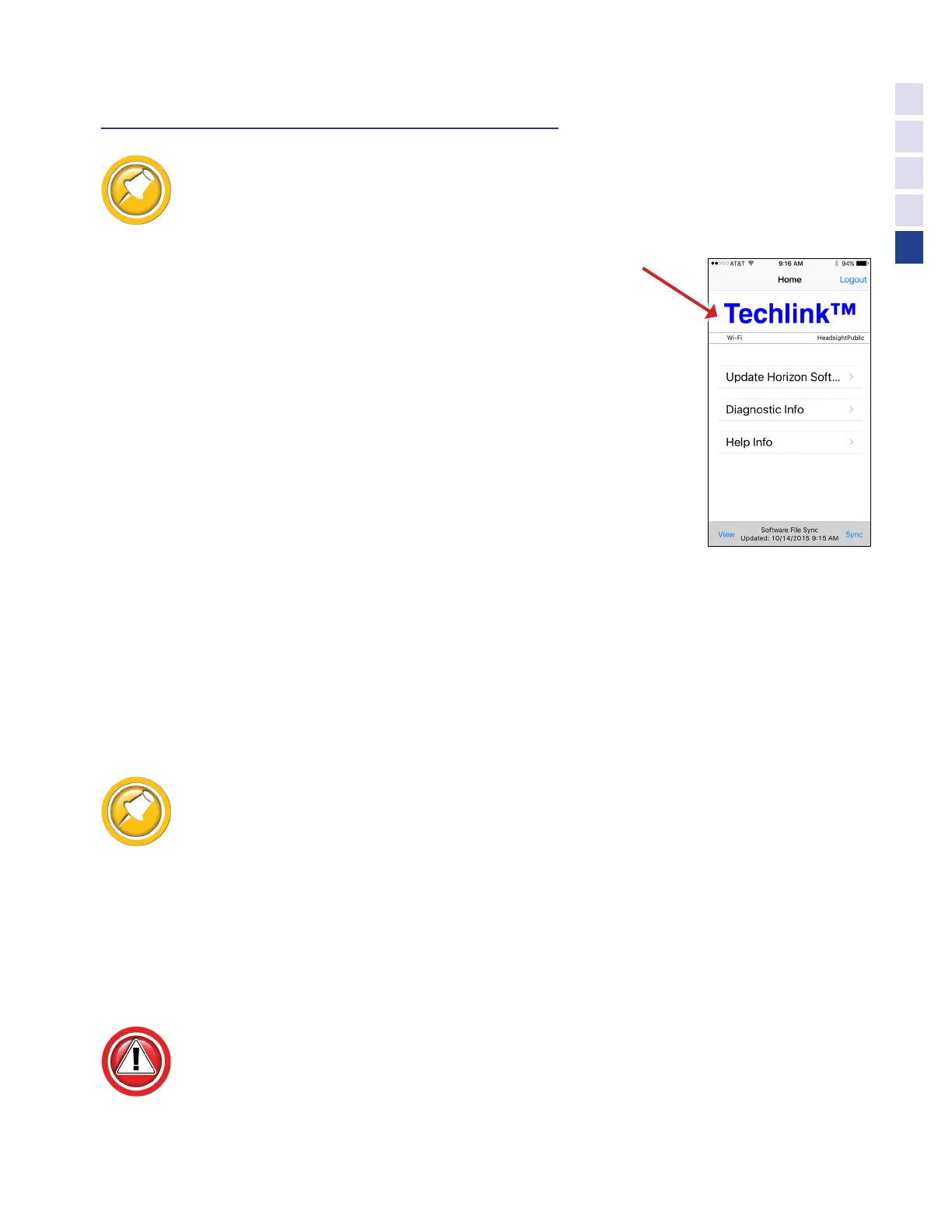
Updating with Techlink™ App
1. Download Headsight Techlink App on your iDevice or Android
from the App store.
•
Must have Horizon 2.10.0 or later software
•
Login in following on screen instructions
•
Then go to Help Info to learn how to use app
Updating Truesight 2 with USB
2. Download latest version of Truesight 2 from website.
3. Unzip files, copy file insght2.bin onto root directory on USB flash drive.
•
If you are using Truesight remote display you will need to
place agremote.hex file on a SDcard that is 2GB or less.
4. Plug USB flash drive into USB port on Truesight 2 unit in combine cab.
•
If unit is not yet powered up, cycle key on combine
•
It should start blinking yellow shortly after applying power. If this
doesn’t happen, unplug and plug the Truesight 2 power.
•
Press accept on VT (Update Firmware) to start software update.
5. Wait until Truesight 2 unit has a green indicator light (should be no longer than 5 min)
•
If you have Truesight Remote Display attached, power cycle Truesight Remote Display unit.
If the Remote display light is rapidly flashing red, then Truesight Remote Display is updating.
Don’t cycle power while it is updating. If display flashes “COMM FAILED”, call Headsight.
6. You can now safely remove the USB flash drive.
•
Be sure to replace USB cover cap
7. Wait for Truesight 2 to appear on VT.
•
A power cycle might be needed after update
8. Your Truesight 2 is now updated. Please verify that your Truesight 2 initial settings are correct.
If your Truesight 2 units fail to update you must do a complete format on USB
drive to a (FAT) file type and then recopy insght2.bin to the root directory.
37
Overview


 To Next Page