EasyManua.ls Logo

Hitachi VM-E530A - Using Audio;Video Dubbing

Hitachi VM-E530A
56 pages
Print Icon
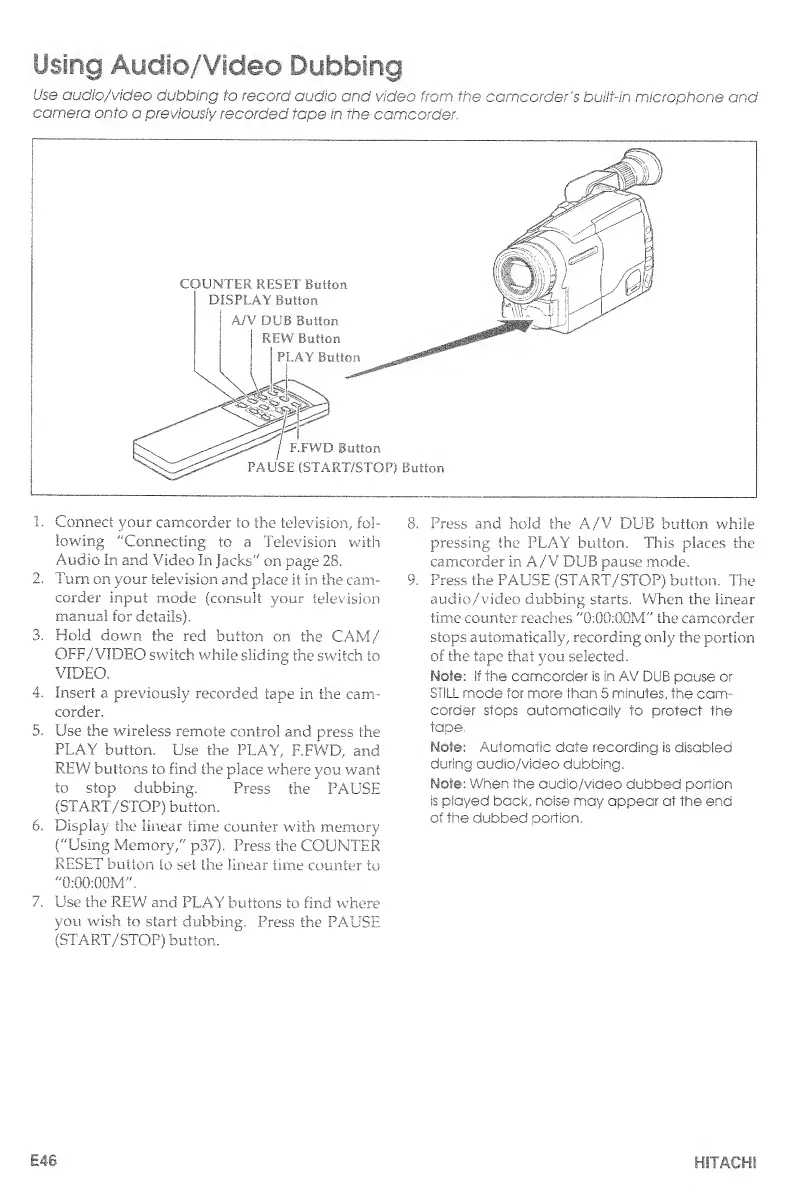
To Next Page IconTo Next Page
To Previous Page IconTo Previous Page
Loading...
Using
Audio/Video
Dubbing
Use
audio/video
dubbing
to
record
audio
and
video
from
the
camcorder's
built-in
microphone
and
camera
onto
a
previously
recorded
tape
in
the
camcorder.
1.
Connect
your
camcorder
to
the
television,
fol¬
lowing
"Connecting
to
a
Television
with
Audio
In
and
Video
In
Jacks"
on
page
28.
2.
Turn
on
your
television
and
place
it
in
the
cam¬
corder
input
mode
(consult
your
television
manual
for
details).
3.
Hold
down
the
red
button
on
the
CAM./
OFF/VIDEO
switch
while
sliding
the
switch
to
VIDEO.
4.
Insert
a
previously
recorded
tape
in
the
cam¬
corder.
5.
Use
the
wireless
remote
control
and
press
the
PLAY
button.
Use
the
PLAY,
F.FWD,
and
REW
buttons
to
find
the
place
where
you
want
to
stop
dubbing.
Press
the
PAUSE
(START/STOP)
button.
6.
Display
the
linear
time
counter
with
memory
("Using
Memory,"
p37).
Press
the
COUNTER
RESET
button
to
set
the
linear
time
counter
to
"0:00:00m".
7.
Use
the
REW
and
PLAY
buttons
to
find
where
you
wish
to
start
dubbing.
Press
the
PAUSE
(START/STOP)
button.
8.
Press
and
hold
the
A/V
DUB
button
while
pressing
the
PLAY
button.
This
places
the
camcorder
in
A/V
DUB
pause
mode.
9.
Press
the
PAUSE
(START/STOP)
button.
The
audio/video
dubbing
starts.
When
the
linear
time
counter
reaches
"0:00:Q0M"
the
camcorder
stops
automatically,
recording
only
the
portion
of
the
tape
that
you
selected.
Note:
tf
the
camcorder
is
in
AV
DUB
pause
or
STILL
mode
for
more
than
5
minutes,
the
cam¬
corder
stops
automatically
to
protect
the
tape.
Note;
Automatic
date
recording
is
disabled
during
audio/video
dubbing.
Note;
When
the
audio/video
dubbed
portion
is
played
back,
noise
may
appear
at
the
end
of
the
dubbed
portion.
E46
HITACHI

Table of Contents

Related product manuals