TROUBLESHOOTING
Version 1.0, 12/2014. Copyright 2012 Hitron Technologies
117
Version 1.0, 12/2014. Copyright 2014 Hitron Technologies
117
Hitron CGNM-2250 User’s Guide
2
If the default username and password do not work, you need to reset the CGNM-
2250. See Factory Default Resetting the CGNM-2250 on page 24. All user-
configured data is lost, and the CGNM-2250 is returned to its default settings. If
you previously backed-up a more recent version your CGNM-2250’s settings,
you can now upload them to the CGNM-2250; see The Backup Screen on page
92.
Problem: I Cannot Access the CGNM-2250 or the Internet
1 Ensure that you are using the correct IP address for the CGNM-2250.
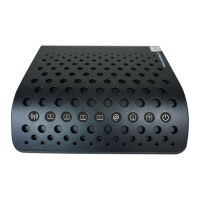
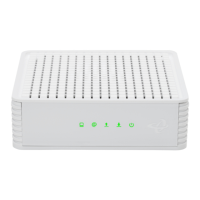
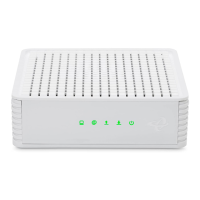
2 Check your network’s hardware connections, and that the CGNM-2250’s LEDs
display correctly (see LEDs on page 17).
3 Make sure that your computer is on the same subnet as the CGNM-2250; see IP
Address Setup on page 21.
4 If you are attempting to connect over the wireless network, there may be a
problem with the wireless connection. Connect via a LAN port instead.
5 If the above steps do not work, you need to reset the CGNM-2250. See Factory
Default Resetting the CGNM-2250 on page 24. All user-configured data is lost,
and the CGNM-2250 is returned to its default settings. If you previously backed-
up a more recent version your CGNM-2250’s settings, you can now upload them
to the CGNM-2250; see The Backup Screen on page 92.
6 If the problem persists, contact your vendor.
Problem: I Cannot Access the Internet and the DS and US LEDs
Keep Blinking
Your service provider may have disabled your Internet access; check the Status >
DOCSIS WAN screen’s Network Access field (see
The DOCSIS WAN Screen on
page 47).
Problem: I Cannot Connect My Wireless Device
1 Ensure that your wireless client device is functioning properly, and is configured
correctly. See the wireless client’s documentation if unsure.


 To Next Page