45 Image Vault
®
PRO Command
4.8 Camera Window Behavior
The Playback Options menu includes three important options that determine how
your camera windows will appear and behave.
Auto-Tile: Enable Auto-Tile from the Playback Options menu to make camera
windows tile and auto-arrange automatically as you open and close cameras. Dis-
able this feature to allow windows to open in cascade style at original size. This
feature is enabled automatically if window borders are off.
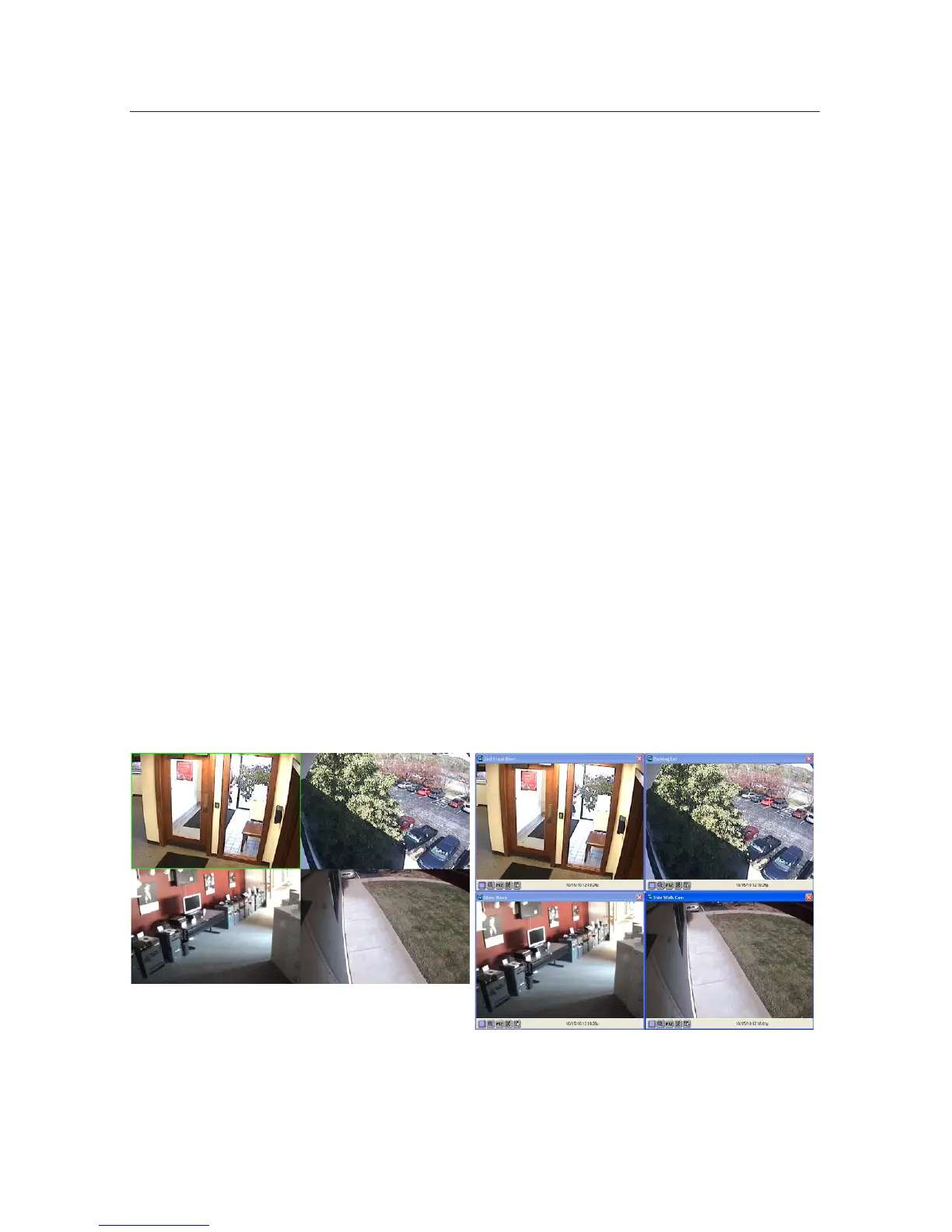
Show/Hide Borders: The advantage to showing window borders is that you can
easily see all of the camera names and timestamps and the icons associated with
each camera window. The advantage to hiding borders is decluttering and better
utilization of the screen area. By removing borders you make the same cameras
appear larger on the screen. To show camera borders enable Show Camera Win-
dow Borders at the Playback Options menu. Disable this option to hide camera
borders.
Show/Hide Panels: You may choose to auto-hide panel areas in much the same
way you can set your Windows toolbar to auto-hide. The panel areas of the
playback software include the bottom panel where the jog controls are found,
the right side panel where the camera select and search buttons are found, and
the optional top area which is visible if you choose to Show QuickView Action
Buttons.


 To Next Page