59 Image Vault
®
PRO Command
7.5 Data Device Setup
YoushouldcongurethedatadevicesetupbeforeconguringDataRuletrig-
gers. Transaction data will not be captured until the Data Device Setup is done.
To successfully capture, store, and use data to trigger recording and audit log-
ging follow these simple steps:
1. Connect hardware using proper wiring accessories (Part 1, Section
3.11).
2. Print sample reports containing data you want to use to trigger record-
ing and auditing.
3. Complete Data Device Setup (described below) to capture data.
4. Logout of your DVR if capturing serial data.
5. While viewing Live Status Mode print data from each source and verify
on the display that the data is captured. If data is not captured, check
physical connections (Part 1, Section 3.11) and Data Device Setup.
6. Setup Data Rules as desired after verifying data is being captured.
Data Device Setup Wizard
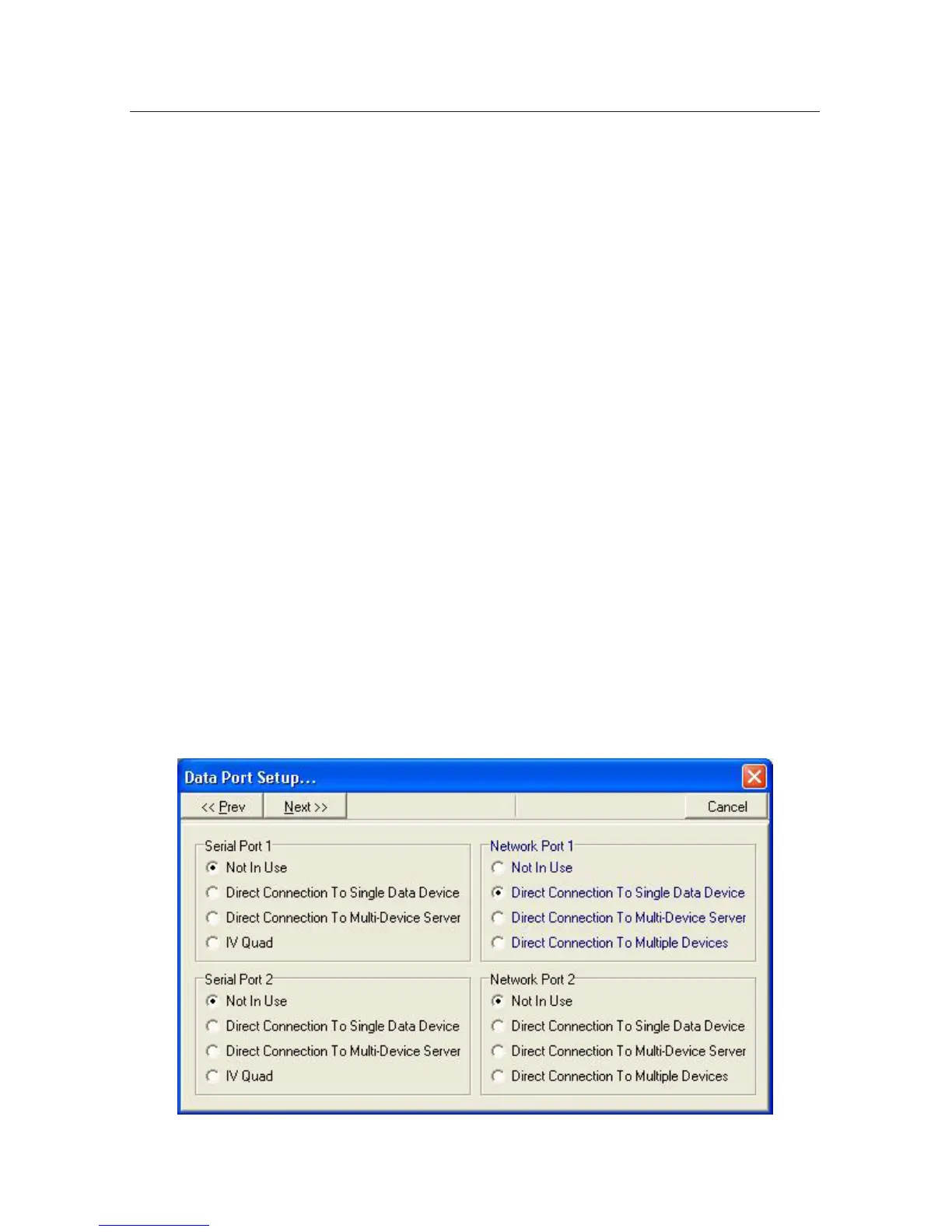
Select “Edit Data Device Setup” from the Status menu. The wizard will guide you
through the setup steps. Choosing the correct Device Type is critical to ensure
therightlterisused.Ifyourdatasourceisnotlisted,contactImageVaultTech-
nical Service (1.888.462.4382) for direction.
Types of Sources: Data may be captured from either or both serial POS Data
ports on the rear of the DVR or via network. Serially the data may come in directly
from a single or multi-device source or through an IVQuad. Specify the source(s)
used.


 To Next Page