35 Image Vault
®
PRO Command
3.4 Network Communication
Network(TCP/IP)communicationprovidesexcellentexibilityandpotentiallythe
highest communication speed. Using TCP/IP, multiple remote PCs may connect to
the same DVR at the same time. With additional network hardware the DVR may
be accessed outside your LAN via DSL, VPN, WAN, or open Internet. Contact your
Network Administrator and/or ISP for support with these applications.
PC Network Settings
Before establishing network communications, regardless of the physical nature of
theconnection,yourPCmustbeproperlyconguredforTCP/IPcommunication
with settings which are compatible with the DVR and the network. The setup in-
formation provided here is based on connecting to the DVR using a Peer-to-Peer
connection. ForsituationsinvolvingaLAN,VPN,DSL,etc.,pleaseseeyour
Network Administrator or ISP representative for proper TCP/IP settings for
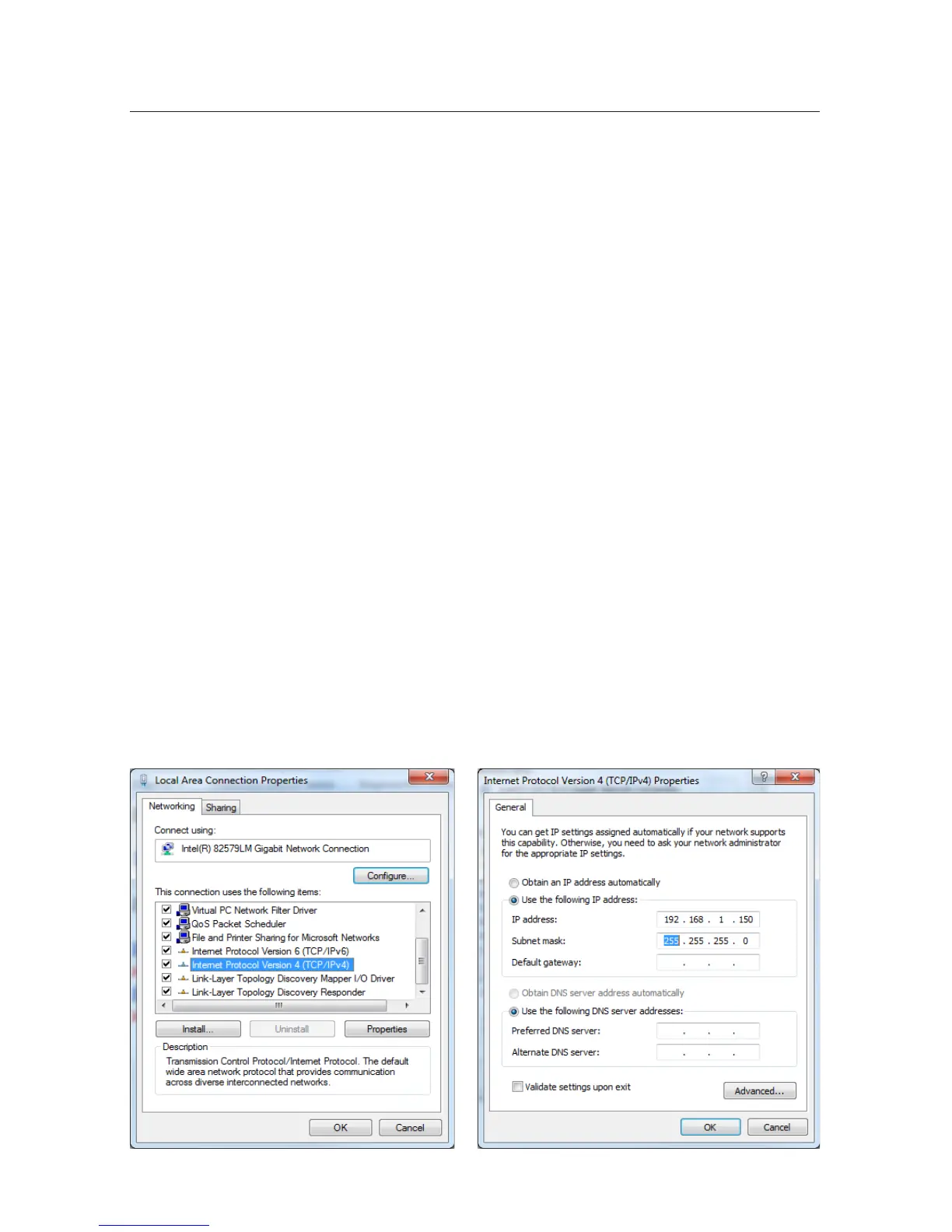
your PC. The following example demonstrates the settings used for Peer-to-
Peer networking (access these from your Control Panel\Network and Internet\
Network Connections)assumingdefaultDVRcongurationsettings:
1. TCP/IP protocol must be enabled.
2. Select Internet Protocol and Click PROPERTIES.
3. Select “Use the following IP address:” and enter the values shown be-
low only if you are using only default TCP/IP settings on the DVR.
Otherwise contact your network administrator and use the settings
they provide. No further setup is required. Save your setup by clicking
OK. Windows 2000 and newer systems will not need to reboot in order
to complete setup.


 To Next Page