Entering Program Mode
53
Changing the Power on Configuration
When you power on the printer for the first time, it loads the factory default
configuration. If you power the printer off and then back on, the printer will
load the designated power-on configuration (which is set to Factory Default by
default). It will not load the last saved configuration.
The Change Power On Set option allows you to select a custom set of
configuration values as the power-on configuration. The example on the
following page shows how to select Custom Set 1 as the power-on
configuration.
NOTE: Be sure you define and save a custom set before attempting to use it
as the Power On Custom Set. Otherwise, the current Power On
Custom Set remains selected and the following operator panel
message is displayed:
042 CUSTOM SET DOES NOT EXIST
SAVE FIRST
For example, if you attempt to change the Power On Custom Set
from Custom Set 1 to Custom Set 4, and if Custom Set 4 does not
exist, Custom Set 1 remains the Power On Custom Set.
10. READY Places the printer in READY
mode, prepared for normal
operation.
Step Key LCD Results Notes
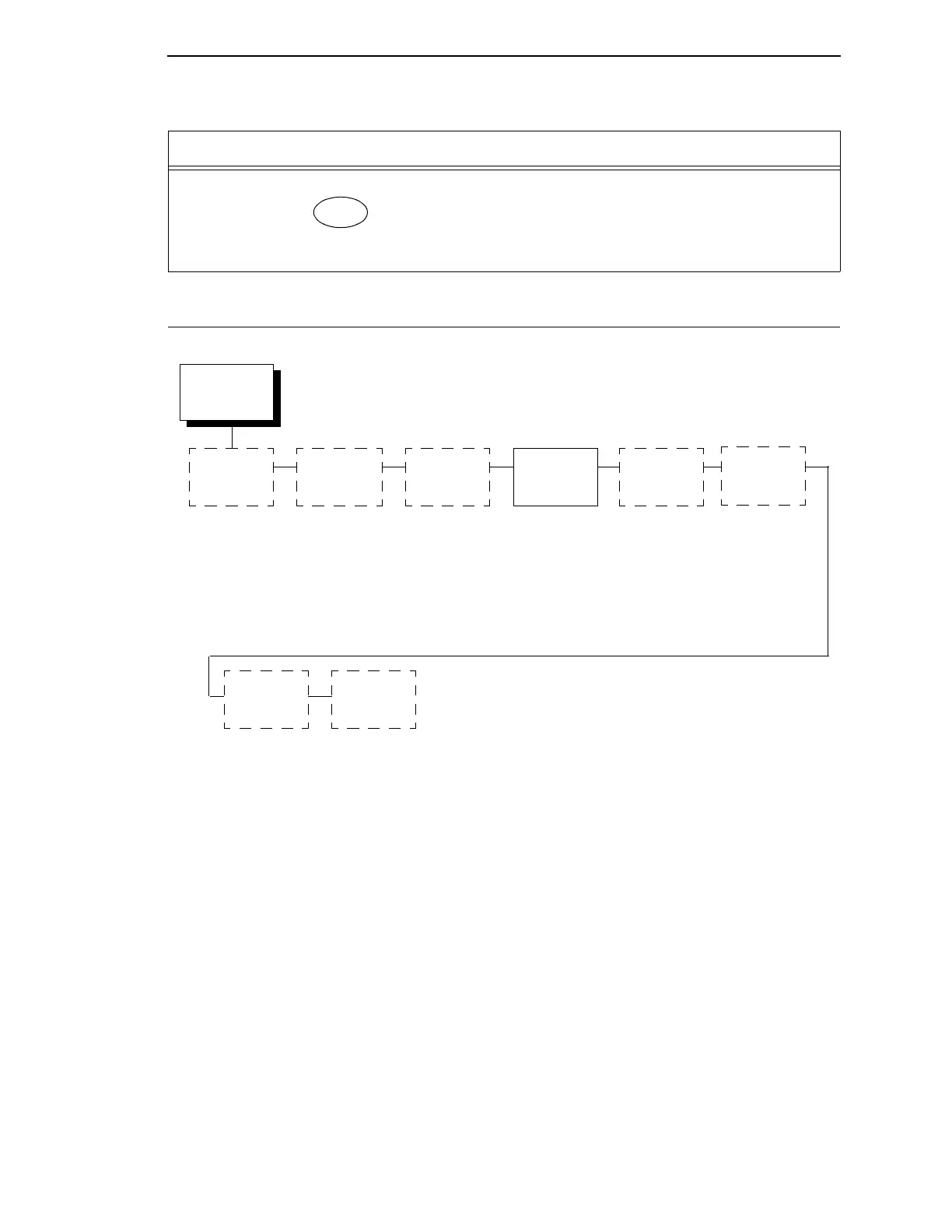
Configuration
Management
Recall
Custom Set
Protect
Custom Sets
Change
Power On Set
Delete
Custom Set
Save Current
Values
Factory Default*
Custom Set 1
Custom Set 2
Custom Set 3
Custom Set 4
Custom/Preload Set 5
Custom/Preload Set 6
Custom/Preload Set 7
Custom/Preload Set 8
* = Factory Default
Print Custom
Set Values
Name
Custom Sets
Reset
Custom Set
Names
Changing the Power on Configuration



 To Next Page