38
Chapter 3
Using the Operator Panel
Using the Operator Panel
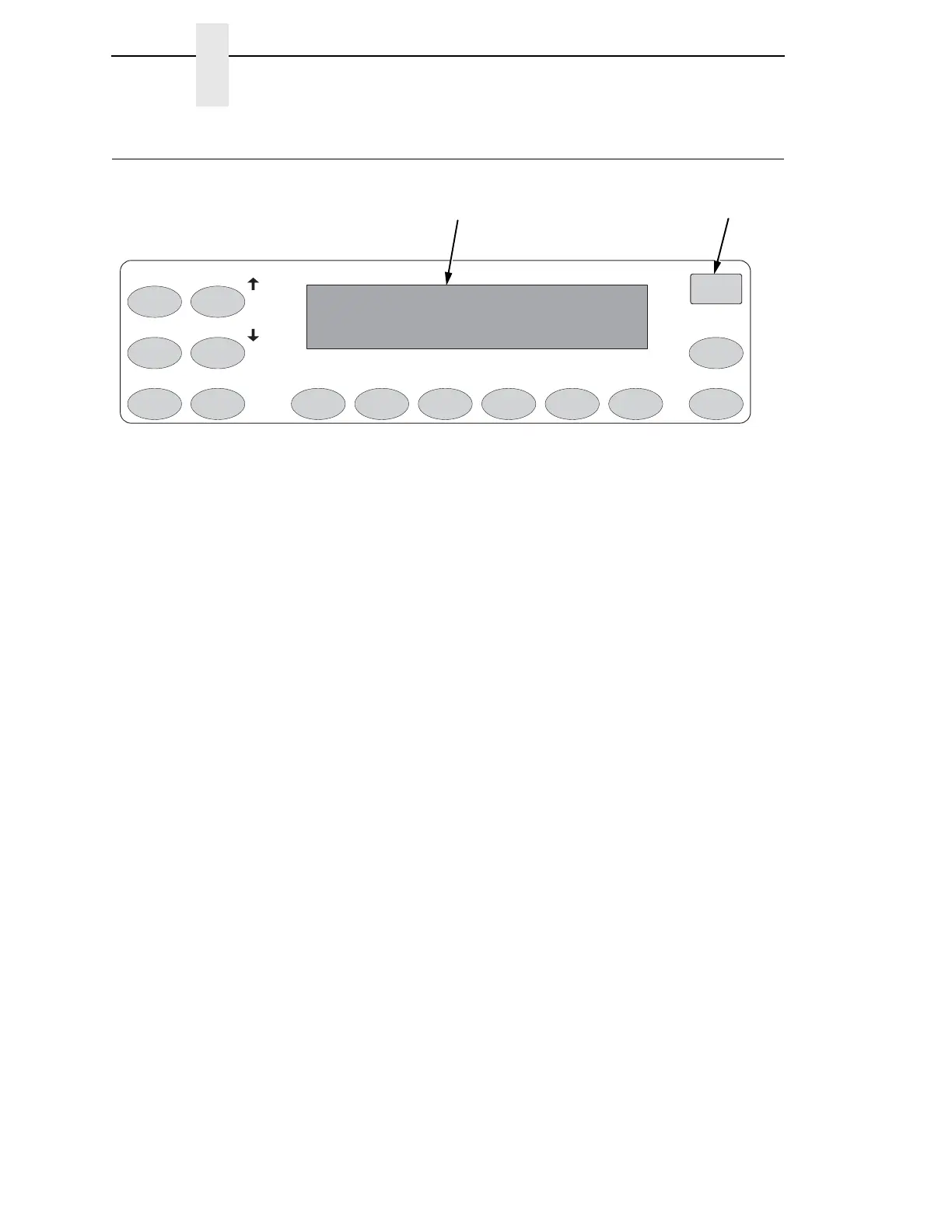
Figure 8. The Operator Panel
The operator panel is shown above. During the configuration process, you will
use the SCROLL/MICRO, SCROLL/MICRO, ENTER, and RETURN keys
on the operator panel to access configuration settings and diagnostic tests via
the configuration menus. As you access menus and options, menu names
and option values appear on the operator panel message display (sometimes
referred to as LCD, or Liquid Crystal Display).
This chapter provides numerous examples of how to use the operator panel
keys and indicator message display to configure the printer.
Message Display
An alphanumeric LCD display consists of a minimum of two rows of
twenty-four characters each used to display printer status, fault messages,
and menus to permit the operator to set various configurations. The display
can be set to any one of the following languages: English, French, German,
Italian, Spanish, Dutch, Brazilian-Portuguese, and Polish.
Status Indicator
A high visibility light for indicating general printer status. The light is on when
the printer is READY (on-line to the host), off when the printer is NOT READY
(off-line), or flashes if a fault condition exists.
Operator Panel Overlay
An adhesive-backed overlay is provided that adheres to the face of the control
panel. Overlays are provided in the following languages: English, French,
German, Italian, Spanish, Dutch, Brazilian-Portuguese, and Polish. The
overlay legends can be translated into additional languages as required.
183963a
SET TOP
OF FORM
FORM
FEED
LINE
FEED
SCROLL/
MICRO
ENTERRETURN
CONFIG
MENU
VIEW CANCEL EJECT START
STOP
SCROLL/
MICRO
Message Display
Status Indicator



 To Next Page