79
Attention: if you ll in the elds day, month and year, the item Day of Week will be discarded. Therefore, to run
several times, use only the Day of Week eld.
7. Using the alphanumeric keyboard, type the reminder text (max. 23 characters);
8. To delete a character, press the
Delete
selection key;
9. Press the
Ok
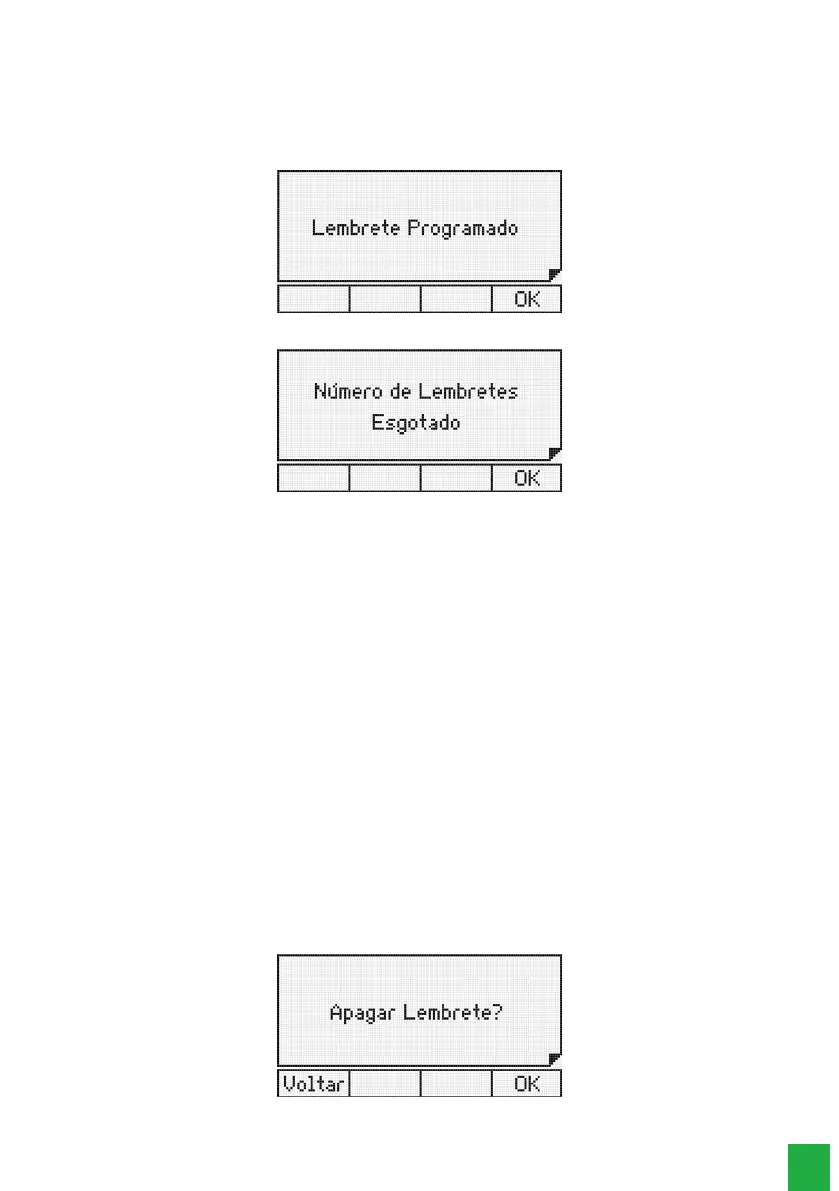
key to conrm the setting. The following message will be displayed:
10. If you try to add a reminder and the terminal has already programmed 5 reminders, the following message will appear:
9.2. Change a reminder
1. Press the
Menu
key. The terminal will enter the main menu;
2. Search for
Reminder
and press the
Ok
key;
3. Search for
Change
using the keys and , and press the
Ok
key;
4. Using the keys and nd the reminder you wish to change and press the
Edit
selection key;
5. Using the navigation keys and the alphanumeric keyboard, change the desired information;
6. Press the
Ok
key to conrm the setting.
9.3. View programmed reminder
1. Press the
Menu
key. The terminal will enter the main menu;
2. Search for
Reminder
and press the
Ok
key;
3. Search for
View
using the keys and , and press the
Ok
key;
4. Use the keys and to browse through the already scheduled reminders.
9.4. Delete programmed reminder
1. Press the
Menu
key. The terminal will enter the main menu;
2. Search for
Reminder
and press the
Ok
key;
3. Search for
Delete
using the keys and , and press the
Ok
key;
4. Use the keys and to browse through the already scheduled reminders;
5. To delete the selected reminder, press the
Delete
selection key. A conrmation message will be displayed:


 To Next Page