107
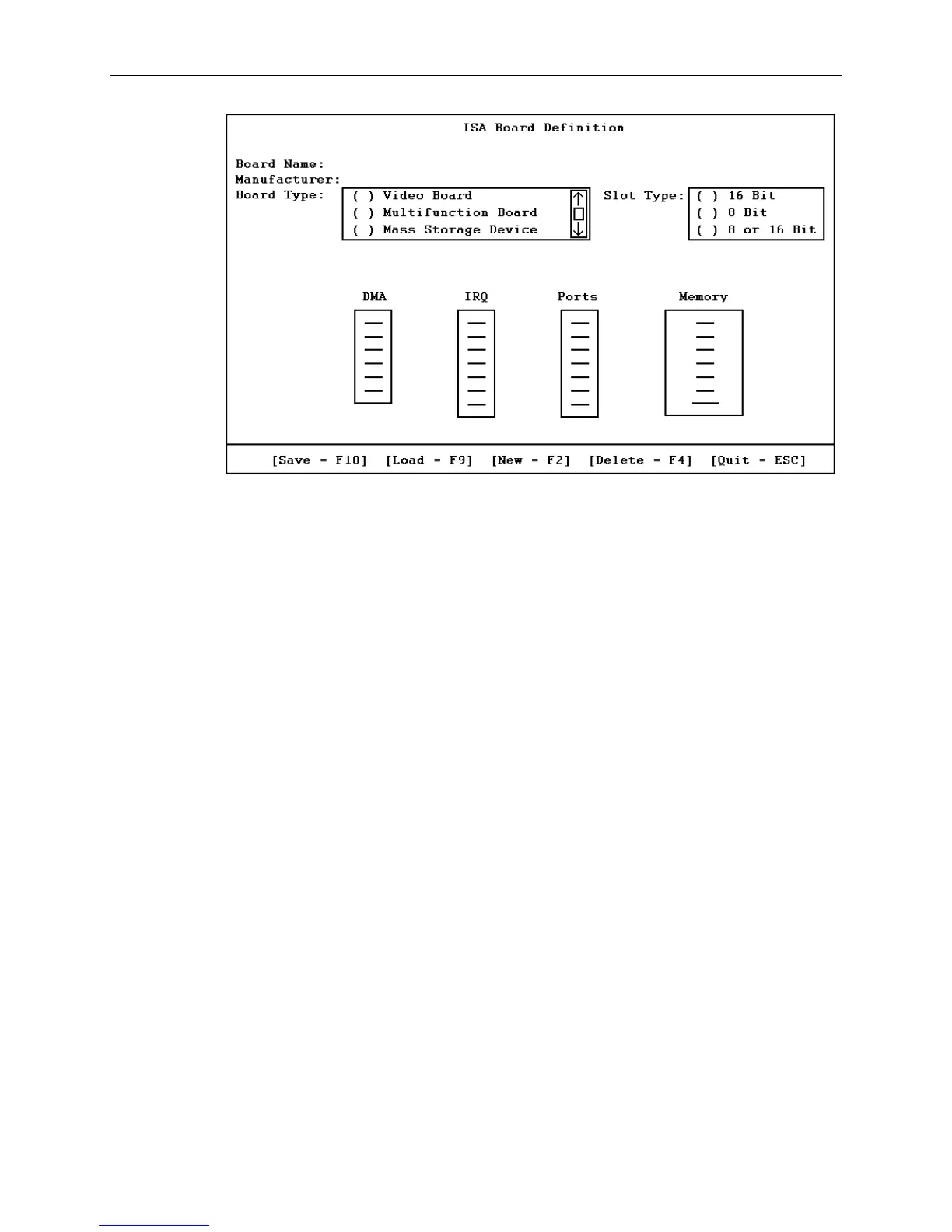
5. Enter the data specified in the manufacturer’s configuration instructions.
NOTE Use the TAB and arrow keys to move the cursor from field to field. Once inside the DMA, IRQ, and
Ports fields, press ENTER to display the sub-fields for entering the information.
6. Press F10 to save the data to the system.
7. Press
ENTER to return to the ISA Board Definition Menu.
8. Press
ESC to return to the SCU Main Menu.
9. Select Step 2. The Add and Remove Boards Menu displays.
10. Select the required slot number and press
INSERT.
11. Select
INSERT again to add the board. The ISA Board Database Menu displays.
12. Select the correct board name and press
ENTER.
13. When the Slot Selection Menu displays, select the required slot and press
ENTER.
14. Press
ESC to return to the SCU Main Menu.
15. Select Step 4 to save the configuration.
16. Select Step 6 to exit the SCU.
17. Remove the diskette from the combo drive and shutdown the system.
18. Install the option board as described in “Adding Option Boards” previously in this chapter.
19. Restart the system.
NOTE If you assign resources for a new board that are assigned to a previously installed board, then the
message Static Resource Conflict displays during boot up. Use AMIBIOS Setup to change
the resources so the boards do not conflict with each other.



 To Next Page