Wireless Access Point
User Guide
10.9 Uplink check
10.9.1 Overview
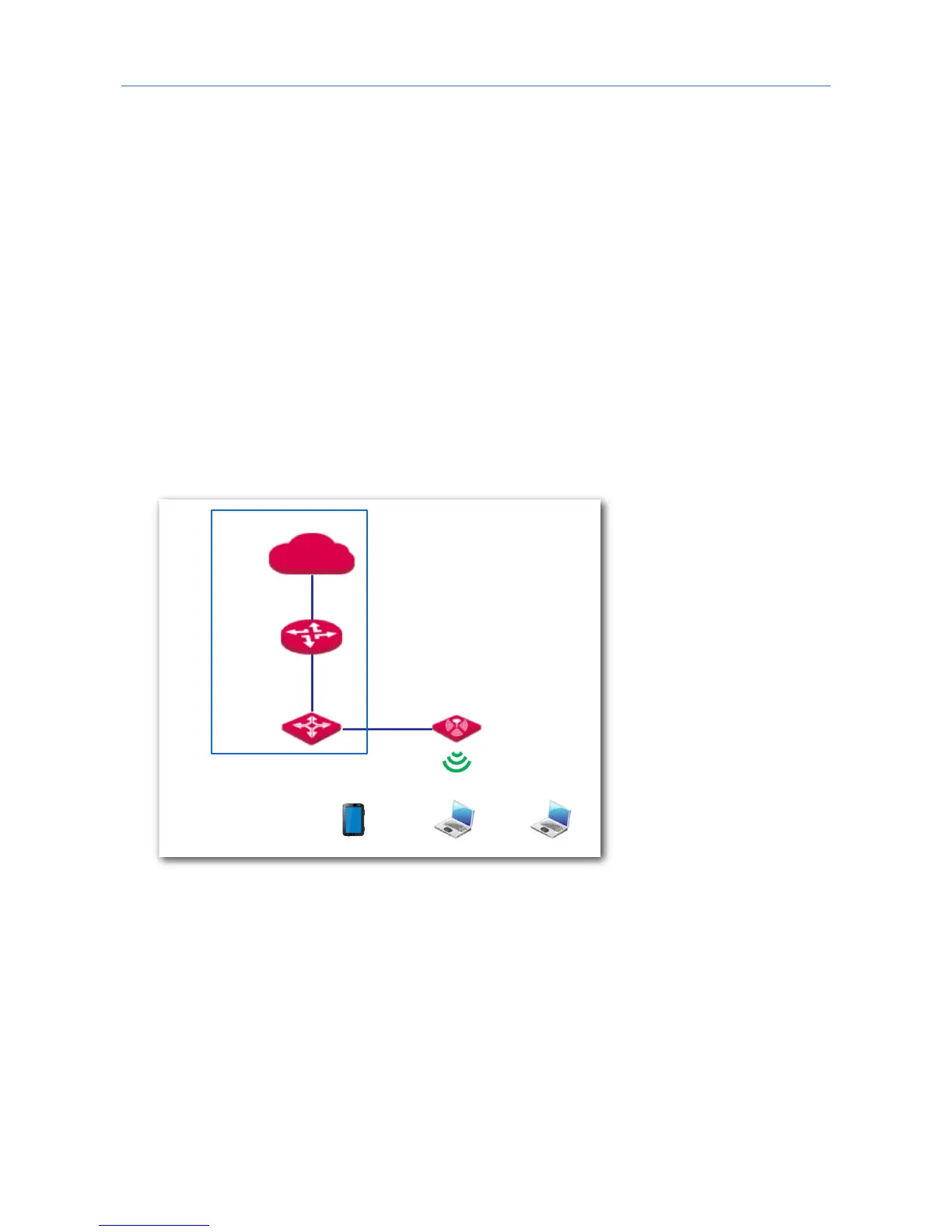
In AP mode, the AP connects to its upstream network using the LAN port. If a critical node
between the LAN port and the upstream network fails, the AP as well as the wireless devices
connected to the AP cannot access the upstream network. If uplink detection is enabled, the
AP regularly pings specified hosts through the LAN port. If all the hosts are not reachable,
the AP stops its wireless service and wireless devices cannot find the SSIDs of the AP. The
device can reconnect to the AP only after the connection between the AP and the upstream
networks is recovered.
If the uplink of the AP with uplink check enabled is faulty, wireless devices can connect to
the upstream network through another nearby AP that works properly.
See the following topology (The LAN port serves as the uplink port).
10.9.2 Configuring uplink check
1. Click Tools > Uplink Check.
2. Uplink Check: Tick the Enable box.
3. Host 1 to Ping/Host 2 to Ping: Enter the IP address(es) of the host to be pinged through
the LAN port of the AP, such as the IP address of the switch or router directly connected
to the AP.
4. Pinging Interval: Enter the interval at which the AP detects its uplink.
5. Click Save.



 To Next Page