Wireless Access Point
User Guide
3 Login
3.1 Logging in to the web UI of the AP
If you want to log in to the web UI of your AP, perform the following procedures:
1. Connect your management computer to the AP’ WiFi network or the PoE switch
connected to the AP using an Ethernet cable.
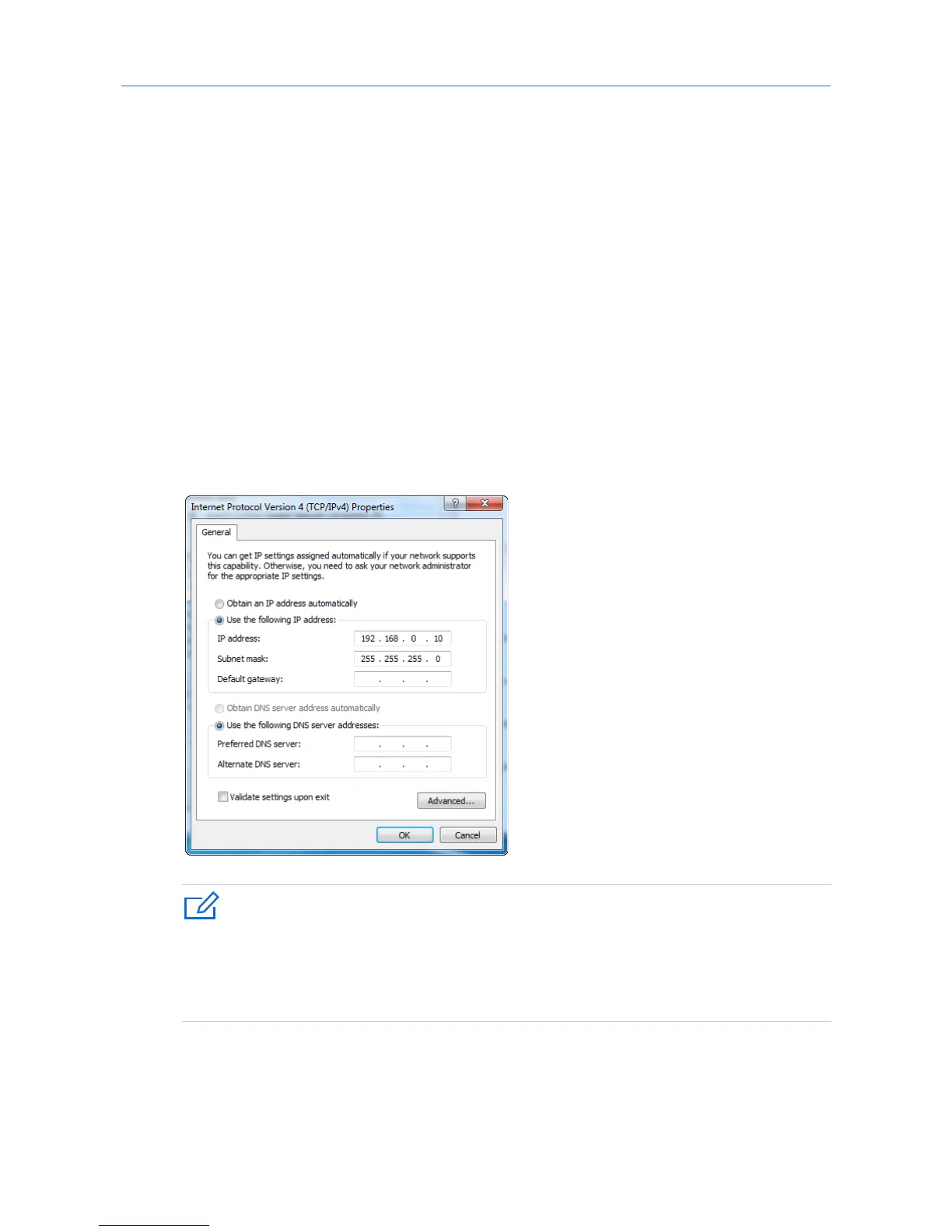
2. Set IP address of your computer to 192.168.0.x (x: 2 - 253) and subnet mask to
255.255.255.0.
If your AP is managed by an IP-COM AC/router, the AP’s IP address may have been
changed. In that case, go to the web UI of the router/AC to view the new IP address of the
AP, set the IP address of your computer in the same network segment as the AP’s new IP
address, then log in to the AP’s web UI using the new IP address.
3. Start a web browser on the computer, enter the IP address of the AP (default:
192.168.0.254) in the address bar, and press Enter.
4. Enter the user name and password of the AP (default user name and password:
admin/admin) and press Login.
12



 To Next Page