Wireless Access Point
User Guide
2.3 Deploying the AP with an IP-COM AP controller
A hotel may be deployed with lots of APs, so you are recommended to use an IP-COM AP
controller (AC) to manage the APs centrally. The following describes the procedures.
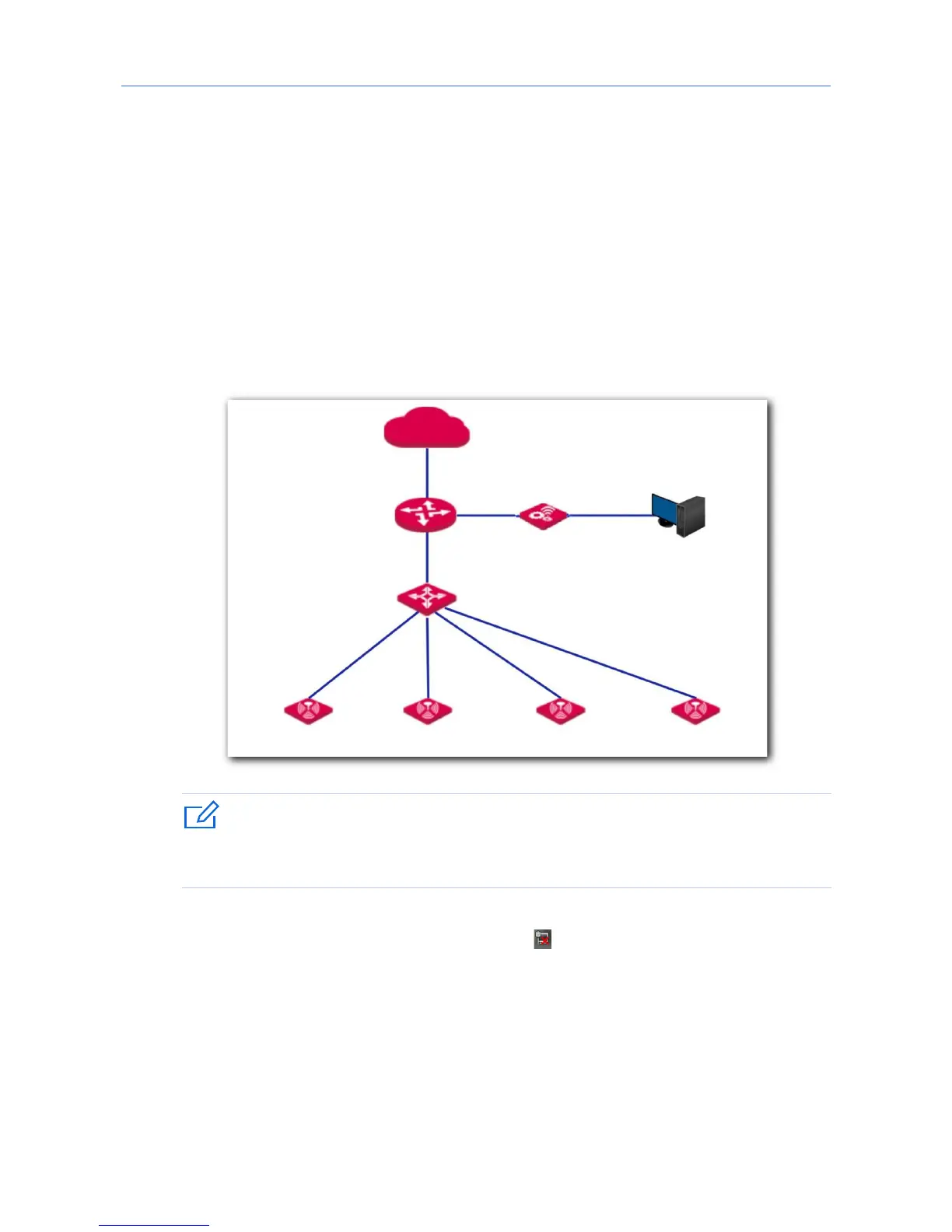
1. Connect devices.
(1) Ensure that your router is connected to the internet.
(2) Ensure that your router, PoE switch and AC are connected to power supply.
(3) Connect your IP-COM AC and PoE switch to LAN ports of your router using Ethernet
cables. IP-COM AC2000 is used for instructions in this example.
(4) Connect your APs to PoE ports of your PoE switch using Ethernet cables.
(5) Connect your computer to a port of your AC.
If you choose to power on your AP using DC power supply, connect the PWR port of your
AP to a DC power resource using the included power adapter.
After finishing connection, ensure that the AP’s LED indicator blinks and the lower-right
network icon on your computer is not displayed .
2. Set the IP address of your computer (Example: Windows 7)
(1) Right-click the network icon on the lower-right corner of your computer. Then click
Open Network and Sharing Center, Local Area Connection, and Properties.
(2) Double-click Internet Protocol Version 4 (TCP/IPv4), select Use the following IP
address, set IP address to 192.168.10.x (x: 2 to 253. The IP address in this example is
192.168.10.10) and Subnet mask to 255.255.255.0.
(3) Click OK.



 To Next Page