4. Insert the coupler end of the power cord into the AC power cord inlet on the AC power
supply faceplate.
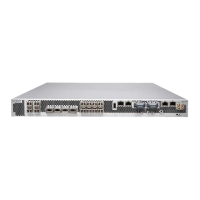
5. Push the power cord retainer onto the power cord. See Figure 18 on page 48.
Figure 18: Connecting AC Power
6. If the AC power source outlet has a power switch, set it to the off (0) position.
7. Insert the power cord plug into an AC power source outlet.
8. Dress the power cord appropriately. Verify that the power cord does not block the air
exhaust and access to services gateway components or drape where people could
trip on it.
9. If the AC power source outlet has a power switch, set it to the on (|) position.
10. Repeat steps 4 through 8 for the second AC power supply.
11. Verify that the AC and DC LEDs on each power supply are lit green. If the fault status
(!) LED is lit amber, remove power from the power supply, and replace the power
supply (see “Removing an AC Power Supply from an SRX4100 Services Gateway” on
page 67). Do not remove the power supply until you have a replacement power supply
ready. The power supplies must be installed in the services gateway to ensure proper
airflow.
Related
Documentation
Understanding the SRX4100 Power Supply on page 13•
Connecting DC Power to an SRX4100 Services Gateway
Before you begin connecting DC power to an SRX4100 Services Gateway:
•
Ensure thatyou havetaken the necessary precautions to prevent electrostatic discharge
(ESD) damage.
•
Ensure that you have connected the chassis to earth ground.
Copyright © 2017, Juniper Networks, Inc.48
SRX4100 Services Gateway Hardware Guide


 To Next Page