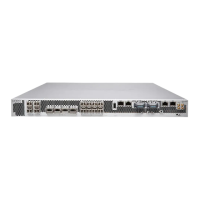
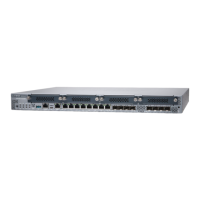
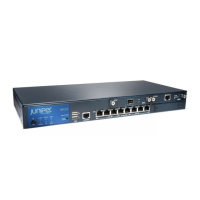
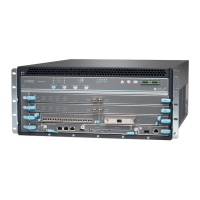
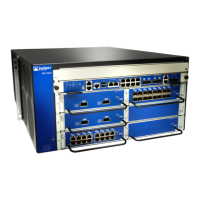
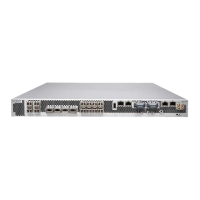
Table 26: Alarms for Services Gateway Chassis Components
Alarm SeverityActionAlarm ConditionsComponent
Steady red (major)
•
Check and adjust the room
temperature, if possible.
•
Check the air flow and ensure
that the airflow through the
servicesgateway is unobstructed.
•
Open a support case using the
Case Manager link at
http://www.juniper.net/support/
or call 1-888-314-5822 (toll-free
within the United States and
Canada) or 1-408-745-9500
(fromoutside the UnitedStates).
At least one of the fans have
failed.
Fan
Yellow (minor)
•
Check the room temperature.
•
Check the air flow.
•
Open a support case using the
Case Manager link at
http://www.juniper.net/support/
or call 1-888-314-5822 (toll-free
within the United States and
Canada) or 1-408-745-9500
(fromoutside the UnitedStates).
The services gateway chassis
temperature is too warm.
Steady red (major)Replace the power supply.A power supply has failed.Power supply
Install a power supply unit in the
empty slot. The services gateway
requires two power supply units to
be installed.
A power supply unit is not
present.
Verify and ensure that the AC power
cord is connected properly.
AC power cord is not
connected.
Related
Documentation
Understanding the SRX4100 Services Gateway Front Panel on page 5•
Using the RESET Button on the SRX4100 Services Gateway
If a configuration fails or denies management access to the services gateway, you can
use the RESET button to restore the services gateway to the factory-default configuration.
CAUTION: Pressing and holding the RESET button for 5 seconds or more
deletes all configurations (backup configurations and rescue configuration)
on the device, and loads and commits the factory configuration.
You can change the default operation of the RESET button by limiting how the button
resets the services gateway:
Copyright © 2017, Juniper Networks, Inc.62
SRX4100 Services Gateway Hardware Guide


 To Next Page