In addition to the internal disk you can also
manage external drive such as pendrives, hard
disks, CD players, etc. connected to any of the
two USB connectors on the front side.
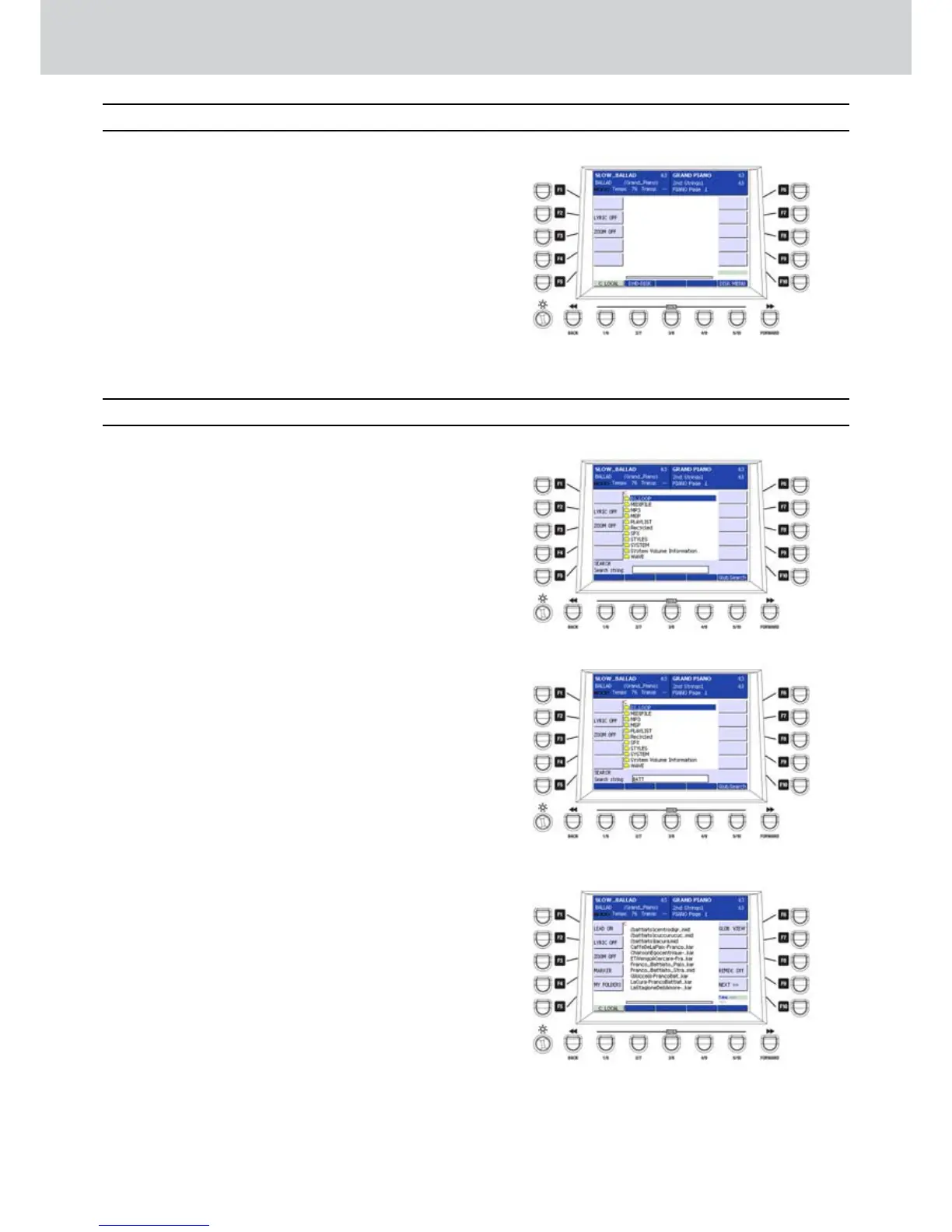
Once you have inserted a USB device into one
of the two USB ports, the USB drive will appear
on the DISK menu, as in Figure 345.
The same functions in the DISK MENU are
available also for the files and folders of the USB
drive.
Audya features a useful SEARCH function in
order to search files stored in the internal disk or
in external USB devices.
Searching a file
▀
Press the SEARCH button.1.
The last accessed directory of the internal disk 2.
will open (Figure 346).
Use the CURSOR3.
§ ¶ or the DATA/VALUE
wheel and the ENTER button to locate a folder
and to search inside.
Digit the full name file, or a part of it, by inputting 4.
letter and numbers directly from the keyboard.
In the example (Figure 347) the input name to
search is “BATT”.
Press the USER 5 button (GLOB. SEARCH) to 5.
start searching.
After a while, a screen by using the search results 6.
will appear. In the example (Figure 348) all the
files containing the text “BATT” have been found.
The files are immediately available to start 7.
playback directly from the search screen.
USB drive
Search
Figure 345
Figure 346
Figure 347
Figure 348
USB drive, Search



 To Next Page