Style View
From the STYLE section on the front panel you
can select a style by using the numeric keypad.
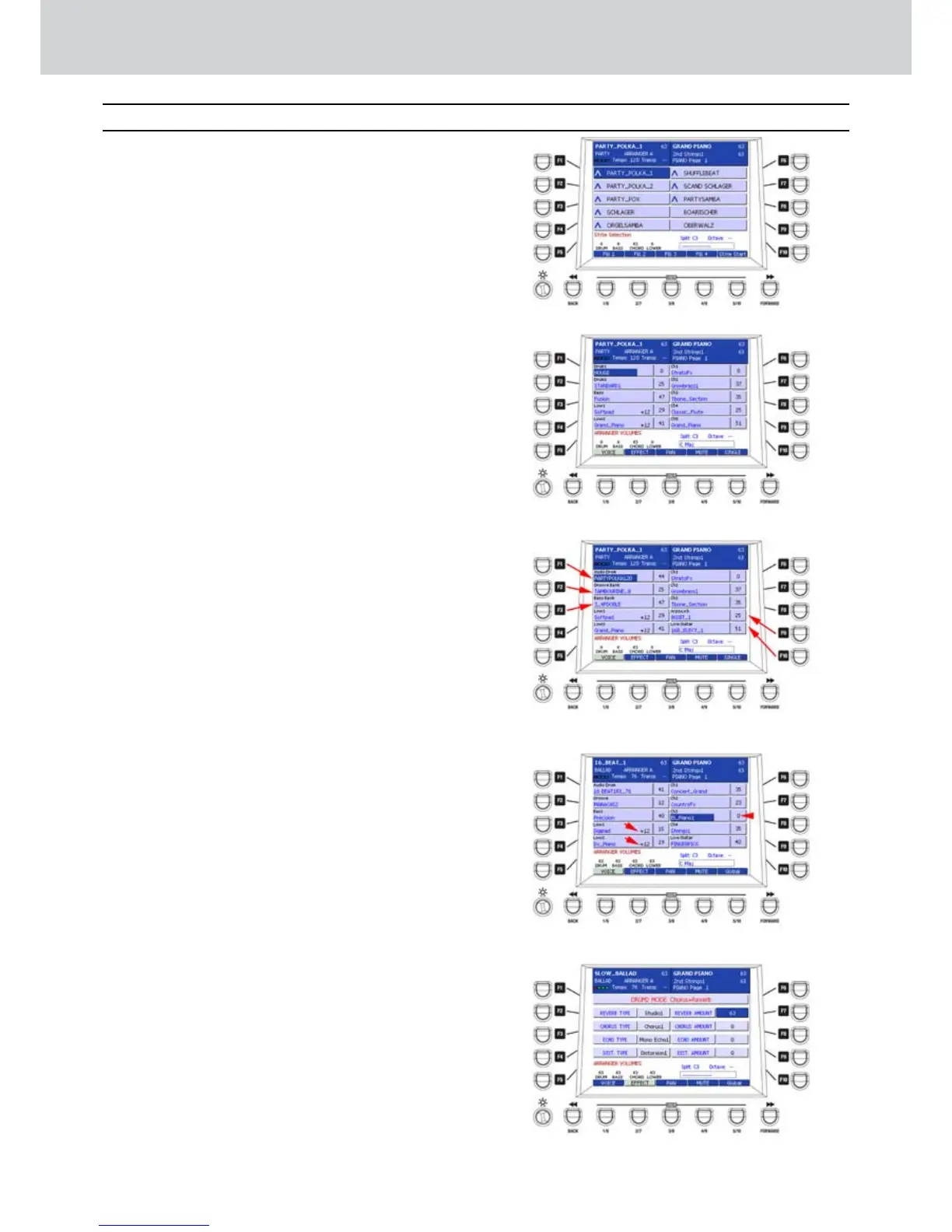
If the style uses an Audio Style Modeling, please
note that a ^ symbol appears before the style
name otherwise the name appears without any
symbol (Figure 124).
In order to view and/or edit the parts of the style,
with or without an Audio Style Modeling, you
can press the STYLE VIEW button of the PLAY
CONTROL section.
In this screen the display shows the 10 parts
of the style currently selected. By pressing
the F1-F10 buttons you can select the
corresponding part of the style (Figure 125 and
Figure 126):
F1–DRUM 1
•
F2–DRUM 2
•
F3–BASS
•
F4–LOW 1
•
F5–LOW 2
•
F6–CH 1
•
F7–CH 2
•
F8–CH 3
•
F9–CH 4
•
F10–CH 5
•
The four buttons, from USER 1 to USER 4 allow
to access to the corresponding edit windows:
VOICE, EFFECT, PAN, MUTE.
VOICE (USER 1)
▀
By pressing VOICE (default selection), you can
set an instrument for each part of the style by
using the DATA/VALUE wheel.
By using the CURSOR
Ó Á
buttons
you can
raise or lower the volume of the part from 0 to 63.
By pressing the
CURSOR
Ó Á
buttons
together
you set the volume of the part to 0.
By using the OCTAVE +/- buttons you can change
the octave of the LOW 1 and LOW 2 parts by +/-
48 semitones, 12 semitones steps (Figure 127).
EFFECT (USER 2)
▀
By pressing EFFECT, you can select and edit the
type and the amount of the effect for each part
(Figure 128). The multieffect unit allows the use
of four effects simultaneously, that is a type of the
effect for all the voices.
Please note that the effects Chorus and Reverb
are available for the drum and percussion parts
(DRUM1 and DRUM2 and/or Audio Drum and
Groove Bank).
Figure 124
Figure 125
Figure 126
Style View
Figure 127
Figure 128



 To Next Page