Audya offers a MIDI REMIX function to replace
the drum track in any MIDI file with the drum
part of an internal Style of Audya, even one with
AUDIO DRUM part.
Making a MIDI Remix
▀
Press the MIDI button in the Player section and 1.
select a MIDI file from the list. In the example, the
file is “Raindrops_Keep_Falli.mid” (123 BPM).
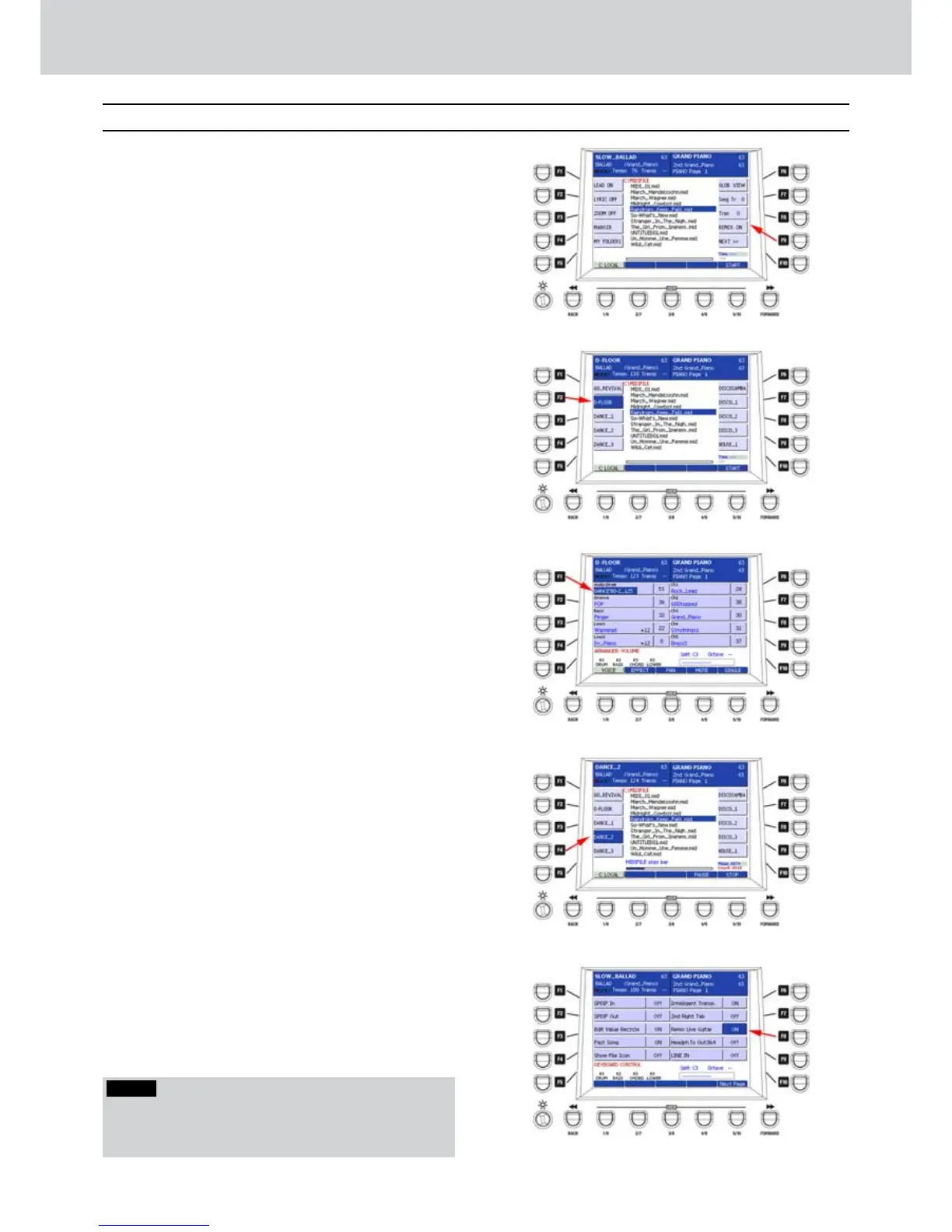
Press the F9 button to enable the REMIX ON 2.
function (Figure 285).
Select a style with approximately the same tempo 3.
(BPM) of the MIDI file. If the tempo differs too
much, a warning message will appear inviting you
to select another style. In the example (Figure
286) the D-FLOOR style has been selected. By
using the STYLE VIEW button and the F1 button
you can also change the drum kit and choose
any AUDIO DRUM groove. In the example (Figure
287) the DANCE’80-2_125 audio groove (125
BPM) has been selected.
Press the USER 5 button (START) to start the 4.
REMIX.
After a while, the START button flashes and you 5.
can start playback the MIDI file with the new
audio drum track, replacing the original drum
track of the MIDI file. That means that the MIDI file
“Raindrops_Keep_Falli.mid” will play with drum
track of the “DANCE’80-2_125” audio groove.
During the playback of the REMIX you can also 6.
change the A, B, C, D variations and the Fills of
the selected style, as well as you can change the
style itself (Figure 288).
Press the SAVE button to save the REMIX file 7.
while the MIDI file and the REMIX are still playing.
Give a name to the file directly from the keyboard 8.
and press SAVE again.
Access the REMIX file (RMX) from the list by using 9.
the wheel or the CURSOR.
Wait a while to load the RMX file and press the 10.
USER 5 button (START). When the START button
flashes, you can start playback the REMIX.
In the same way, you can add to the REMIX also
the track of Live guitar. To do this, you must
enter the menu keyboard CONTROL > UTILITY
and set the REMIX LIVE GUITAR parameter to
ON (
Figure 289
).
In this way, when you start a MIDI REMIX,
besides the audio drum, you can adjust also the
Live Guitar track, by playing on the keyboard just
as with any style.
Figure 285
Figure 286
Figure 287
Figure 288
Figure 289
MIDI Remix
MIDI Remix
NOTE
When you select the styles for REMIX, you must disable
the MY FOLDERS function otherwise they will be
selected by pressing the buttons 0–9.



 To Next Page