Press the USER 5 button (ENTER).8.
Press the F1 button (KEYBOARD) to set the 9.
recording mode from keyboard.
Press the USER 5 button (START REC) or the 10.
ENTER button to start the MIDI recording.
Play the keyboard and/or start the Arranger.11.
Press the USER 4 button (STOP REC) to stop 12.
recording.
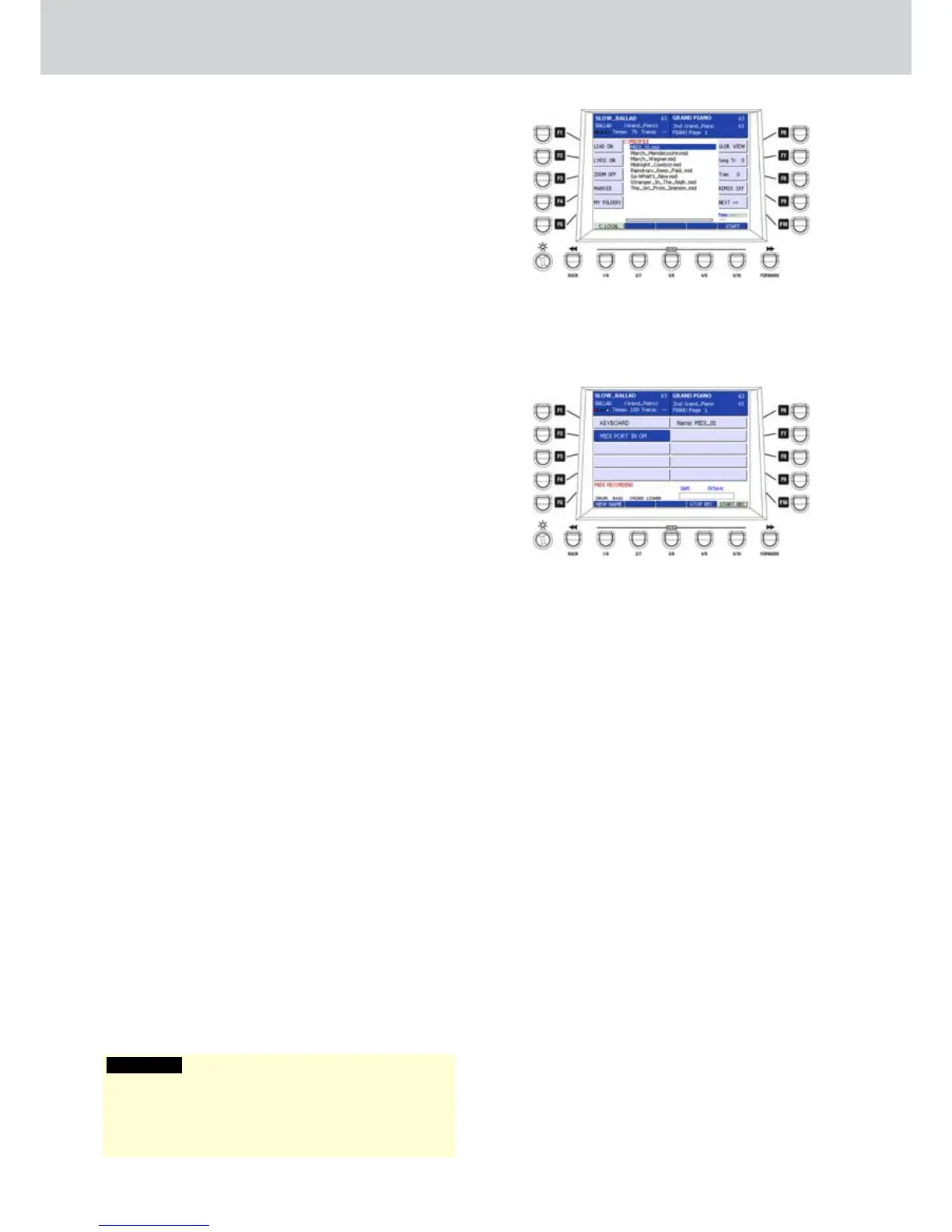
A file in the MIDIFILE folder of the disk will be 13.
created (Figure 283).
Press the START button or the USER 5 button 14.
(START) to start playback of the recorded MIDI
file. To browse and listen the recorded MIDI file,
press the MIDI button in the Player section.
Recording a MIDI file from the MIDI IN port
▀
Press the MENU button and the F9 button 1.
(MIDI RECORDING) to enter the MIDI recording
environment.
You will be prompted to give a name to the file. 2.
Digit the name for the MIDI file, directly from the
keyboard.
Press the F2 button (MIDI PORT IN GM) to set the 3.
data recording mode from the external port (Figure
284).
Press the USER 5 button (START REC) to start 4.
the MIDI recording.
Start the external MIDI sequencer or play any MIDI 5.
keyboard connected to the MIDI IN connector.
Press the USER 4 button (STOP REC) to stop 6.
MIDI recording.
A file in the MIDIFILE folder of the disk will be 7.
created.
To browse and listen the recorded MIDI file, press 8.
the MIDI button in the Player section.
Figure 283
Figure 284
WARNING
If you make a MIDI recording using an Audio Drum part
for the drum, the drum sounds (AUDIO) will not be
recorded into the MIDI recording. If you want to record
an Audio Drum please use the audio recording method.



 To Next Page