Text Scrolling
In addition to the ordinary lyric functions,
showing synchronized text contained in the
Standard MIDI files (karaoke), Audya allows to
synchronize lyric with any audio and MP3 file.
Combining a text file with a MIDI file, an MP3
▀
or a WAVE file
Make the USB connection to access the hard 1.
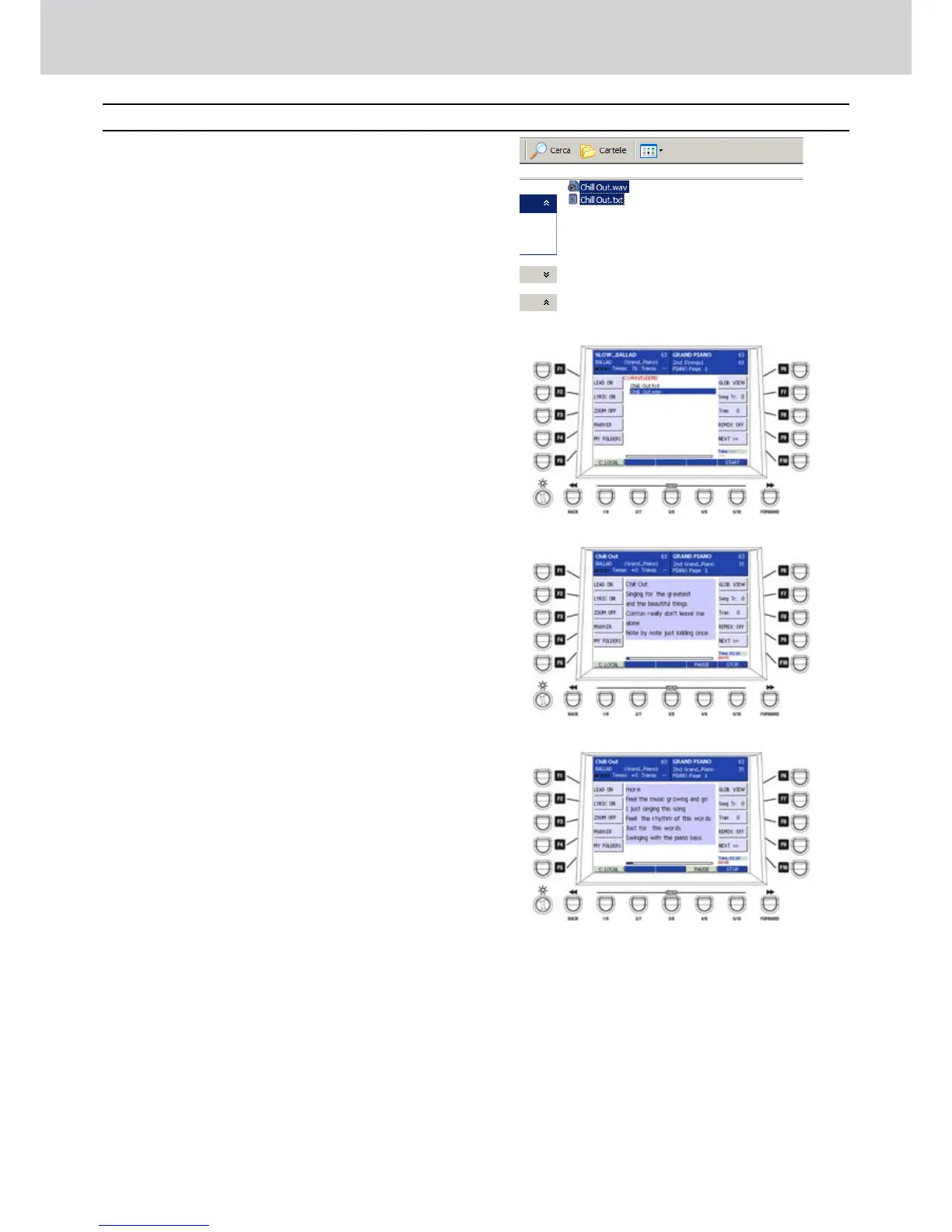
disk of Audya. After connecting, open the WAVE
folder and copy a text file (an ordinary TXT file)
containing the lyric of a song. The name of the
TXT file must be identical to the title of the song
(except the file extension) (Figure 337).
In the example, the text file is “Chill Out.txt”
corresponding to the song “Chill Out.wav”.
After disconnecting properly the USB connection, 2.
press the WAVE button to access the WAVE
folder containing the songs.
Select the song matching the same TXT file and 3.
start playback by pressing the START button
(Figure 338).
Press F2 (LYRIC ON) to show the lyric on the 4.
display (Figure 339).
When necessary, jump to the next page of lyric, 5.
by pressing the CURSOR

button to display the
next lyric page (Figure 340).
Synchronizing the lyric auto-scroll
▀
Playback the WAVE file (MIDI or MP3).1.
Press the RECORD button.2.
Scroll the text pages by pressing the CURSOR 3.

button as necessary.
While the file is still running, press the SAVE 4.
button.
You will be prompted to save the TXT file.5.
Confirm.6.
When you restart the song, the displayed lyric will 7.
change in sync.
Text scrolling
Figure 337
Figure 338
Figure 339
Figure 340



 To Next Page