Main View
From the MAIN VIEW window you can select
directly the WAV file on disc.
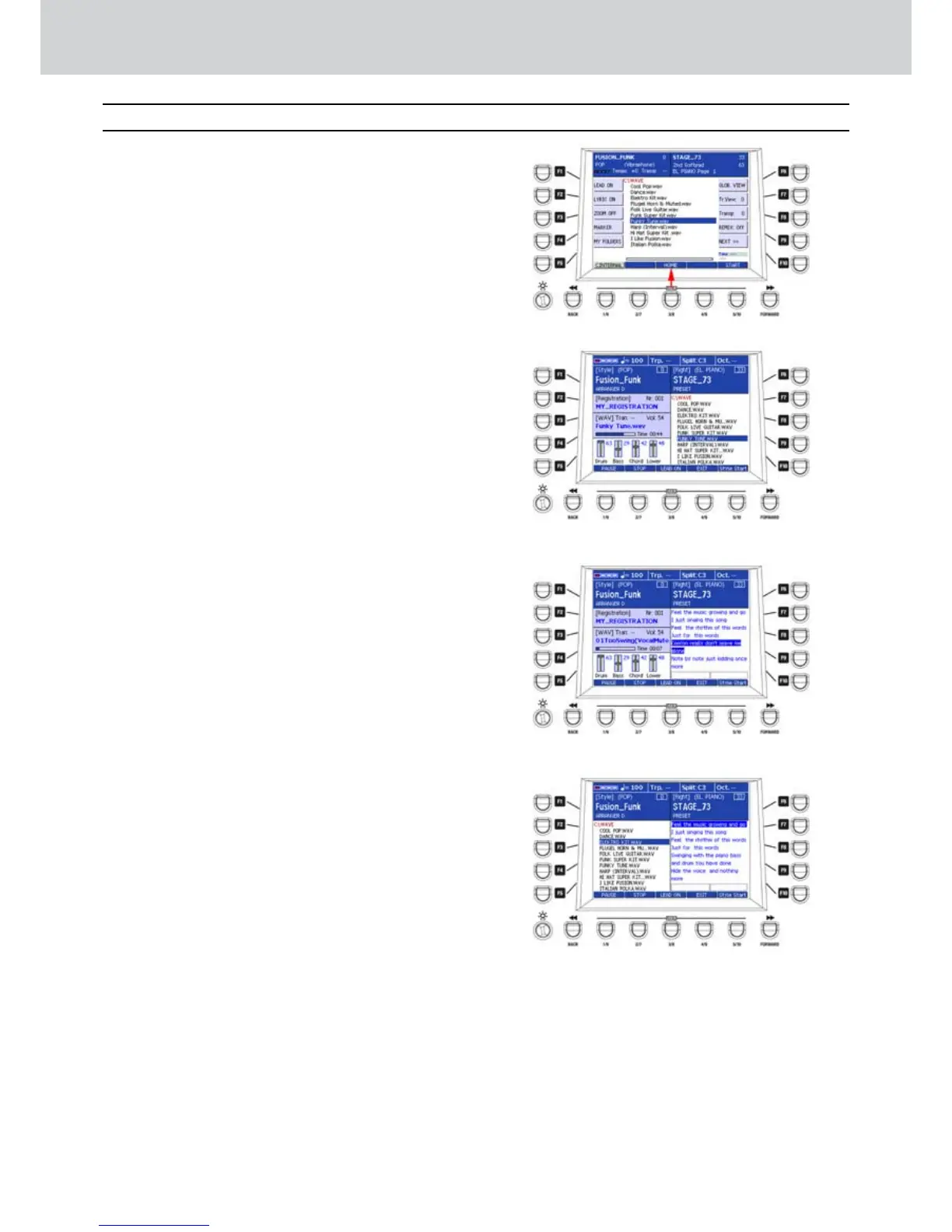
Selecting a WAV file from the MAIN VIEW
▀
The default MAIN VIEW window allows the 1.
selection of MIDI files. For this reason it’s
necessary to press the WAVE button of the
Player. The list of the WAV file of the WAVE folder
will appear (Figure 51).
Select a WAV file from the list using the CURSOR
2.
§ ¶ buttons or the DATA/VALUE wheel. Our
example is “Funky Tune.wav”.
Press the ENTER button to start playback of the 3.
WAV file.
Press the USER 3 (HOME) button to activate the 4.
MAIN VIEW window, as shown by the arrow of
Figure 51.
The MAIN VIEW window will appear and, on the 5.
right side, the list of WAV files on the disc (Figure
52).
If the WAV file contains lyric, the LYRIC window 6.
will appear in place of the list, as illustrated in
Figure 53.
The USER buttons from 1 to 4 in the MAIN VIEW 7.
window will have the following functions:
USER 1: PAUSE/CONTINUE
USER 2: STOP
USER 3: LEAD ON/OFF (melody mute)
USER 4: EXIT (exit from the Lyric or MAIN VIEW
window).
By pressing the F3 button (or F4) a second time 8.
while the WAV file with lyric is playing back or
paused, the MAIN VIEW window is divided into
two sections (Figure 54):
the section LYRIC on the right side.
the list of the WAV files on the disc on the left
side.
In this way, while the current file is playing back, 9.
you can select a file from the list by using the
CURSOR § ¶ buttons or the DATA/VALUE
wheel and start by using the button ENTER.
To return to the main window, press the F3 button 10.
(or F4) again.
Figure 51
Figure 52
Figure 53
Figure 54
WAVE Player (MAIN VIEW)



 To Next Page