Main View
The new MAIN VIEW interface allows to display
all the items of the main screen in a more easy-
to-operate way.
Activating the MAIN VIEW
▀
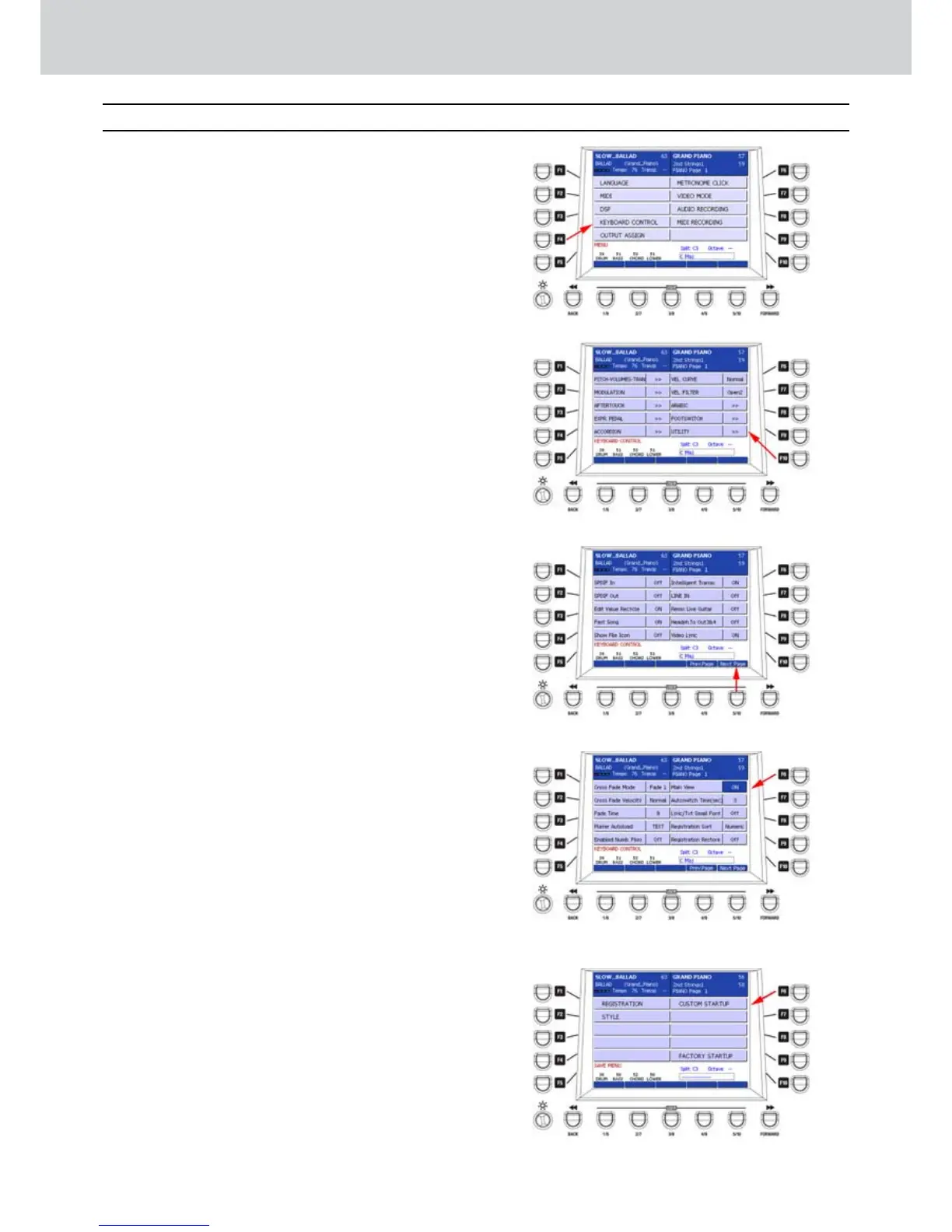
Press the MENU button on the front panel to open 1.
the screen MENU as shown in Figure 35.
Press the F4 button corresponding to KEYBOARD 2.
CONTROL as shown by the arrow in Figure 35.
Press the F10 button corresponding to UTILITY as 3.
shown in Figure 36.
Press the USER button 5 (NEXT PAGE) as shown 4.
in Figure 37.
Press the F6 button to select MAIN VIEW as 5.
shown in Figure 37.
Now you can uIf the DATA/VALUE wheel or the 6.
CURSOR Ó Á to select the value OFF or ON as
shown in Figure 38.
Press the EXIT button to go to the previous 7.
window of the MENU.
Press the MENU button to exit the MENU 8.
environment.
Storing MAIN VIEW at start-up
▀
Once out of the MENU environment, you may want to
store the new MAIN VIEW at start-up of the keyboard.
Press the SAVE button on the front panel. A screen
like Figure 39 will appear. Press the F6 button
corresponding to CUSTOM STARTUP. At start-up the
display will be set to the new MAIN VIEW.
Main View
Figure 35
Figure 36
Figure 37
Figure 38
Figure 39



 To Next Page