By pressing the KEY TUNES button in the
VOICE section, you can assign a song to each
key of the keyboard. You can freely assign
any song of the WAVE folder to any key of the
keyboard.
Creating a KEY TUNE
▀
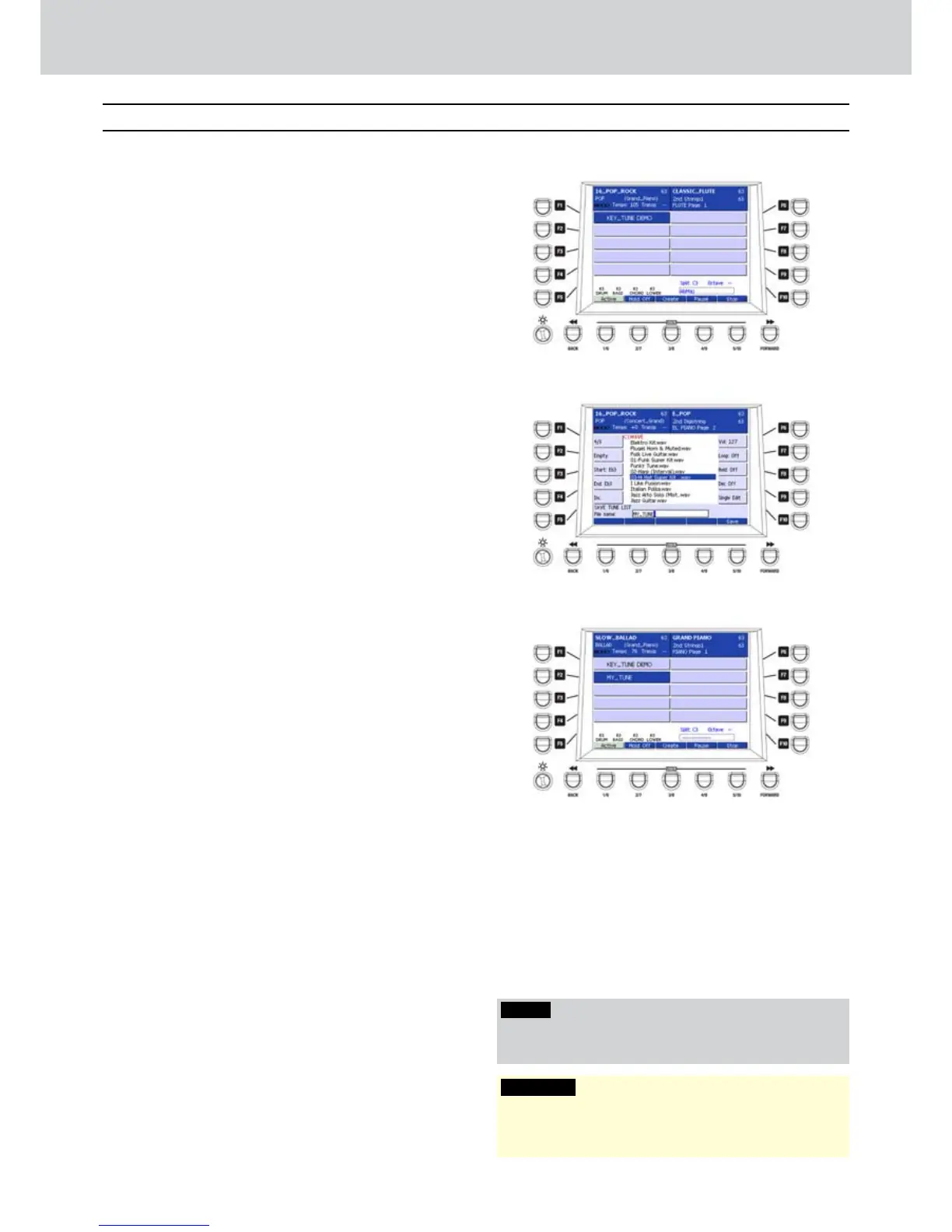
Press the KEY TUNES button. A screen showing 1.
“KEY_TUNE_DEMO” will appear (Figure 119), that
is a demonstration file to understand KEY TUNES
features.
Press the USER 3 button (CREATE) in order to 2.
create a new KEY TUNE.
Select a song from the WAVE folder, by using the 3.
DATA/VALUE wheel or the CURSOR
§ ¶
.
Press the ENTER button to select the song.4.
The song will be automatically assigned to the C3 5.
key of the keyboard.
Select another song and press the ENTER button.6.
The song will be automatically assigned to the 7.
C#3 key of the keyboard.
Continue assigning all the songs that you want to 8.
any key of the keyboard (Figure 120).
Press the USER 5 button (SAVE), to store the KEY 9.
TUNE.
Digit a name on the dialogue box by using the 10.
keys on the keyboard. The example shows
“MY_TUNE”.
Press SAVE again.11.
At this point, the KEY TUNE file named 12.
“MY_TUNE” will appear on the screen (Figure
121).
To remove a song from a KEY TUNE, press the 13.
USER 3 button (REMOVE) below the display.
KEY TUNE parameters
▀
When you create a KEY TUNE from scratch or
edit a previous one, you can set the following
parameters, by using the F1-F10 buttons.
F3 - START: the start note of the trigger
•
interval (e.g. C3). You can set this, by
pressing directly any keys on the keyboard.
F4 - END: the end note of the trigger interval
•
(e.g. F3). You can set this, by pressing
directly any keys on the keyboard.
F5 - INC/DEC: you can set the automatic
•
insertion of the trigger interval by increasing/
decreasing the note automatically. For
example, if you begin from C3 and INC is
set, the next song is assigned to C#3. If DEC
is set, it the next song will be assigned to B2.
F6 - VOL: sets the output volume of the song
•
in the range 0-127.
F7 - LOOP ON/OFF: sets the loop on/off.
•
F8 - HOLD ON/OFF: sets the hold on/off, that
•
means that the song continues playing after
releasing the key, otherwise the song stops.
F9 - DIN: sets dynamic response of the
•
keyboard, that is, the harder you play, the
louder the volume of the song.
F10 - SINGLE/GLOBAL EDIT: sets the
•
changes for a single KEY TUNE or all.
Key Tunes
Figure 119
Figure 120
Figure 121
NOTE
By pressing USER 1 (CLEAR ALL) you will clear all the
songs from the current KEY TUNE.
Key Tunes
WARNING
The Key Tunes feature uses a WAVE track, so if a Key
Tune is playing back, the Wave Player will not work
and viceversa.



 To Next Page