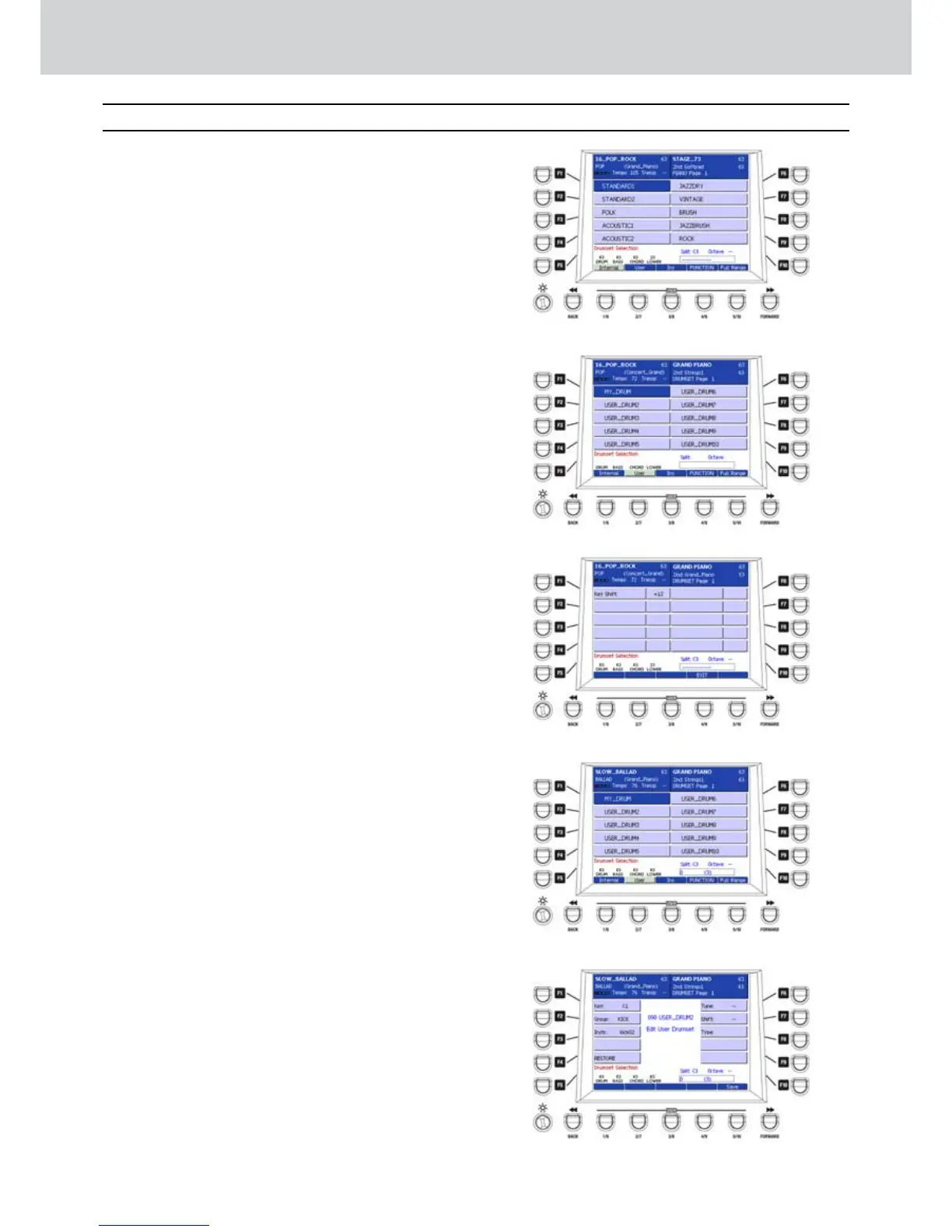
By pressing the DRUM SET button in the PLAY
CONTROL section you can access the screen
where to select one of the available 53 DRUM
SETS plus 20 user sets (
Figure 185)
.
By pressing the F1-F10 buttons you select the
DRUM SET, while the
CURSOR
Ó Á
or the
BACK and FORWARD buttons below the display
allow to access the various pages of the DRUM
SET.
The USER 1-5 buttons will show the
corresponding edit pages: INTERNAL, USER,
INS, FUNCTION, FULL RANGE
INTERNAL (USER 1)
▀
By selecting INTERNAL (default selection), you
can set the DRUM SET among the 53 internal
drum sets.
USER (USER 2)
▀
By selecting USER, you can access the screen
where to select/edit the 20 DRUM SET created by
the user (Figure 186).
INS (USER 3)
▀
By selecting INS you can DRUM SET loaded into
RAM.
FUNCTION (USER 4)
▀
By selecting FUNCTION, you can access the
screen where to set the button SHIFT function
which shift the DRUM SET in the range of +/- 24
semitones (in 12 semitones steps) (Figure 187).
FULL RANGE (USER 5)
▀
By selecting FULL RANGE, you can put the
DRUM SET on the entire keyboard or on the left
split (SPLITTED).
Creating or editing a user DRUM SET
Press the USER 2 button (USER) to enter the user 1.
DRUM SET editing window (Figure 188).
Select one of the 10 USER_DRUM of the first 2.
window by using the F1-F10 buttons, or one of
10 of the second window, accessible by using
the CURSOR
Ó Á
buttons
or the DATA/VALUE
wheel.
Press the EDIT button on the front panel. A 3.
window like Figure 189 will appear
Press F1 (KEY) to select the percussive instrument 4.
to assign to the note played on the keyboard. On
our example is C1 of the KICK percussive group.
If you assign another percussive instrument,
press any other key on the keyboard.
Drum Set
Figure 185
Figure 186
Figure 187
Figure 188
Drum Set
Figure 189



 To Next Page